
Mastering Power BI Embedded Role Based Security for App Developers
Why Power BI Embedded Role Based Security Matters for App Developers
Power BI Embedded role based security is the set of techniques that control which rows, tables, and columns each user sees inside an embedded Power BI report — without requiring those users to have a Power BI license or a Microsoft Entra ID account.
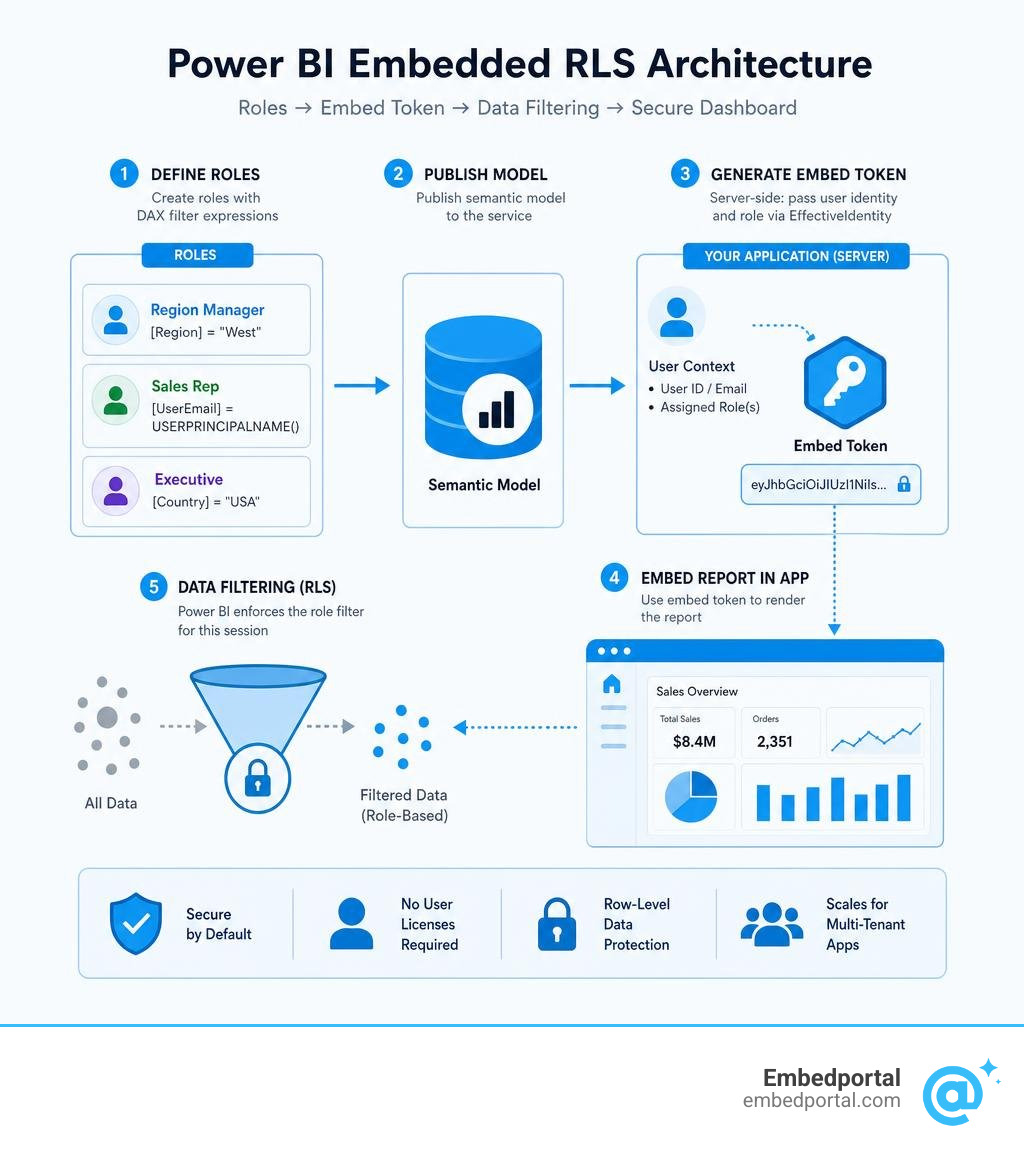
Here is a quick overview of how it works:
- Define roles in Power BI Desktop using DAX filter expressions (static or dynamic)
- Publish the semantic model to the Power BI service
- Generate an embed token server-side, passing the user’s identity and assigned role(s) via an
EffectiveIdentityobject - Embed the report in your app — Power BI enforces the role filter automatically for that session
If you skip any of these steps, one of two things happens: the token generation fails entirely (when using a service principal), or the report loads with no filtering at all — exposing every row to every user.
For SaaS teams embedding dashboards into a branded customer portal, that second outcome is a serious data breach risk. Your customers expect to see only their data, not everyone else’s.
The good news is that Power BI Embedded gives you several tools to get this right — Row-Level Security (RLS), Object-Level Security (OLS), and workspace-based isolation — and the right choice depends on how many customers you serve and how different their data needs are.
This guide walks you through each approach with concrete implementation steps.
Similar topics to power bi embedded role based security:
Understanding Power BI Embedded Role Based Security vs. Power BI Service
To master power bi embedded role based security, we must first understand how security behaves in a custom application compared to the standard Power BI service.
In the standard Power BI service, security is heavily tied to the individual user’s identity. When users log in directly to the Power BI portal, Microsoft Entra ID (formerly Azure Active Directory) authenticates them. Any Row-Level Security (RLS) policies defined in the model are applied based on their Entra ID login.
However, when you embed reports into a custom portal for external customers, requiring every user to sign in with a Microsoft account is usually a dealbreaker. This is where we must distinguish between two primary embedding scenarios:
- User-Owns-Data: This scenario is designed for internal organizational use. Users must sign in with their own Power BI licenses and Entra ID credentials. In this model, RLS works automatically because Power BI knows exactly who is logged in.
- App-Owns-Data: This is the standard ISV (Independent Software Vendor) scenario. Your application authenticates the end users through your own identity provider (like Auth0, Cognito, or a custom database). Your application then uses a single master user or a Service Principal to authenticate with Power BI. Because Power BI only sees your Service Principal, it does not know which of your customers is viewing the report.
To learn more about choosing between these two paths, take a look at our comparison of App Owns Data vs User Owns Data.
When using the App-Owns-Data scenario, assigning users to roles in the Power BI service portal has no effect. Instead, your application backend must act as the gatekeeper. When your backend requests an embed token from the Power BI REST API, it must explicitly state who the user is and what roles they belong to. Power BI then generates an encrypted, short-lived embed token that enforces those exact policies. This process is detailed in the Power BI security overview, which explains how the client APIs append this token to secure every data request.
Static vs. Dynamic RLS in Embedded Analytics
When building role-based security into your semantic models, you can choose between two primary filtering strategies: static RLS and dynamic RLS. Both rely on DAX (Data Analysis Expressions) filters defined in Power BI Desktop, but they handle user identities very differently.
Static RLS involves creating specific, fixed roles for different groups of users. For example, you might define an Eastern US role with a DAX filter like: Region equals East. You would then create a Western US role with a filter like: Region equals West. While this is simple to set up for a few regions or departments, it quickly becomes a maintenance nightmare if you have hundreds of customers or frequently changing user attributes.
Dynamic RLS, on the other hand, uses built-in DAX functions to filter data on the fly based on the identity passed by your application. The most common functions used for this are USERPRINCIPALNAME() and USERNAME(). Instead of creating a role for every single region or customer, you create a single dynamic role (for example, UserFilter) and write a DAX filter like: CustomerID equals USERPRINCIPALNAME(). When generating the embed token, your application passes the specific customer’s ID as the username. Power BI substitutes that value into the DAX function, filtering the data dynamically for that session.
For a deeper dive into setting up these models, explore our guide on Power BI Row Level Security.
To decide which approach is right for your application, consider the following comparison:
- Static RLS: Best for scenarios with a small, fixed number of roles (e.g., Administrator, Manager, Viewer). It is highly straightforward to configure in Power BI Desktop, but it scales poorly. Adding a new customer or region requires modifying the semantic model and republishing it.
- Dynamic RLS: Best for multi-tenant applications and SaaS platforms with hundreds or thousands of users. It requires only a single role definition in the model, making maintenance incredibly simple. However, it requires a user-mapping table in your database or semantic model to resolve user IDs to their permitted data rows.
For step-by-step instructions on setting up these cloud-based filters, you can refer to the official Microsoft documentation on Using standard cloud based row-level security.
Implementing RLS for External Users in App-Owns-Data Scenarios
In an App-Owns-Data scenario, your external users do not need Entra ID accounts, and they do not need to sign in to Microsoft. Your application handles all user authentication. Once a user is logged into your app, your server-side code uses a Service Principal to call the Power BI REST APIs and request an embed token.
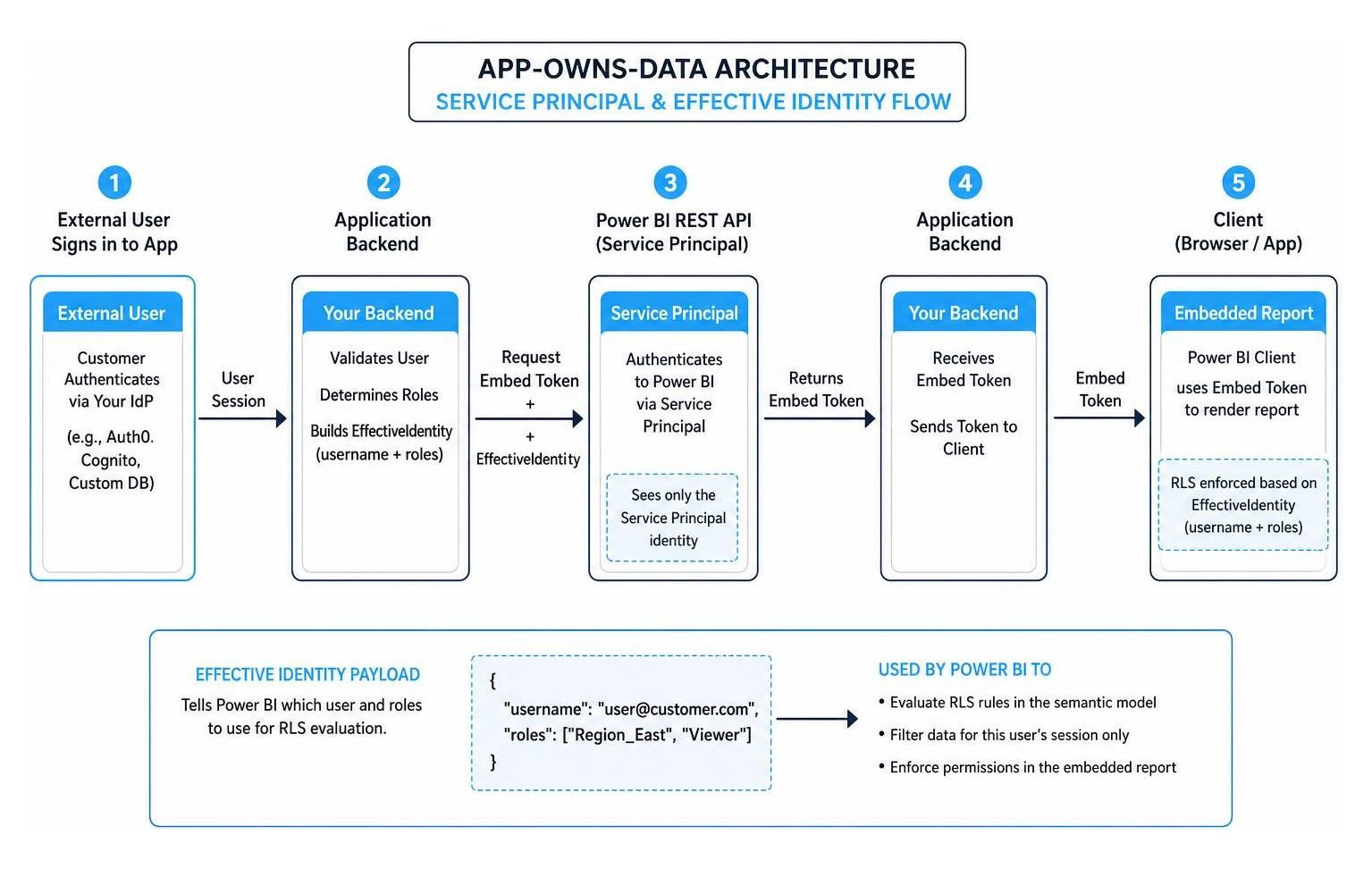
To ensure that the user only sees their authorized data, your backend must supply an EffectiveIdentity object within the token request. The EffectiveIdentity is a payload that tells Power BI: “Even though I am authenticating as a Service Principal, please render this report as if I were this specific user with these specific roles.”
To make this work seamlessly, you must ensure your Service Principal has the correct permissions. It must be added to a security group that has tenant-level permission to use Power BI APIs, and it must be configured as an Admin or Member of both the workspace containing the report and the workspace containing the semantic model.
For more details on managing access for users outside your organization, check out our resource on Power BI External Users.
Configuring the Semantic Model and Generating Tokens with Power BI Embedded Role Based Security
To implement power bi embedded role based security, you must first configure your roles in Power BI Desktop. Open your report, navigate to the Modeling tab, and select Manage Roles. Here, you can create a role and define its DAX rules. For dynamic security, you might set a table filter like: StoreName equals USERNAME(). Once defined, publish the report to your Power BI workspace.
Next, your application backend must handle the token generation. To do this, you will call the GenerateTokenRequestV2 API. This API allows you to request a multi-resource token that covers the report, the dataset, and any target workspaces.
When constructing the request body, you must include the identities array. Each identity object in this array requires:
- username: A string identifying the user. For dynamic RLS, this is the value that USERNAME() or USERPRINCIPALNAME() will return in your DAX expressions.
- roles: An array of strings containing the names of the roles you defined in Power BI Desktop (e.g., “UserFilter”).
- datasets: An array containing the dataset ID that this identity applies to.
For a detailed breakdown of the API payload and parameters, refer to the powerbi-docs/developer/embedded/generate-embed-token.md documentation on GitHub.
If you are using a Service Principal to generate the token, providing these identity parameters is mandatory for any dataset with RLS enabled. If you omit them, the API call will fail with a Bad Request error. If you are using a master user, omitting the identity parameters will succeed, but it will return unfiltered data, exposing your entire database to the user. Always ensure your backend code validates that these parameters are present before making the API call.
To learn more about the complete embedding process, visit our guide on Power BI Embedding.
Advanced Token-Based Identities and AAS in Power BI Embedded Role Based Security
If your application uses Azure Analysis Services (AAS) or SQL Server Analysis Services (SSAS) instead of standard Power BI datasets, the security flow is slightly different. AAS handles dynamic security using the customData DAX function instead of USERNAME().
When setting up your AAS model, you define roles with row filters that call the customData() function. When your backend generates the embed token, you pass the custom data string in the EffectiveIdentity object using the customData property. Power BI then passes this string directly to AAS during the session. That the customData value has a strict limit of 1,024 characters.
For detailed steps on setting up AAS connections, see the Microsoft guide on how to Embed a Power BI report with an AAS database.
For cloud-hosted databases, you can also implement token-based Single Sign-On (SSO). In this scenario, the only supported SSO datasource for App-Owns-Data is Azure SQL Database. Instead of defining RLS inside the Power BI semantic model, you define it directly in your SQL database. When generating the embed token, your application must acquire an Entra ID access token for Azure SQL on behalf of the user and pass it as an identity blob in the datasourceIdentities array. Power BI then passes this token to Azure SQL, executing all queries under the user’s database identity.
To understand how to centralize your security rules across different layers, read about Centralized Row Level Security.
Multitenancy: Workspace Isolation vs. RLS-Based Security
If you are an ISV building a multi-tenant SaaS application, choosing the right tenant isolation model is critical for security, performance, and scalability. The two primary patterns are RLS-based isolation and Workspace-based isolation.

In an RLS-based isolation model, all tenants share a single workspace and a single semantic model. You use dynamic RLS to filter the data so that Tenant A only sees Tenant A’s records.
- Pros: Highly cost-effective and easy to deploy. You only have to manage and update a single report and dataset.
- Cons: As your data grows, a single database or semantic model can hit performance bottlenecks. There is also a slight risk of data leakage if a developer misconfigures the RLS rules.
In a Workspace-based isolation model, you create a separate Power BI workspace for every single tenant. Each workspace contains a copy of the report and a dedicated semantic model pointing to that tenant’s database. To manage this at scale, you use Service Principal Profiles, which allow your application to create and manage thousands of workspaces programmatically.
- Pros: Maximum data isolation and security. Performance is isolated per tenant, and you can easily support custom schema modifications or regional data residency requirements for specific enterprise clients.
- Cons: Higher administrative overhead and complexity. Updating a report layout means programmatically redeploying it across thousands of workspaces.
For a deep dive into implementing these multi-tenant architectures, check out our guide on Multi Tenant Row Level Security.
For large-scale applications, we often recommend a hybrid approach: use workspace-based isolation to separate your largest enterprise customers, and use dynamic RLS within shared workspaces for your smaller, self-service accounts.
Testing, Validation, and Best Practices for Embedded RLS
Before deploying your embedded reports to production, you must thoroughly test your security roles to ensure there are no loopholes.
The first line of defense is Power BI Desktop. You can use the View as Role feature under the Modeling tab to simulate how the report looks for different users. If you are using dynamic RLS, you can check the Other User box and enter a test username to verify that your DAX expressions filter the data correctly.
Once published to the Power BI service, you can validate the roles by navigating to your semantic model, clicking the ellipses, selecting Security, and testing the roles directly in the cloud. However, keep in mind that workspace Admins, Members, and Contributors always bypass RLS filters in the service. To test RLS accurately, you must test with an account that only has Viewer permissions, or test directly through your application’s embed flow.
To ensure your implementation is robust, keep these limitations and best practices in mind:
- RLS does not restrict access to columns or measures. If a user has access to a row, they can see all columns for that row. If you need to hide specific columns, you must use Object-Level Security (OLS).
- Avoid using bi-directional cross-filtering on relationships where RLS is applied, as this can severely degrade query performance and cause unexpected filtering behavior.
- Microsoft 365 groups are not supported for RLS role membership in the Power BI service; use Entra Security Groups instead.
- Always validate that your token-generation backend is securely handling user identities. Never allow the client-side JavaScript to dictate the username or roles passed to the REST API.
For a comprehensive list of optimization tips, read our Row Level Security Best Practices.
Frequently Asked Questions about Power BI Embedded Security
How do you test RLS roles before deploying to production?
You can test roles in Power BI Desktop using the View as Role feature. This allows you to select a specific role or enter a custom username to see exactly what data is displayed. After publishing, you can also use the Test as role option in the Power BI Service under the semantic model’s security settings. For final validation, we recommend testing through a staging version of your embedding application using test accounts with different permission levels.
What happens if you omit the username or role when generating an embed token?
If your application authenticates using a Service Principal, the Power BI REST API will reject the request and return a 400 Bad Request error if you attempt to generate a token for an RLS-enabled dataset without providing a username and role. If you are using a master user account, the API call will succeed, but it will bypass all RLS filters and display the entire, unfiltered dataset to the end user, creating a severe security vulnerability.
Can you use RLS to restrict access to specific columns or measures?
No, Row-Level Security only restricts access to rows of data. If a user has access to a row, they can see all columns and measures associated with it. To restrict access to specific columns, tables, or metadata, you must configure Object-Level Security (OLS) within your semantic model using tools like Tabular Editor, and then publish those rules to the Power BI service.
Conclusion
Implementing power bi embedded role based security is essential for protecting customer data and delivering a seamless, professional experience in your multi-tenant applications. Whether you choose static roles for simple setups or dynamic DAX filtering for large-scale SaaS platforms, securing your embed tokens is the key to maintaining data privacy.
While building and maintaining a custom token-generation backend can be complex and time-consuming, you do not have to do it alone. At Embedportal, we provide a white-label embedding platform that allows your team to embed multi-vendor analytics—including Power BI, Tableau, QuickSight, and Metabase—with unified branding, robust row-level security, and SSO in under an hour.
Let us handle the complexity of token generation, API updates, and multi-tenant security so you can focus on building your core application. Ready to simplify your analytics integration? Explore our Row Level Security solutions today.