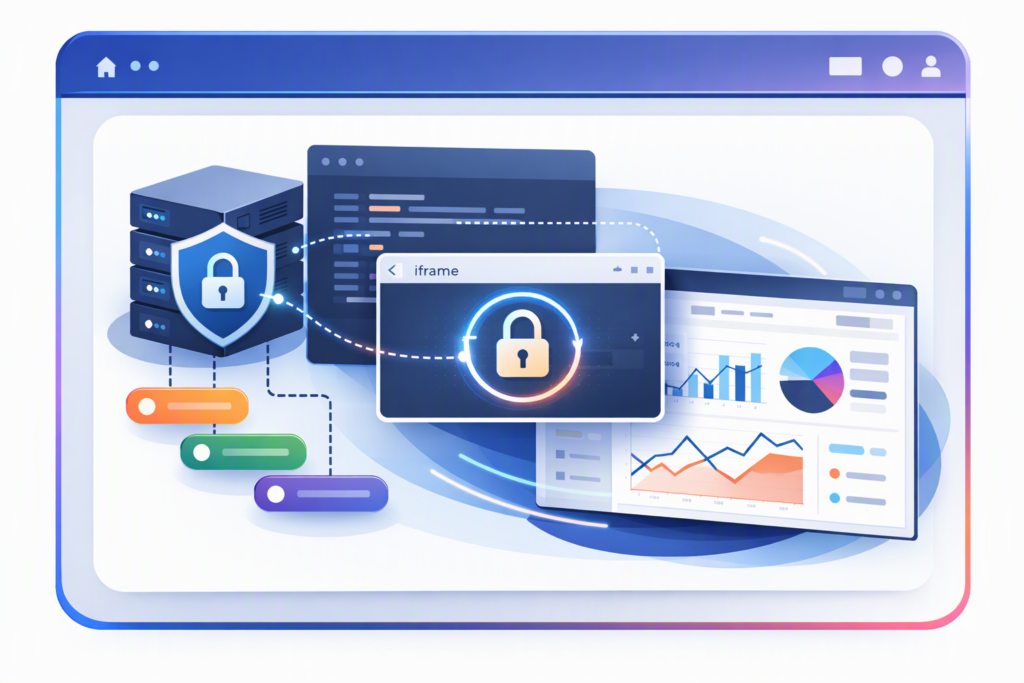
Multi-tenant apps need embedded analytics that stay isolated by tenant and simple for users to access. Amazon QuickSight can do that, but the embedding flow still needs careful session handling, branding, and token management.
How to embed Amazon QuickSight dashboards in a multi-tenant app using session tags: generate a QuickSight embed session for the signed-in user, pass session tags that represent the tenant or user context, and render the dashboard inside your app with the right permissions and data scope. If you want one branded portal to manage that experience across BI tools, Embedportal helps you distribute QuickSight dashboards without rebuilding the delivery layer.
- Session tags help map a user session to tenant-aware access.
- Multi-tenant embedding works best when the app controls identity first.
- A branded portal reduces one-off embed work for each dashboard.
- QuickSight fits best when security and session expiry are explicit.
What does it mean to embed Amazon QuickSight dashboards in a multi-tenant app using session tags?
It means each app user sees the correct dashboard data for their tenant without getting a separate QuickSight account. Session tags are metadata you pass into the embed session so QuickSight can evaluate access in context. The app stays the system of record for identity, while QuickSight handles visualization.
This pattern is common when one product serves many customers, but each customer must only see its own data. It is also useful when you want a single dashboard definition and tenant-specific filtering, rather than many copied dashboards.
Why session tags matter
Session tags let you carry tenant identifiers, user identifiers, or other attributes into the embed session. That makes the access decision explicit and easier to reason about. As a result, you can keep the user experience simple while preserving tenant boundaries.
How do session tags work in Amazon QuickSight embedding?
Session tags are key-value pairs included when you create the embedded session. QuickSight uses them during authorization and filtering, depending on how your data and permissions are modeled. The important point is that the app sends trusted context at session creation time, not in the browser.
For a multi-tenant app, that usually means the backend verifies the signed-in user, determines their tenant, and requests an embed URL or session with the right tags. The browser only receives the final embed result.
A simple session flow
- User signs in to your app.
- Your backend resolves the user’s tenant context.
- Your backend creates the QuickSight embed session.
- Session tags are attached to that request.
- Your frontend loads the dashboard inside the app.
This keeps sensitive logic off the client. It also gives you a clear point to enforce tenant rules before any dashboard renders.
How to embed Amazon QuickSight dashboards in a multi-tenant app using session tags
The cleanest approach is to separate identity, session creation, and rendering. First, authenticate the user in your app. Next, create the QuickSight embed session on the server with the tenant context attached through session tags. Finally, display the dashboard in your branded UI.
If you need a secure QuickSight-specific reference, see The Secure Way to Embed QuickSight Dashboards in Your App. For the multi-tenant angle without provisioning users, QuickSight Multi-Tenant Embedding Without Provisioning Users is a useful companion.
Step 1: Identify the tenant before you request the embed
Your app should know which tenant the signed-in user belongs to. That tenant identifier becomes the anchor for the embed session. Do not let the browser decide this value.
In a SaaS setup, this step is usually straightforward because tenant membership already exists in your application data. The key is to reuse that trusted record when requesting the QuickSight session.
Step 2: Create the embed session on the backend
Keep session creation server-side. That way, your credentials, tenant logic, and access rules remain hidden from the client. This is also where you can apply consistent session expiry and token handling.
For lead teams evaluating embedded analytics architecture, Embed BI Dashboards Like a Pro: A Developer’s Guide gives a broader framework across vendors, and Stop Rebuilding Dashboards and Start Using SaaS BI Embedding explains why many product teams centralize this layer.
Step 3: Attach session tags that reflect tenant context
Pass tags that represent the tenant, account, or other approved attributes needed for access decisions. This is the part that makes the session multi-tenant aware. Use only values that your backend already trusts.
Define the meaning of each tag before you launch. For example, one tag may represent the tenant, while another may support row-level filtering or dashboard scoping, depending on how your QuickSight environment is designed.
Step 4: Render the dashboard inside your app
Once the embed session is created, load the dashboard in your app shell. The user should see your product’s branding, navigation, and context, not a separate analytics destination. That keeps the workflow focused and reduces confusion.
If you are comparing delivery models across BI tools, The Secure Way to Embed Power BI Dashboards in Your App and How to Embed a Power BI Report in Your Web App are helpful references for how other stacks approach the same problem.
What does a secure QuickSight embed architecture look like?
A secure architecture keeps identity, authorization, and rendering in separate layers. Your app authenticates the user. Your backend decides what tenant they belong to. QuickSight receives a short-lived session with the correct context. The browser only renders the result.
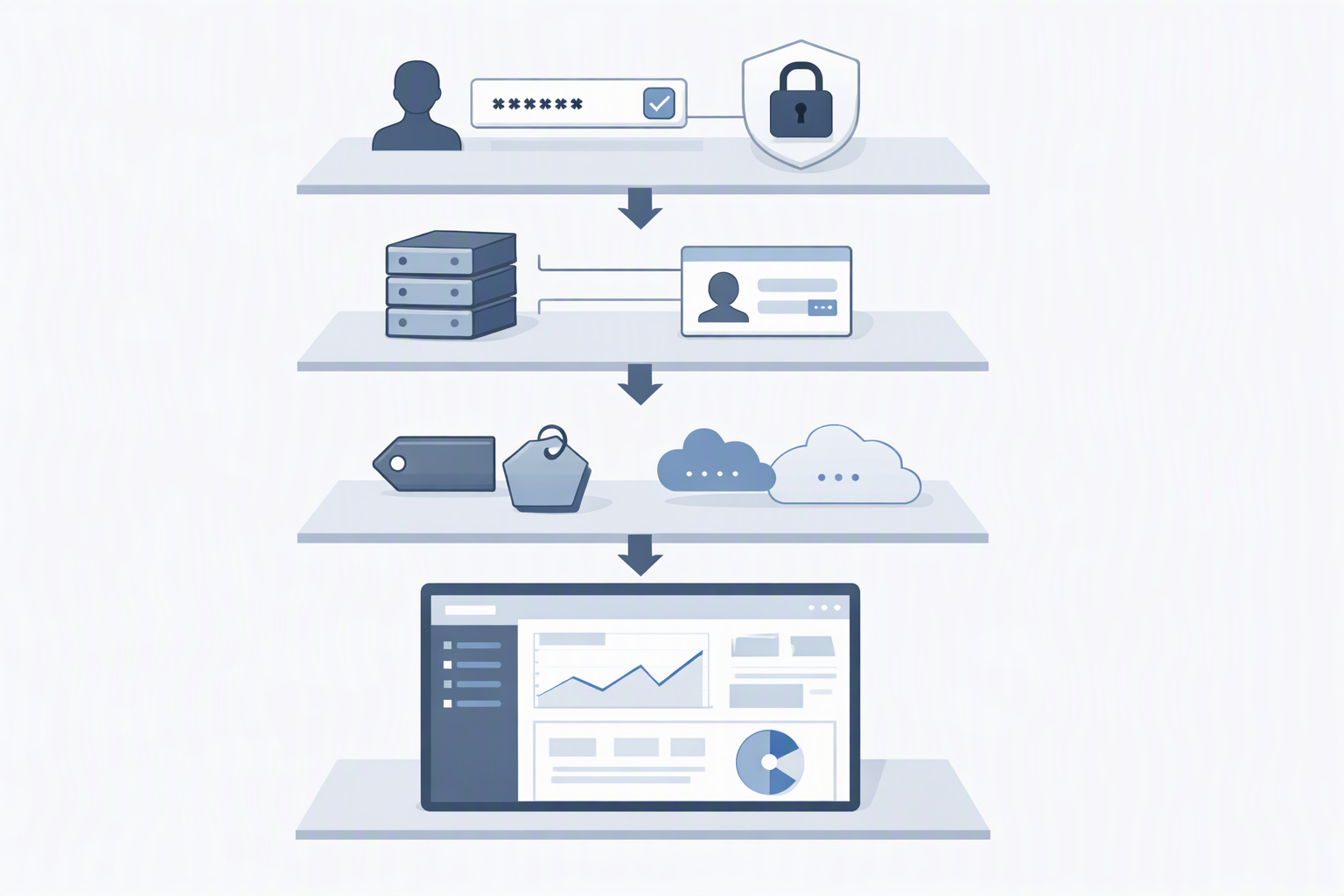
This pattern is easier to audit than a front-end-heavy integration. It also aligns well with product teams that need predictable setup, clear ownership, and minimal moving parts.
| Layer | Role | Why it matters |
|---|---|---|
| App auth | Identifies the user | Prevents anonymous access |
| Backend session creation | Builds the QuickSight embed request | Keeps secrets and tenant logic server-side |
| Session tags | Carry tenant context | Supports tenant-aware access |
| Frontend render | Displays the dashboard | Preserves the app experience |
That separation is also why embedded analytics teams often prefer a dedicated portal layer. It keeps branding, delivery, and access patterns consistent across dashboards and even across vendors.
How can Embedportal help with QuickSight multi-tenant embedding?
Embedportal gives SaaS teams, data teams, and agencies one white-label portal for distributing dashboards from multiple BI vendors, including QuickSight, Tableau, Power BI, and Metabase. Instead of building a custom delivery surface for every dashboard, you use one branded portal to present embedded analytics consistently.
That matters when you manage more than one BI stack or serve multiple customers. It also helps when you want everything an embed needs, and nothing it does not, because the product focus stays on distribution, branding, and secure access patterns.
Where a branded portal fits
Use the portal as the user-facing layer while your BI vendor handles the dashboard engine. That gives you one place to deliver access, maintain branding, and simplify the experience for end users. It is especially useful when your team supports different dashboards for different tenants or business units.
To see the broader platform approach, visit Embedportal and review how the product fits embedded analytics workflows across vendors. If you are comparing options, QuickSight Embedded Alternative is also worth a look.
What should you check before you launch?
Before launch, verify that the tenant mapping is correct, the embed session is short-lived, and the dashboard displays only the intended data. Also confirm that the user experience stays inside your app and that branding matches your product.
It helps to test common edge cases: a user with no tenant, a user who switches tenants, and a session that expires before the page reloads. Those checks catch most integration mistakes early.
Launch checklist
- Confirm tenant identity on the backend.
- Pass only trusted session tags.
- Use short-lived embed sessions.
- Validate the rendered dashboard in your app shell.
- Test expired and invalid session behavior.
If you want a practical starting point for the embed layer itself, the Embedded Analytics Cost Calculator can help frame the build-versus-buy discussion, especially when multiple dashboards or vendors are involved.
When is a white-label portal better than a custom embed build?
A white-label portal is better when you need to ship fast, support multiple BI tools, or avoid rebuilding the same embed plumbing for each dashboard. It is also a strong fit when agencies or SaaS teams want one branded place to distribute analytics.
A custom build can work, but it often expands into auth, theming, session handling, vendor differences, and maintenance. A portal narrows that scope and keeps the embed experience focused.
If you want a concise summary of why teams choose this model, see Securely Embedding Multi-Tenant Dashboards for Fun and Profit. It is a good companion to this use case.
How to embed Amazon QuickSight dashboards in a multi-tenant app using session tags without rebuilding everything
You do not need to recreate the entire analytics stack to make QuickSight work in a multi-tenant app. You need trusted identity, backend session creation, session tags, and a clean branded surface. That is the core of a secure, scalable embed.
Embedportal helps you turn that pattern into a repeatable delivery layer for QuickSight and other BI vendors. If you want to see it in action, visit Embedportal and explore how a white-label portal can simplify embedded analytics for your team.
Frequently Asked Questions
What are session tags in Amazon QuickSight embedding?
Session tags are key-value attributes you pass when creating an embedded QuickSight session. They let your backend attach trusted tenant or user context to the session so QuickSight can evaluate access in context. This is useful for multi-tenant apps because the browser does not control the values.
Do I need to provision QuickSight users for multi-tenant embedding?
No, not necessarily. Many multi-tenant embedding setups avoid provisioning a separate QuickSight user for every app user. Instead, the app authenticates the user, the backend creates the embed session, and session tags carry the tenant context needed for access.
Why should embed session creation happen on the backend?
Embed session creation should happen on the backend because it keeps secrets, tenant logic, and authorization checks out of the browser. The backend can verify the signed-in user, determine the tenant, and request a short-lived session with the right tags before the dashboard loads.
How does a white-label portal help with QuickSight embeds?
A white-label portal gives you one branded place to distribute embedded dashboards instead of building a custom delivery surface for each dashboard. That is helpful for SaaS teams, data teams, and agencies that manage multiple tenants or multiple BI vendors.