
Power BI Embedded RLS Made Easy for Developers
What Is Power BI Embedded Row Level Security (And Why It Matters)
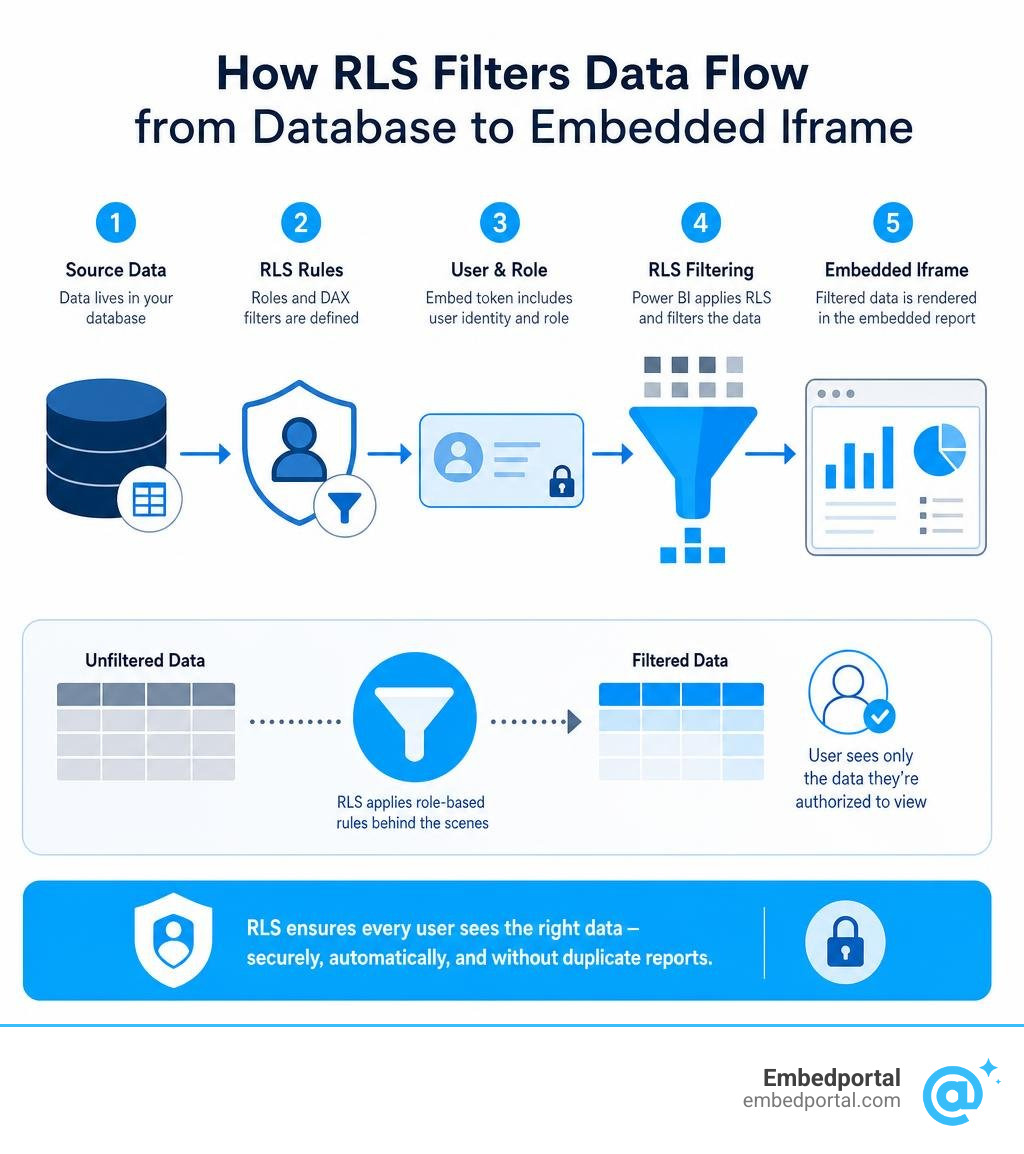
Power BI Embedded Row Level Security is a data access control feature that filters which rows of data each user can see inside an embedded report — without building separate reports for each user.
Here’s the quick version of how it works:
- Define roles in Power BI Desktop using DAX filter rules
- Publish the report to a Power BI workspace
- Generate an embed token that includes the user’s identity and role
- Power BI filters the data automatically before it reaches the embedded iframe
That’s it. One report. One dataset. Different users see different data.
If you’re building a SaaS product that embeds analytics for multiple customers, you’ve likely hit this wall: how do you show each customer only their own data, without duplicating reports or managing dozens of separate datasets?
Row Level Security solves exactly that. A regional sales manager sees only their territory. A customer in France sees only French data. An executive sees everything. All from the same embedded report.
But the implementation has some sharp edges — especially around how the embed token is generated, how external users are handled, and whether to use static or dynamic security rules.
This guide walks through all of it, step by step.
Simple power bi embedded row level security glossary:
Understanding Power BI Embedded Row Level Security
When we talk about Power BI Row Level Security, we are referring to a mechanism that controls data visibility at the database row level. This ensures that even though multiple users query the exact same underlying semantic model, they only retrieve the rows of data that match their assigned roles and permissions.
In a standard enterprise Power BI deployment, security roles are assigned directly within the Power BI Service by mapping Microsoft Entra ID (formerly Azure Active Directory) users or security groups to specific roles. However, in an embedded scenario — specifically when you are building a SaaS application for your customers — the end users do not have Power BI licenses or Entra ID accounts in your tenant.
This is where Security in Power BI embedded analytics diverges. In the App Owns Data scenario, your web application is responsible for authenticating the end user. When your application requests an embed token from Power BI on behalf of that user, it must explicitly pass the security context. This process is called applying an Effective Identity, which instructs Power BI to filter the dataset before sending the rendered report to the user’s browser.
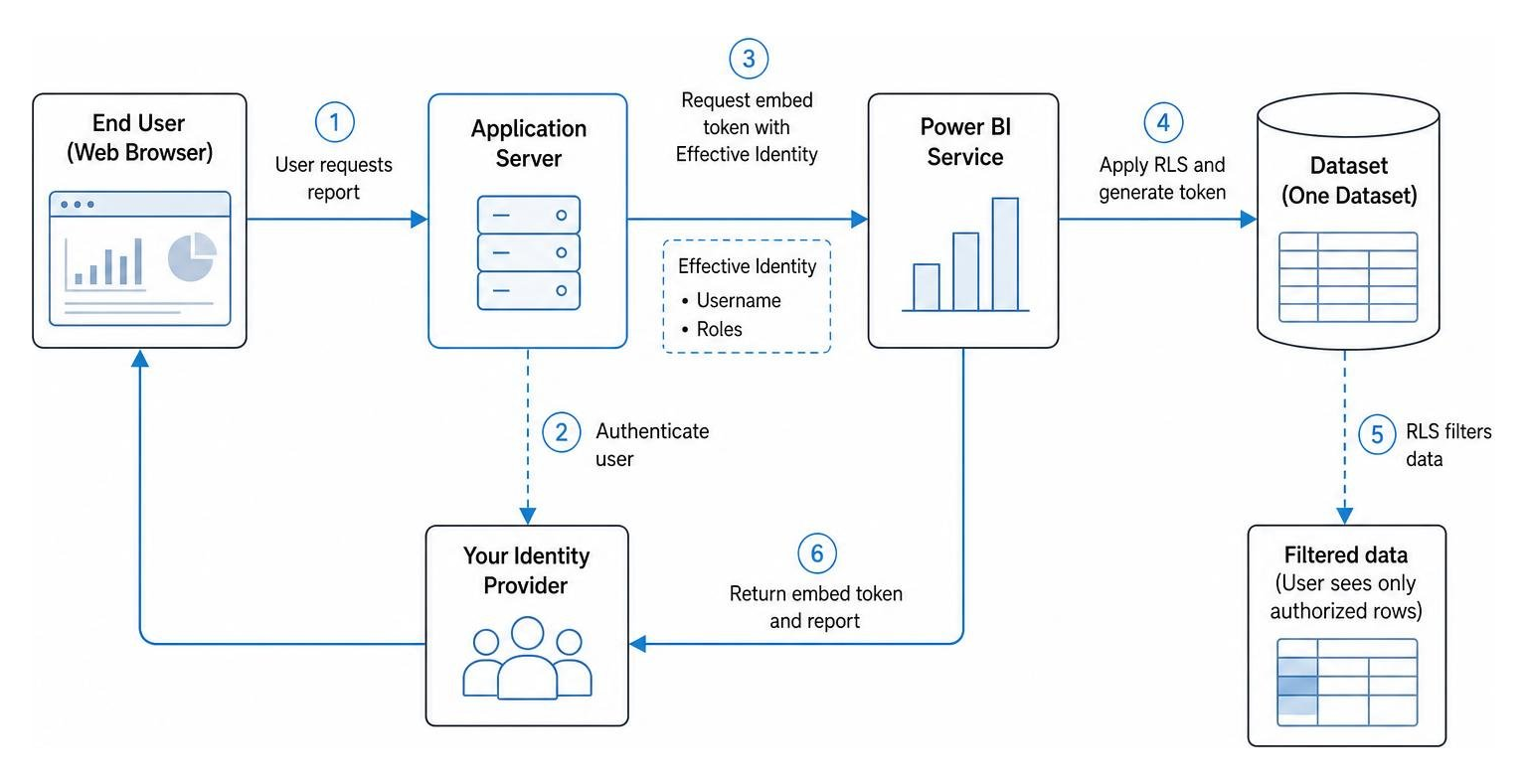
By using this approach, we achieve robust row-level security and data isolation. It guarantees that a user from Customer A cannot access Customer B’s data under any circumstances, even if they manipulate the frontend iframe code. Because the filtering is enforced at the data engine level, the security boundary is absolute.
Static vs Dynamic Power BI Embedded Row Level Security
When implementing Power BI Row-Level Security, you must choose between two main methodologies: static RLS and dynamic RLS. The choice depends heavily on the scale of your application and how many tenants or distinct user access rules you need to support.
Static RLS relies on fixed values defined in DAX (Data Analysis Expressions) filters. For example, you might create a role named Eastern US with a DAX filter like [Region] = “East”. If a user is assigned to this role, they will only see rows where the Region column equals “East”.
Dynamic RLS, on the other hand, utilizes built-in DAX security functions such as username() or userprincipalname() to dynamically evaluate access rules. Instead of hardcoding values, you write a single DAX filter rule like [UserEmail] = userprincipalname(). When you generate the embed token, you pass the actual user’s email as the username parameter. Power BI evaluates the expression at query time and filters the data accordingly.
To help you decide which approach fits your architecture, we have summarized the key differences:
- Static RLS: Uses fixed DAX filters (e.g., [Region] = “East”). It requires creating a separate role in Power BI Desktop for every distinct filter value. This approach is highly complex to maintain when serving many users or organizations, but it is excellent for small-scale ISVs serving one or a few large enterprise customers with simple, department-specific data access needs.
- Dynamic RLS: Uses dynamic DAX functions like username() or userprincipalname() to resolve identity at query time. It allows you to manage data for thousands of tenants with a single, unified role. This method is highly scalable, extremely easy to maintain, and is the industry standard for modern embedded analytics for SaaS platforms.
For those using Azure Analysis Services (AAS) as their data source, dynamic security can also be achieved using the customData function. This function allows you to pass custom strings up to 1,024 characters in length through the embed token, which can then be parsed by your DAX filters to apply complex, multi-layered security rules.
Workspace-Based Isolation vs Multi-Tenant Row Level Security
When designing a multi-tenant SaaS application, developers often debate whether to use Multi-Tenant Row Level Security within a single shared semantic model or to separate customers completely using workspace-based isolation.
With workspace-based isolation, every tenant gets their own dedicated Power BI workspace, report, and semantic model. This is often implemented at scale using Service Principal Profiles. Under this model, the service principal creates and manages separate workspaces for thousands of customers. This provides maximum data isolation, making it highly suitable for enterprise clients with strict regulatory compliance requirements.
However, managing thousands of separate datasets can introduce significant operational overhead and increase your Power BI Embedded pricing costs. It also makes updating report layouts or database schemas more complex, as changes must be propagated across all workspaces.
By contrast, using a single shared workspace with dynamic RLS allows you to serve all tenants from a single report and semantic model. This drastically simplifies deployment pipelines and reduces maintenance efforts. The trade-off is that you must be absolutely certain your RLS implementation is flawless, as a misconfiguration could theoretically expose one tenant’s data to another.
In practice, many large-scale ISVs choose a hybrid approach: they use workspace-based isolation to separate their largest enterprise clients, while grouping smaller customers into a shared workspace secured by dynamic RLS. This balances security, maintainability, and resource utilization.
Step-by-Step Implementation for App Owns Data Scenarios
Implementing RLS in an App Owns Data vs User Owns Data scenario requires a coordinated effort between report design in Power BI Desktop and backend code on your web server.
In this section, we will walk through the exact prerequisites and configuration steps to implement Using standard cloud based row-level security with embedded content in your custom application.
Prerequisites for Power BI Embedded Row Level Security
Before writing any code or defining security roles, ensure you have the following prerequisites in place:
- Power BI Desktop: The latest version installed on your local machine to design the report and define security roles.
- Power BI Embedded Capacity: A dedicated capacity (A-SKU, EM-SKU, or P-SKU) to host your workspaces in production.
- Service Principal: An Azure Entra ID application registration configured as your master authentication method. This service principal must be granted member or admin permissions in both the dataset and report workspaces.
- Tenant Admin Settings: Ensure that the “Allow service principals to use Power BI APIs” setting is enabled in your Power BI tenant admin portal.
Defining Roles and Rules in Power BI Desktop
To configure dynamic RLS, we must build a relationship between our user mapping table and our core business data tables inside Power BI Desktop.
- Open your report in Power BI Desktop and navigate to the Model View.
- Ensure there is a direct relationship between your user security table (e.g., a Contact or User table) and your main reporting tables.
- Edit the relationship and set the Cardinality to Many-to-One, and critically, change the Cross filter direction to Both. You must also check the box to Apply security filter in both directions. This ensures that filtering the user table automatically propagates filters to your fact tables.
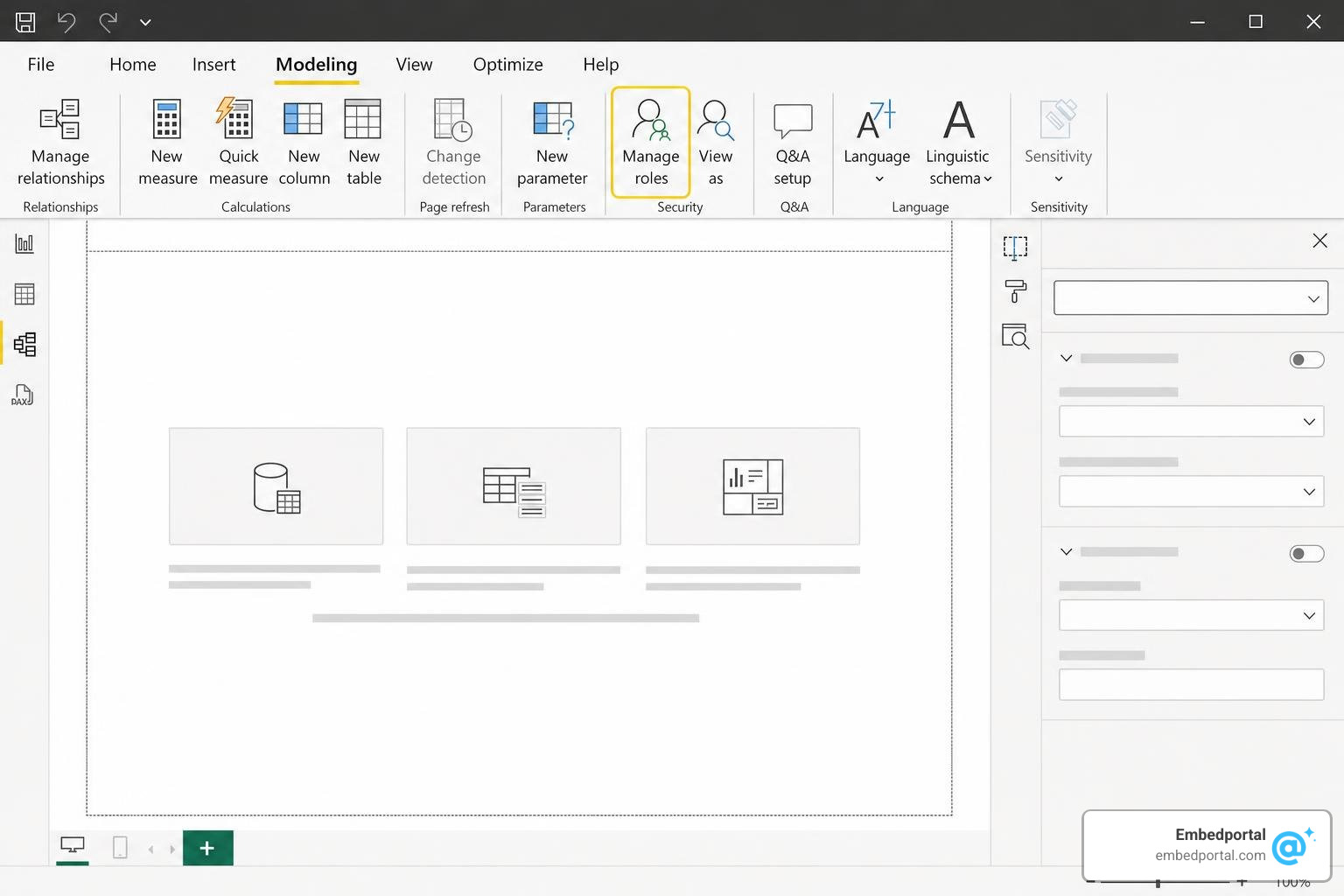
- Navigate to the Modeling tab and click on Manage Roles.
- Click Create to define a new role. Let’s name it DynamicUserRole.
- Select your user security table and enter a DAX filter expression. For dynamic RLS, use:
[Email] = userprincipalname()or[Username] = username(). - Click Save to store the role definition.
If you are embedding reports in environments like Power Pages, the username() function will automatically map to the external identity table. For standard custom web apps, userprincipalname() or username() will simply resolve to whatever string value you pass in your backend API call when generating the embed token.
Testing and Validating RLS Configurations
Before publishing your report to the cloud, you must verify that your security filters behave exactly as expected.
- In Power BI Desktop, go to the Modeling tab and click View as.
- In the dialog box, check the box for Other user and enter a test email address that exists in your database.
- Check the box for your newly created DynamicUserRole and click OK.
- The report layout will refresh. Verify that the visuals only display data associated with that specific user.
- Once validated locally, publish the report to your dedicated Power BI workspace.
Assigning users directly to roles inside the Power BI Service security settings is completely unnecessary for embedded scenarios. When using an embed token in an App Owns Data setup, the security roles mapped in the cloud portal are ignored; instead, the security context is applied dynamically via the embed token API.
Generating Embed Tokens with Effective Identities
Once your secured report is published, your backend application must generate an embed token that contains the user’s specific security context. This is achieved by passing an Effective Identity object to the Power BI REST API.

When calling the GenerateTokenRequestV2 endpoint, you must include the identities array in the request body. If you are using a service principal to generate the token, omitting this identity array while attempting to load an RLS-enabled report will cause the API call to fail. If you are using a master user account, omitting the identity will succeed but will return completely unfiltered data, creating a severe security vulnerability.
The EffectiveIdentity object requires three primary parameters:
- username: A string representing the identity of the user. For dynamic RLS, this is the value that will be returned by the username() or userprincipalname() functions in your DAX expressions.
- roles: An array of strings containing the exact names of the security roles you defined in Power BI Desktop (e.g., [“DynamicUserRole”]).
- datasets: An array of string IDs representing the datasets to which this security identity applies.
In C#, building this request involves creating an EffectiveIdentity object and adding it to the GenerateTokenRequestV2 payload:
- Set the Username property to the active user’s identifier (such as their email address or tenant ID).
- Add the role name to the Roles collection.
- Assign the target Dataset ID.
- Call the GenerateTokenInGroupAsync API to retrieve the secure embed token.
For paginated reports, the process is slightly different. Paginated reports are built on the SQL Server Reporting Services (SSRS) engine rather than Analysis Services. To apply RLS to a paginated report, you must define a parameter mapped to the built-in UserID field, and then pass the target username value in the effective identity when calling the Reports GenerateTokenInGroup API.
Handling External Users Without Azure AD
A major benefit of Power BI Embedding for customers is that external users do not need to be invited to your Azure AD / Entra ID tenant, nor do they require individual Power BI licenses.
Because your web application acts as the single point of authentication, you can utilize any identity provider (such as Auth0, Okta, or a custom SQL user database). Once your application verifies the user’s login, your backend code maps their local session details to the appropriate username and role parameters, generates the secure embed token, and passes it to the frontend Power BI JavaScript API.
This completely isolates your external users from Azure, eliminates licensing friction, and ensures that Power BI External Users enjoy a seamless, secure, and white-labeled experience.
Frequently Asked Questions about Power BI Embedded RLS
Does assigning users to roles in the Power BI Service affect embedded RLS?
No. In the App Owns Data scenario, any role assignments made within the Power BI Service security settings are entirely ignored. The security context is determined solely by the Effective Identity parameters passed in the API request body when your application generates the embed token.
How do you handle RLS for external users who are not in your Azure AD tenant?
You do not need to register external users in your Azure AD/Entra ID tenant or assign them Power BI licenses. Your application authenticates these users independently. When they request a report, your backend generates an embed token using its own Service Principal credentials, passing the external user’s unique identifier as the username in the effective identity.
What are the key limitations of using RLS with embed tokens?
- Single Identity Limit: You can only pass one username per dataset identity in a single embed token request.
- Token Expiry: Embed tokens are temporary security keys and must be refreshed periodically by your application.
- Direct Query vs Import: If your dataset uses Direct Query, ensure your database connection credentials are fully configured in the workspace gateway or cloud credentials, as RLS filters are processed directly on the source database.
- AAS Length Limit: If using Azure Analysis Services with customData, the passed string must not exceed 1,024 characters.
Conclusion
Implementing power bi embedded row level security is a foundational step in delivering secure, personalized, and professional analytics to your clients. By mastering the differences between static and dynamic RLS, structuring your DAX models correctly, and generating secure embed tokens via effective identities, you can build a robust security architecture that scales effortlessly.
However, writing custom code to handle token generation, managing token lifecycles, and configuring complex multi-tenant RLS rules can quickly consume valuable engineering resources.
This is where Embedportal can help. As a premier white-label embedding platform, Embedportal enables SaaS teams to embed multi-vendor analytics — including Power BI, Tableau, Metabase, and QuickSight — with unified branding, centralized row-level security, and seamless SSO integration in under an hour. We eliminate the complexity of backend API integrations, allowing you to focus on delivering insights rather than managing infrastructure.
Ready to simplify your analytics deployment? Secure your embedded analytics with Embedportal today, or explore our pricing and book a live demo to see our platform in action.