
The No-Nonsense Guide to Power BI Multi-Tenant Security
Why Power BI Multi-Tenant Embedding Is Hard to Get Right
Power BI multi-tenant embedding is the practice of delivering isolated, secure Power BI reports and dashboards to multiple customer organizations — each seeing only their own data — from a single application and Power BI tenant.
Here’s the quick answer on how it works:
- Choose an isolation model — workspace-per-tenant (recommended) or a shared dataset with Row-Level Security (RLS)
- Pick an embedding identity — service principal (recommended for production) or master user account
- Scale beyond 1,000 tenants — use service principal profiles, which allow up to 100,000 isolated workspaces under one Microsoft Entra app registration
- Generate embed tokens — your backend acquires a token and passes it to the Power BI JavaScript SDK so users never need a Power BI license
- Enforce data isolation — set the effective identity on each embed token to restrict what each tenant’s users can see
If you’re building a SaaS platform that needs to show each customer their data inside your product, you already know the problem.
You need full data isolation. You need it to scale. And you need it without managing hundreds of separate Azure app registrations or blowing past platform limits you didn’t know existed.
The challenge is real: Power BI imposes a 1,000-workspace limit per embedding identity to protect performance. Exceed it, and your application moves into an unsupported state. For an ISV serving dozens — let alone thousands — of customers, that ceiling appears fast.
Then there’s the credential problem. Data source credentials in Power BI are scoped to the service principal, not the workspace. Without the right architecture, one tenant’s credentials can inadvertently bleed into another’s refresh cycle. That’s a serious security risk most teams discover too late.
The good news: Microsoft’s service principal profiles feature was built specifically to solve these problems — letting a single service principal manage up to 100,000 isolated customer workspaces without requiring separate Entra app registrations or complex pooling schemes.
This guide walks through everything: the right architecture, how profiles work, how to enforce RLS, and how to automate the full tenant lifecycle.
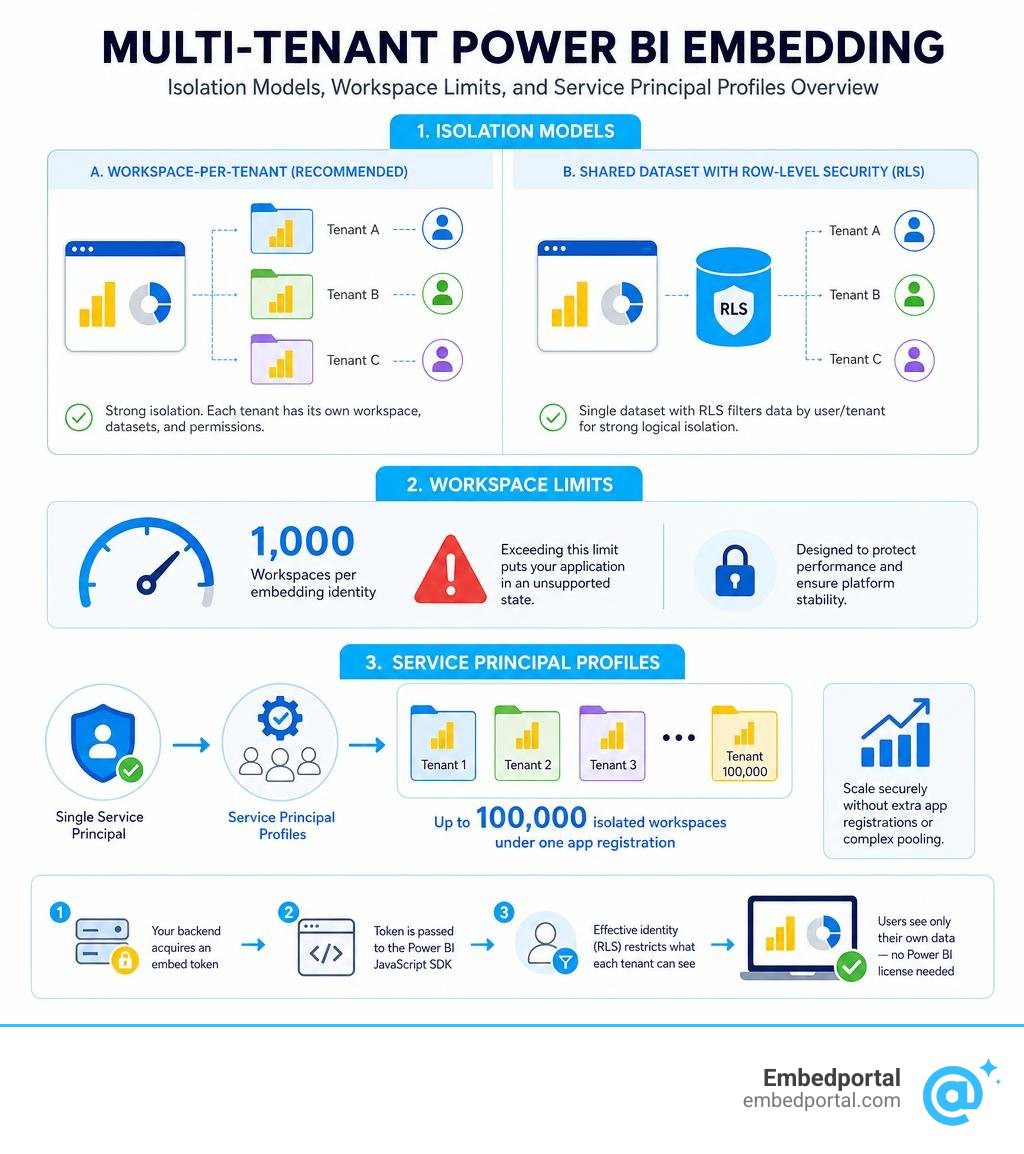
Simple guide to power bi multi tenant embedding terms:
Architecting Power BI Multi-Tenant Embedding for Scale
When building a SaaS application with integrated analytics, the first and most critical decision is how to structure your multi-tenant reporting environment. You must choose between separating customer data at the workspace level or sharing a single workspace and using Row-Level Security to filter the data.
For most enterprise software vendors (ISVs), the workspace separation model is the gold standard. In this architecture, we provision a dedicated Power BI workspace for each customer tenant. This provides physical separation of reports, dashboards, and semantic models. It ensures that one customer’s analytical assets are completely isolated from another’s, drastically reducing the risk of accidental data leaks.
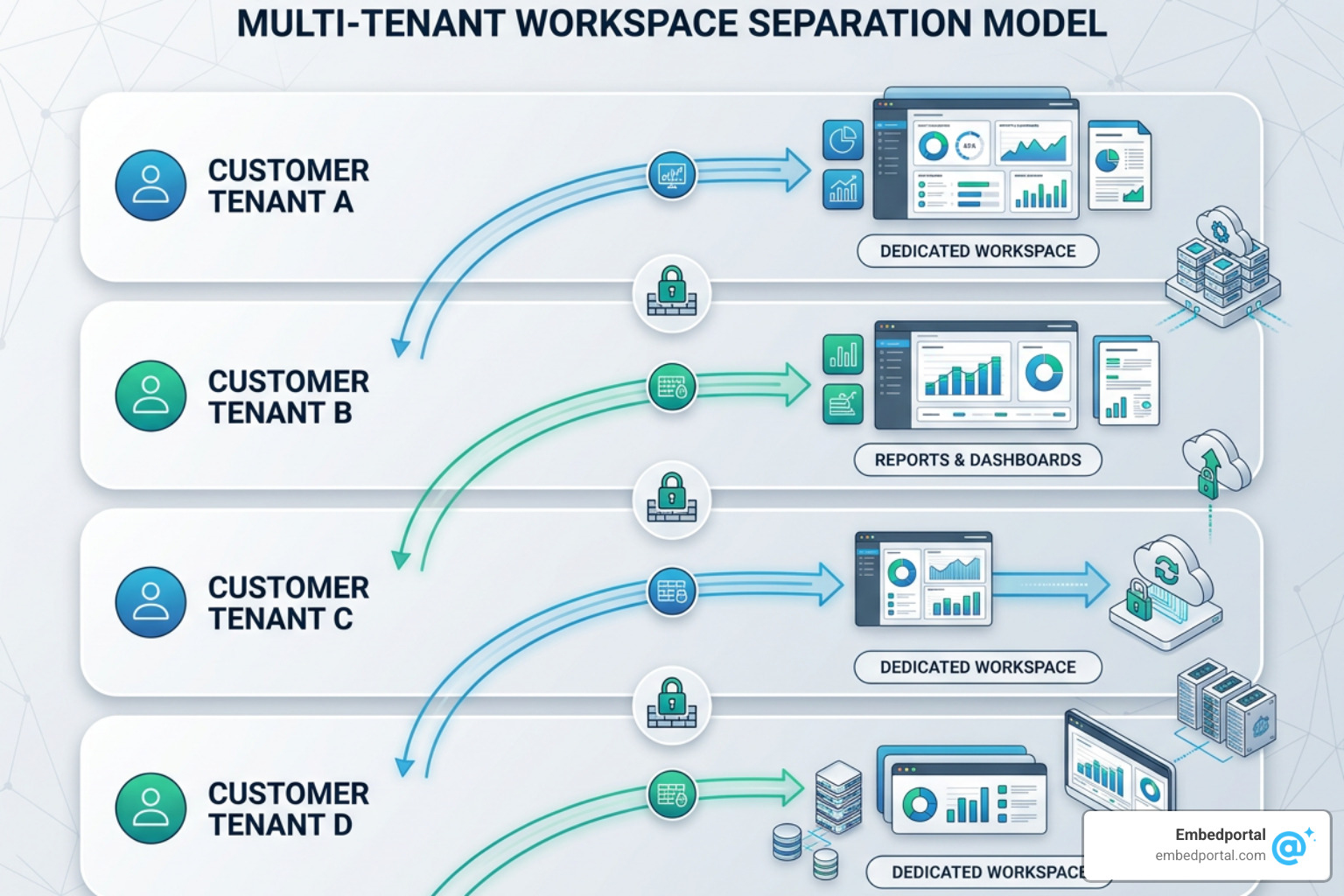
This workspace separation model is highly recommended by Microsoft for robust tenant isolation. To understand how to structure this effectively, you can read the official guide on how to Develop scalable multitenancy applications with Power BI embedding – Power BI | Microsoft Learn.
By adopting this model, you also gain the flexibility to allocate different workspaces to different capacities. This means you can host high-volume premium customers on a dedicated, high-performance capacity while keeping smaller customers on a shared, cost-effective capacity. For a deeper look into designing these structures, explore our comprehensive breakdown of Power BI Multi-Tenant Analytics.
Understanding the App-Owns-Data Pattern
To embed Power BI content into a SaaS application where end users do not have their own Power BI licenses, you must use the App-Owns-Data pattern. This is also referred to as the “embed for your customers” scenario, where Power BI acts as a Platform-as-a-Service (PaaS) solution.
In this model, your application is responsible for authenticating users and determining what data they are allowed to see. The end users do not log into Microsoft Entra ID (formerly Azure Active Directory) to view the reports. Instead, your application uses non-interactive authentication via a designated master identity — ideally a service principal — to communicate with the Power BI REST APIs on behalf of the application.
The authentication flow works like this:
- The end-user logs into your SaaS web application.
- Your application backend authenticates with Microsoft Entra ID using the service principal’s client credentials (client ID and client secret or certificate) to acquire an Entra access token.
- Your backend calls the Power BI REST API using this access token to request a short-lived, highly restricted “embed token” for the specific report and semantic model.
- The backend passes this embed token to your frontend, which uses the Power BI JavaScript SDK to securely render the report inside an iframe.
Using a service principal for this process is highly recommended over a master user account for production environments. It offers superior security, better automation capabilities, and eliminates the risk of multi-factor authentication (MFA) breaking your automated login scripts. To understand the differences between these approaches, read our guide on App Owns Data vs User Owns Data.
Overcoming the 1,000-Workspace Limit in Power BI Multi-Tenant Embedding
While the workspace separation model is ideal for security, it historically introduced a major technical bottleneck: the 1,000-workspace limitation per embedding identity.
To maintain high performance and quick response times, the Power BI service restricts any single security identity (such as a standard service principal) from accessing or managing more than 1,000 workspaces. If your service principal becomes a member of 1,001 workspaces, your application enters an unsupported state, and API requests will begin to fail or experience severe latency.
This limitation exists because Power BI maintains a complex Access Control List (ACL) in its authorization subsystem. When an identity makes an API call, the system must evaluate its permissions across all associated workspaces. As the number of workspaces grows, this evaluation time degrades exponentially. In fact, a service principal that belongs to only one workspace executes REST API calls significantly faster than one that is a member of 100 or 1,000 workspaces.
To scale beyond this limit, Microsoft introduced service principal profiles. This feature allows a single parent service principal to programmatically create and manage up to 100,000 separate profiles. Each profile acts as a distinct security identity within the Power BI subsystem and can own its own dedicated workspace. By assigning exactly one workspace to each profile, you keep the workspace membership count per identity at exactly one, ensuring optimal API performance and unlocking massive scale.
For more details on setting up this mechanism, refer to the documentation on Service principal profiles for multitenancy apps in Power BI ….
Service Principal Profiles vs. Traditional Multi-Tenant Strategies
Before service principal profiles were introduced, developers had to rely on complex workarounds to scale their multi-tenant applications. Understanding these older design patterns helps highlight why profiles are the superior choice for modern SaaS architectures.
The three primary strategies used prior to profiles include:
- Single Service Principal: One service principal manages all customer workspaces. While simple to implement, this approach hard-caps your application at 1,000 customer tenants and suffers from degraded API performance as you approach that limit.
- Service Principal Pooling: To bypass the 1,000-workspace limit, developers created a “pool” of multiple service principals. For example, to support 5,000 tenants, you would register 5 service principals in Microsoft Entra ID and write complex backend logic to distribute workspaces across them. This introduced massive administrative overhead, as you had to manage client secrets, certificates, and Entra permissions for dozens of App Registrations.
- One Service Principal Per Workspace: The ultimate isolation strategy where every single customer tenant gets its own dedicated Entra service principal. While theoretically perfect for security, it is completely impractical for automated SaaS platforms due to the administrative complexity and Entra tenant limits on the number of App Registrations.
Service principal profiles provide the perfect middle ground. They offer the extreme isolation of the “one service principal per workspace” model with the simple management of a “single service principal” approach.
To compare these strategies side-by-side:
Single Service Principal:
- Tenant Isolation: Low (one identity has access to all customer data)
- Administrative Overhead: Low (only one Entra App Registration to manage)
- Scalability Limit: Hard limit of 1,000 workspaces
- API Performance: Degrades as workspace count increases
Service Principal Pooling:
- Tenant Isolation: Medium (identities are shared across subsets of tenants)
- Administrative Overhead: High (must rotate secrets and manage multiple Entra apps)
- Scalability Limit: Scalable, but complex (e.g., 80 service principals for 80,000 workspaces)
- API Performance: Moderate, depending on pool distribution
Service Principal Profiles:
- Tenant Isolation: High (each profile is isolated and assigned to exactly one workspace)
- Administrative Overhead: Low (only one parent Entra App Registration to manage)
- Scalability Limit: High (up to 100,000 workspaces per parent service principal)
- API Performance: High (each profile identity is a member of exactly one workspace)
The Mechanics of Service Principal Profiles
Service principal profiles are local security accounts created entirely within the Power BI service. Unlike traditional service principals, they are not known to Microsoft Entra ID. This means you do not need to go to the Azure Portal to register them, nor do you need tenant administrator privileges in Entra to create them.
The parent service principal acts as the administrative umbrella. It has the authority to create, delete, and list profiles under its control. However, when it comes to managing the actual workspaces and reports, the individual profiles take over.
To execute REST API calls as a specific profile, your application backend first acquires an access token for the parent service principal. When making the HTTP request to the Power BI REST API, you simply add a custom header: “X-PowerBI-profile-id” with the value of the target profile’s unique GUID.
When the Power BI service detects this header, it performs context switching. It executes the API call under the security context of that specific profile rather than the parent service principal. If that profile is assigned as the Admin of a specific customer workspace, it can seamlessly manage the semantic models, reports, and dashboards within that boundary, while remaining completely blind to all other workspaces in your tenant.
Trade-offs and Limitations of Profile-Based Architectures
While service principal profiles are incredibly powerful, they do come with specific limitations that you must design around:
- No Microsoft Entra Visibility: Because profiles do not exist in Entra ID, they cannot be added to Entra security groups. If you use security groups to manage access to data sources or Power BI capacities, you cannot assign individual profiles to those groups.
- Group Membership Constraints: Profiles cannot be added as members of other profiles, nor can they be assigned to workspaces as regular users via standard Entra user management interfaces.
- External Data Source Restrictions: Some cloud data sources that rely on Entra-based OAuth authentication do not natively recognize service principal profiles. In these scenarios, you may need to utilize service principal credentials or gateway connections to bridge the gap.
- XMLA Endpoint Support: While profiles are supported via XMLA endpoints, you must ensure your client libraries (such as Analysis Services client libraries) are updated to version 16.0.139.27 or higher to support the profile connection string properties.
Understanding these trade-offs is essential to maintaining high performance. For strategies on optimizing data models and query speeds under this architecture, check out our guide on Power BI Performance Optimization.
Implementing Tenant Isolation and Data Security
True tenant isolation means ensuring that under no circumstances can Tenant A view or access the data of Tenant B. When using service principal profiles with a workspace separation model, this isolation is enforced at the workspace boundary.
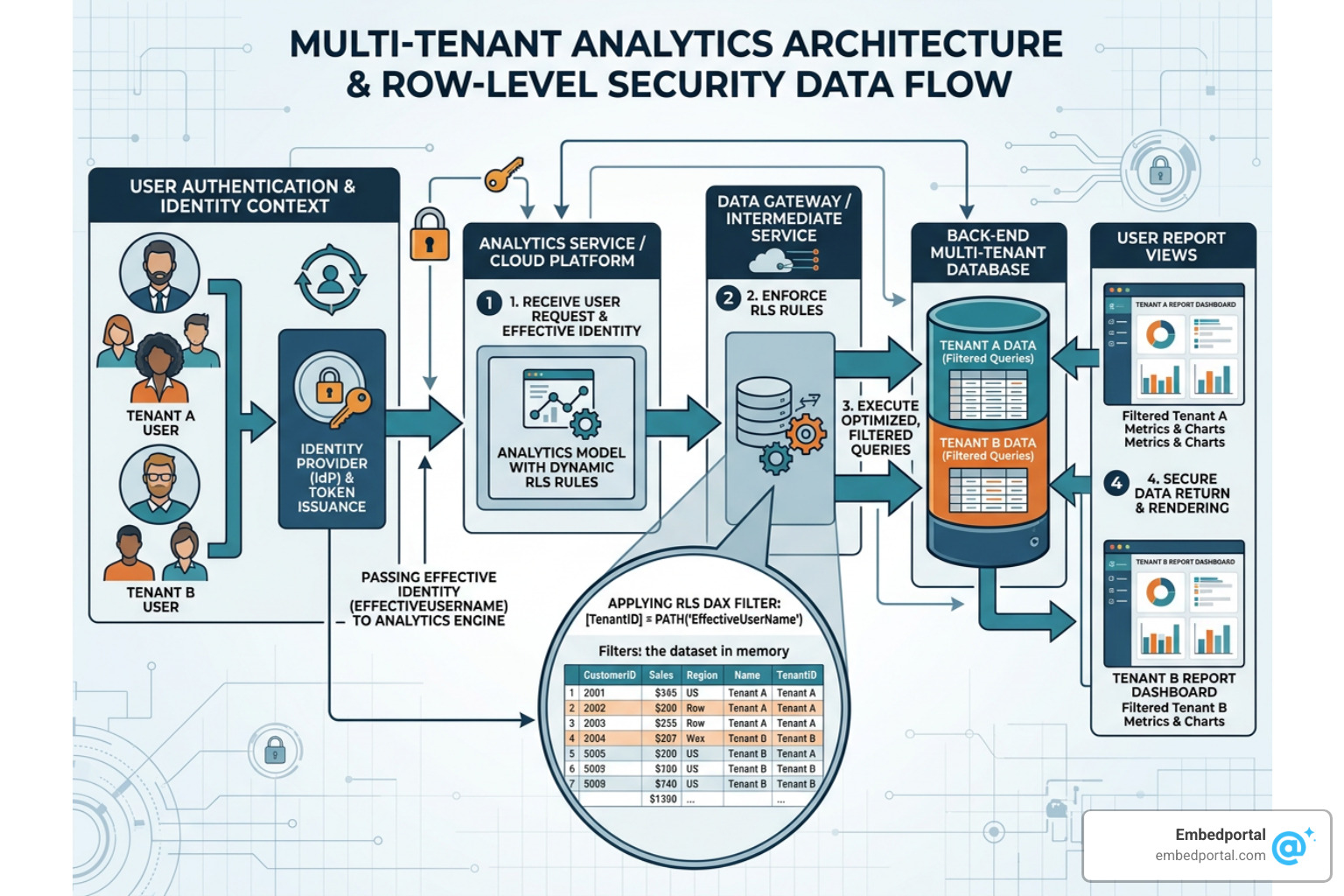
Because each customer has their own dedicated workspace, reports, and semantic models, their data is naturally isolated. However, you must also secure the underlying data connections and access tokens to prevent any cross-tenant leaks. For a comprehensive overview of setting up these security boundaries, see our article on Multi-Tenant Row Level Security.
Managing Semantic Model Credentials and Ownership
One of the most common security vulnerabilities in multi-tenant Power BI setups occurs during semantic model refreshes. In Power BI, data source credentials are encrypted and cached at the service principal level, not the workspace level.
If you use a single service principal to import reports and set credentials across multiple customer workspaces, those credentials can become shared across semantic models. If Tenant A’s semantic model and Tenant B’s semantic model point to different databases but are owned by the same service principal, a refresh operation could theoretically use the wrong cached credentials if not configured carefully.
By using service principal profiles, you eliminate this risk. When you import a semantic model and set its data source credentials using a specific profile (by passing the “X-PowerBI-profile-id” header), those credentials are encrypted and bound strictly to that profile’s identity.
To manage this securely, follow these steps:
- Ensure the profile is the sole owner of the semantic model in the customer’s workspace.
- When configuring data source credentials (such as SQL connection strings or web API keys), execute the “Update Datasources” API call using the specific profile’s context.
- If using an on-premises data gateway to connect to private databases, share the gateway connection with the individual profile, ensuring that other profiles cannot access that specific gateway datasource.
To learn more about configuring robust security settings for your datasets, refer to our detailed post on Power BI Row Level Security.
Enforcing Row-Level Security (RLS) in Multi-Tenant Environments
In some scenarios, you might choose a hybrid approach: using workspace separation for major clients, but using a single shared workspace with Row-Level Security (RLS) for smaller, cost-sensitive tenants.
To implement RLS in an embedded scenario, you must define roles within your Power BI Desktop model. For example, you can create a role named “TenantSecurity” and apply a DAX filter on your tenant table, such as: [TenantId] = USERNAME().
When your backend application generates the embed token for a user, it must pass an “effective identity.” This identity tells Power BI which RLS roles to apply and what value to substitute for the USERNAME() function.
When generating the token, your backend API should construct a request body containing:
- The username (which you set to the user’s specific Tenant ID).
- The role name (e.g., “TenantSecurity”).
- The associated semantic model ID.
When the report renders in the user’s browser, Power BI automatically intercepts all SQL or DirectQuery requests and appends the RLS filter, ensuring the user only sees data matching their Tenant ID. For a deep dive into mastering these configurations, explore our Row Level Security Best Practices.
Automating the Multi-Tenant Lifecycle
To scale an embedded analytics application successfully, you must automate the entire customer lifecycle. Manual intervention during customer onboarding is slow, prone to errors, and expensive.
Your application should feature an automated provisioning pipeline that handles everything from the moment a new customer signs up to the moment they view their first report.
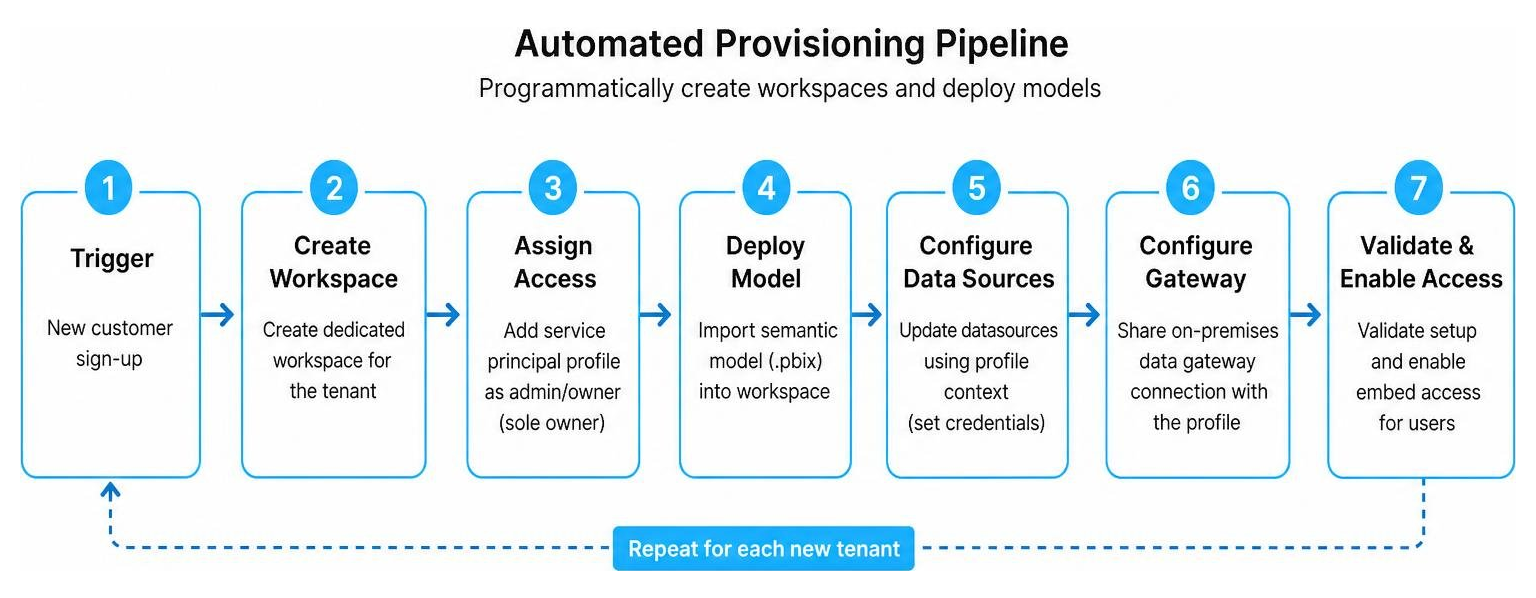
This automated flow can be built using the Power BI REST APIs or the .NET SDK. To see a practical real-world walk-through of an automated deployment pipeline, you can read the tutorial on How to Create a Power BI Embedded Analytics Solution in a Multi-Tenant Azure.
By automating these steps, you minimize human error and ensure that every new tenant is provisioned with identical security configurations. For additional architectural patterns on automating SaaS reporting, see our guide on Embedded Analytics for SaaS.
Step-by-Step Provisioning for Power BI Multi-Tenant Embedding
Here is the exact programmatic sequence we recommend to onboard a new customer tenant (let’s call them “Acme Corp”) using service principal profiles:
- Create the Profile: Your backend makes a POST call to
api.powerbi.com/v1.0/myorg/profilesusing the parent service principal’s token. Name the profile “Acme Corp Profile”. Save the returned profile ID (GUID) in your application’s database. - Create the Workspace: Make a POST call to
api.powerbi.com/v1.0/myorg/groupsto create a new workspace named “Acme Corp Workspace”. Crucially, include the “X-PowerBI-profile-id” header containing Acme’s profile ID in this and all subsequent calls. This ensures the profile is the creator and Admin of the workspace. - Assign Capacity: Assign the newly created workspace to your dedicated Power BI Embedded or Fabric capacity using the “AssignToCapacity” REST API.
- Import the Template: Import your master report template (a .pbix file) into the workspace using the “PostImport” API. This uploads the report and automatically generates a new semantic model.
- Configure Parameters & Credentials: If you use a single database with parameterized connection details, update the semantic model parameters to point to Acme’s specific database. Then, call the “Update Datasources” API to set the database credentials securely under the profile’s identity.
- Configure Refresh: Set up a scheduled refresh or trigger an on-demand refresh using the “Refresh Dataset” API to ensure the report has the latest data.
Authenticating and Context Switching in the REST API
When writing the backend code to manage this lifecycle, you must handle authentication token caching and client initialization efficiently.
To communicate with the Power BI REST API, you can use the Microsoft Authentication Library (MSAL) to acquire an access token for your parent service principal from Microsoft Entra ID. Once you have this token, you can instantiate the PowerBIClient.
To perform administrative tasks (like creating a new profile), instantiate the client without a profile ID.
To perform tenant-specific tasks (like importing a report or setting credentials), instantiate a separate client instance or modify your request headers to include the “X-PowerBI-profile-id” header. In .NET, this is easily managed by passing the profile GUID into the constructor of the PowerBIClient, which automatically appends the header to every outgoing HTTP request.
For frontend developers looking to interact with the embedded reports dynamically after they load, our guide on the Power BI JavaScript API details how to apply custom filters, switch pages, and capture user events.
Frequently Asked Questions about Power BI Multi-Tenant Security
How do service principal profiles bypass the 1,000-workspace limit?
Service principal profiles bypass this limit by distributing workspace ownership. The 1,000-workspace limit applies to a single security identity because of how Power BI evaluates Access Control Lists (ACLs).
When you use profiles, the parent service principal does not join the customer workspaces. Instead, you create a dedicated profile for each customer and make only that profile the Admin of its workspace. Because each profile is a member of exactly one workspace, the ACL evaluation remains incredibly fast, and you can scale up to 100,000 profiles (and thus 100,000 workspaces) under a single parent service principal.
Can I use Row-Level Security and workspace isolation together?
Yes. This is known as a hybrid multi-tenant model. You can provision separate workspaces for each customer tenant to ensure strict asset isolation, and then apply Row-Level Security within those workspaces to restrict data access further for different user roles within that single customer organization (e.g., restricting a regional manager to only see their region’s data).
To understand the core concepts of data filtering and security, read our foundational guide on Row Level Security.
Are service principal profiles visible in Microsoft Entra ID?
No. Service principal profiles are internal to the Power BI service subsystem. They do not appear in your Azure Portal, they do not consume Microsoft Entra object limits, and they cannot be added to Entra security groups. This drastically reduces administrative overhead, as your IT team does not need to manage thousands of micro-identities in your corporate directory.
Conclusion
Building a secure, high-performance, and scalable multi-tenant analytics platform with Power BI is entirely achievable using service principal profiles. By isolating customers into dedicated workspaces and automating the lifecycle via REST APIs, you can support tens of thousands of tenants without hitting platform limits or compromising data security.
However, as you have likely realized while reading this guide, setting up this infrastructure is not a trivial task. It requires deep expertise in Azure architecture, Entra ID permissions, Power BI capacity management, token generation, and complex API orchestration. Maintaining this pipeline, rotating secrets, and handling capacity scaling can quickly consume valuable engineering resources.
This is exactly why we built Embedportal.
Embedportal is a white-label embedding platform designed to take the pain out of multi-tenant analytics. Instead of spending weeks writing custom token-generation APIs and managing service principal profiles, our platform enables your team to embed secure, beautifully branded dashboards in under an hour.
With Embedportal, you get:
- Multi-Vendor Analytics: Seamlessly embed and combine dashboards from Power BI, Tableau, QuickSight, and Metabase under a single, unified interface.
- Unified Branding: Deliver a fully white-labeled experience with custom themes, logos, and domains that match your SaaS product perfectly.
- Out-of-the-Box RLS & SSO: Enforce robust row-level security and single sign-on without writing complex backend authentication logic.
- Zero Administrative Overhead: Stop worrying about workspace limitations, Azure app registrations, or credential bleeding. We handle the heavy lifting.
Ready to secure your multi-tenant dashboards without the development headache? Secure your multi-tenant dashboards with Embedportal and see how easy enterprise-grade embedded analytics can be.