DirectQuery RLS and SSO in Power BI Demystified
Why Power BI Direct Query Row Level Security Is Harder Than It Looks
Power BI DirectQuery row-level security is one of the most misunderstood combinations in the entire Power BI stack — and for SaaS teams embedding dashboards for multiple customers, getting it wrong means users see data they shouldn’t, or worse, see nothing at all.
Here’s the quick answer for how DirectQuery RLS works:
- In Import mode, Power BI loads data into its own engine and applies RLS filters there using DAX expressions at query time.
- In DirectQuery mode, Power BI sends live queries to your source database. RLS can work in two ways: Power BI applies a DAX-translated SQL
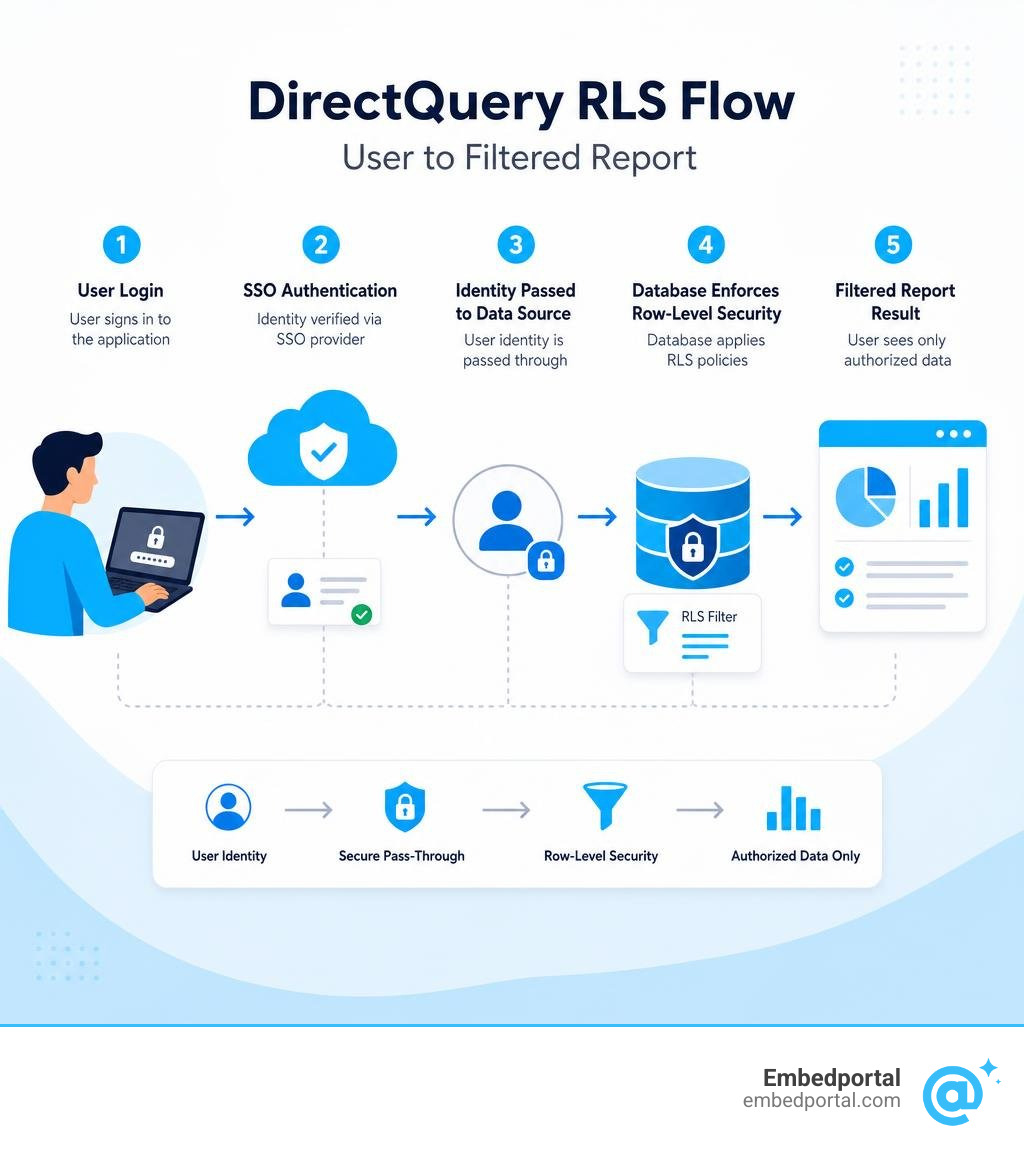
WHEREclause, or the database enforces its own security via SSO pass-through. - With SSO enabled, the logged-in user’s identity is passed directly to the data source, which applies its own native row-level security — bypassing Power BI-defined roles entirely.
- Without SSO, you define RLS roles in Power BI Desktop using DAX, but with tighter restrictions than Import mode (no
CALCULATE, no measures inside role expressions). - Dynamic RLS using
USERPRINCIPALNAME()works in DirectQuery, but your user-mapping table design and DAX expression complexity matter a lot for performance.
The challenge is that DirectQuery adds real constraints. DAX expressions that work perfectly in Import mode can silently fail or throw errors in DirectQuery. Composite models and chained datasets add another layer of complexity. And the 4-minute query timeout enforced by the Power BI service leaves no room for poorly optimized security filters.
For analytics and product leads at SaaS companies, this isn’t just a technical footnote. It’s the difference between a customer portal that scales safely across tenants and one that becomes a security liability.
Essential power bi direct query row level security terms:
Understanding Power BI Direct Query Row Level Security vs. Import Mode
To build a secure and high-performing reporting solution, we must first understand how row-level security differs between Import mode and DirectQuery. The choice of connection mode changes where the security boundary lives and how queries are processed.
| Feature | Import Mode | DirectQuery Mode |
|---|---|---|
| Data Storage | Loaded in-memory into the Power BI semantic model. | Stays in the source database; no data is cached in Power BI. |
| Security Processing | Enforced inside the Power BI VertiPaq engine using DAX. | Enforced by translating DAX to SQL, or native database RLS via SSO. |
| Query Performance | Fast in-memory queries; independent of database load. | Dependent on source database capacity and indexing. |
| Refresh Frequency | Limited to 8/day (Pro) or 48/day (Premium). | Near real-time; updates as soon as the source database changes. |
| DAX Capabilities | Full DAX support (CALCULATE, FILTER, measures). | Strict limitations; no complex calculations in RLS rules. |
For a broader primer on Power BI’s security capabilities, you can read our deep dive on Row Level Security Power BI or watch this detailed comparison video on Row-Level Security in Power BI | Import vs DirectQuery.
Core Differences in Security Architecture
In Import mode, RLS acts as an in-memory filter. When a user logs in, the VertiPaq engine filters the data model based on the DAX rules defined in your roles. Because the entire dataset is held in memory, this filtering is extremely fast and supports complex DAX operations.
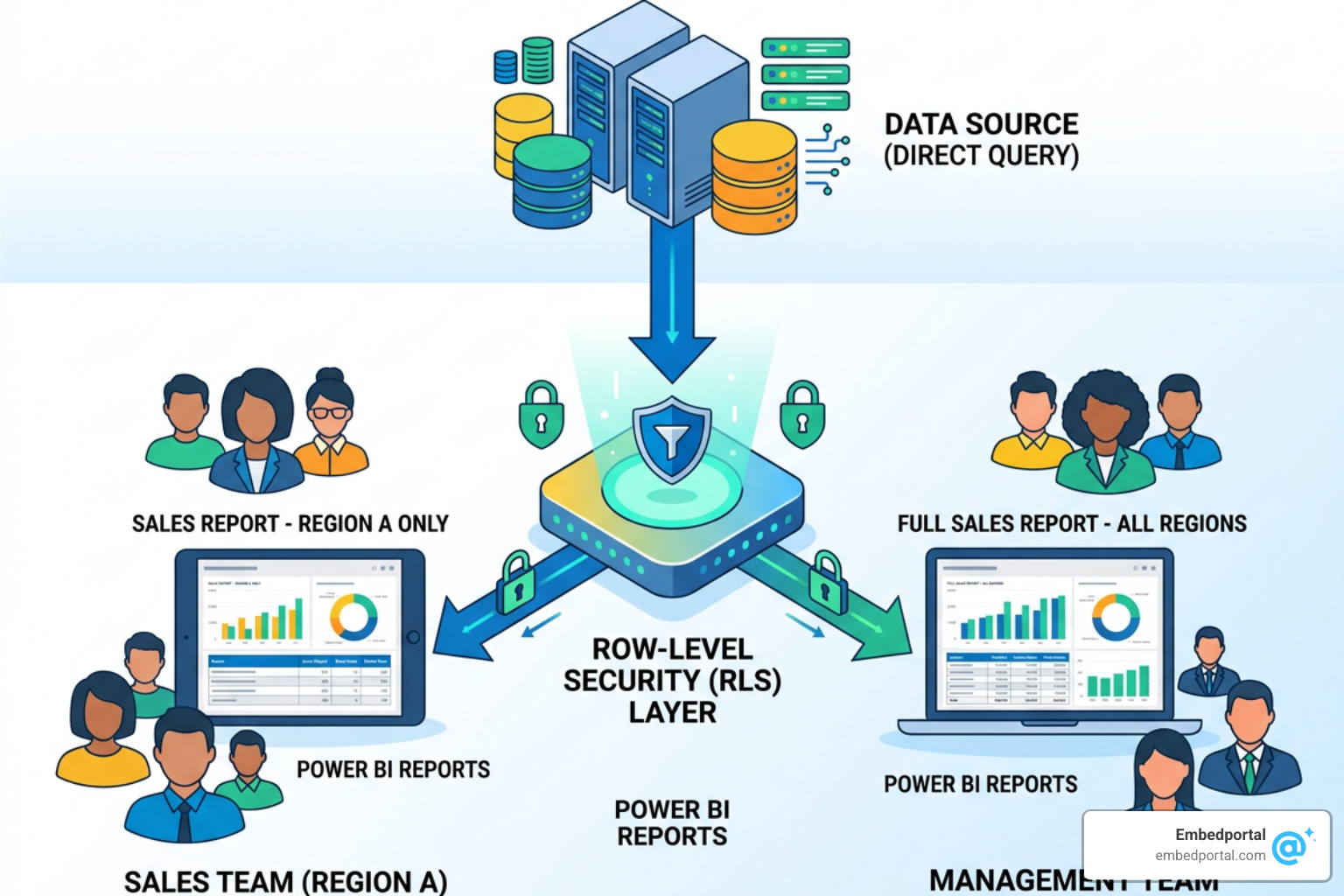
With power bi direct query row level security, the security architecture shifts completely. Power BI does not store your data. Instead, when a user interacts with a report, Power BI generates a native query (such as SQL) and sends it to the source database.
If you configure RLS inside Power BI Desktop for a DirectQuery model, Power BI must append the RLS filter logic to every single SQL query it sends. This is done by translating your DAX security rules into a SQL WHERE clause. If your DAX rule is too complex to be translated into SQL, the query fails.
According to Microsoft’s official documentation on Row-level security (RLS) with Power BI, RLS is applied at the semantic model layer. This means workspace Admins, Members, and Contributors bypass RLS by default. Only users with Viewer permissions are restricted by the security rules we define. To understand how to structure these permissions globally, refer to our guide on Row Level Security.
Implementing Power BI Direct Query Row Level Security at the Database Level
Instead of defining RLS rules inside Power BI, we can offload security to the data source itself. This is known as database-level RLS.
When using DirectQuery, we can enable Single Sign-On (SSO) pass-through. Power BI supports SSO via Kerberos (for on-premises sources) or OAuth2/Microsoft Entra ID (for cloud sources like Snowflake, Azure SQL, or Synapse). When SSO is enabled, Power BI does not use a shared service account to query the database. Instead, it passes the actual logged-in user’s credentials directly to the data source.
This architecture offers major benefits:
- Centralized Security: Your security rules are defined once in the database (e.g., PostgreSQL, SQL Server, or Snowflake) and apply to all applications, not just Power BI.
- Simplified Power BI Models: You do not need to define roles, tables, or DAX rules inside your PBIX file.
- Auditability: Database administrators can audit exactly which user ran which query.
However, as discussed in the Power BI community thread RLS on database level with Direct Query, you cannot use Power Query parameters or DAX measures to pass a user’s identity into a custom SQL query definition. If you want the database to handle security, you must rely on native SSO identity propagation so that the database automatically knows who is executing the query. For enterprise architectures, we highly recommend reading about Centralized Row Level Security to compare these approaches.
Implementing Dynamic RLS and SSO in DirectQuery Models
Dynamic RLS is the gold standard for multi-tenant applications and large organizations. Instead of creating a static role for every single department or region, we define a single dynamic role that filters data on the fly based on the user’s login identity.
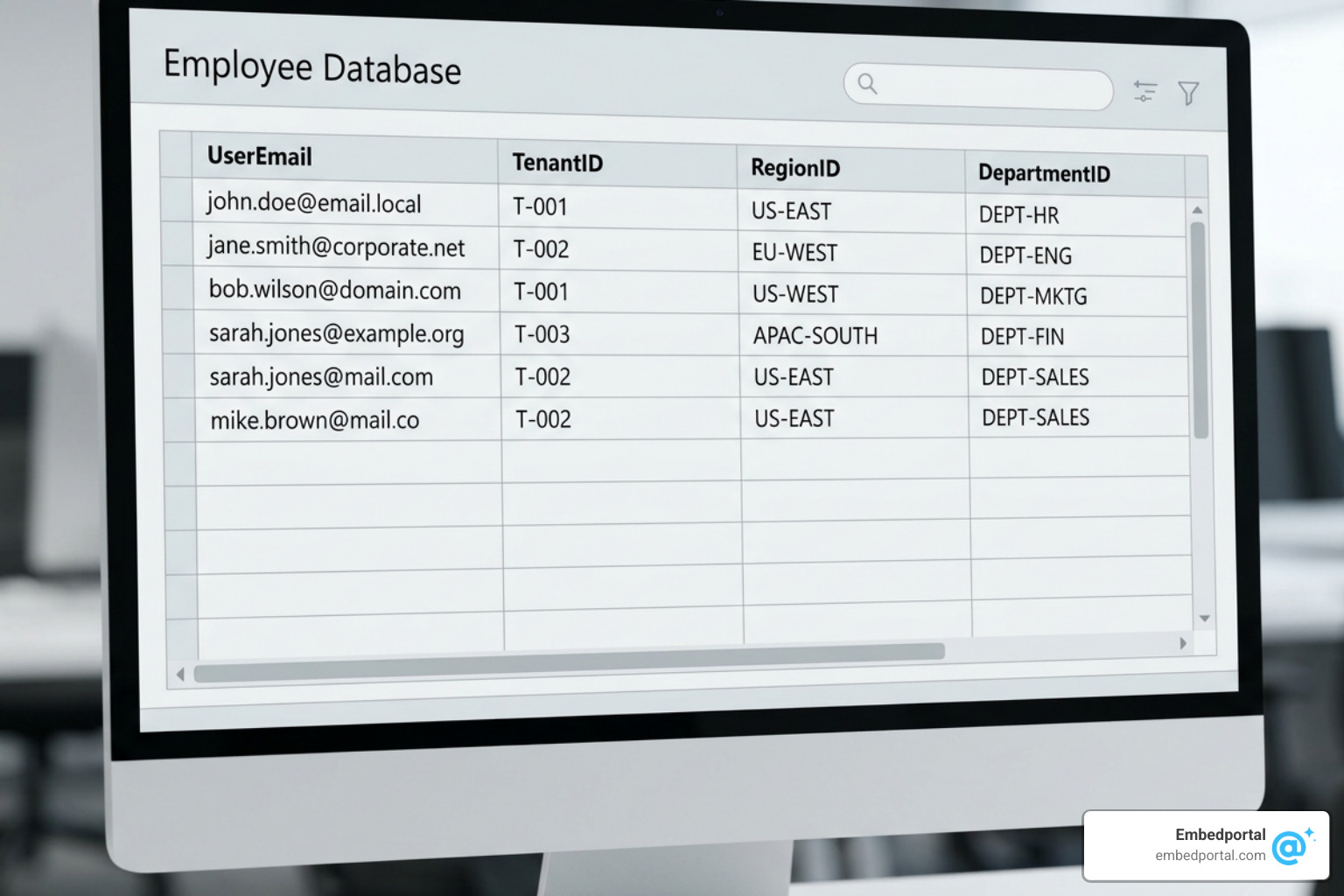
To implement this, we need a user-mapping table (often called a security table) that maps each user’s email address to the specific dimension they are allowed to see (such as a Tenant ID, Region ID, or Department ID). For a comprehensive look at setting up these schemas, refer to our architectural guide on Multi Tenant Row Level Security.
Dynamic Filtering with USERPRINCIPALNAME() and USERNAME()
To capture the logged-in user’s identity, Power BI provides two primary DAX functions: USERNAME() and USERPRINCIPALNAME().
- USERNAME(): In Power BI Desktop, this returns the user’s domain and login name (e.g.,
DOMAIN\username). However, once published to the Power BI service, it typically returns the user’s User Principal Name (UPN), which looks like an email address (user@company.com). - USERPRINCIPALNAME(): This consistently returns the user’s UPN (e.g.,
user@company.com) in both Power BI Desktop and the Power BI service. Because of this consistency, we recommend usingUSERPRINCIPALNAME()for all cloud-based deployments.
To set up dynamic RLS in a DirectQuery model:
- Create a security mapping table in your database containing at least two columns:
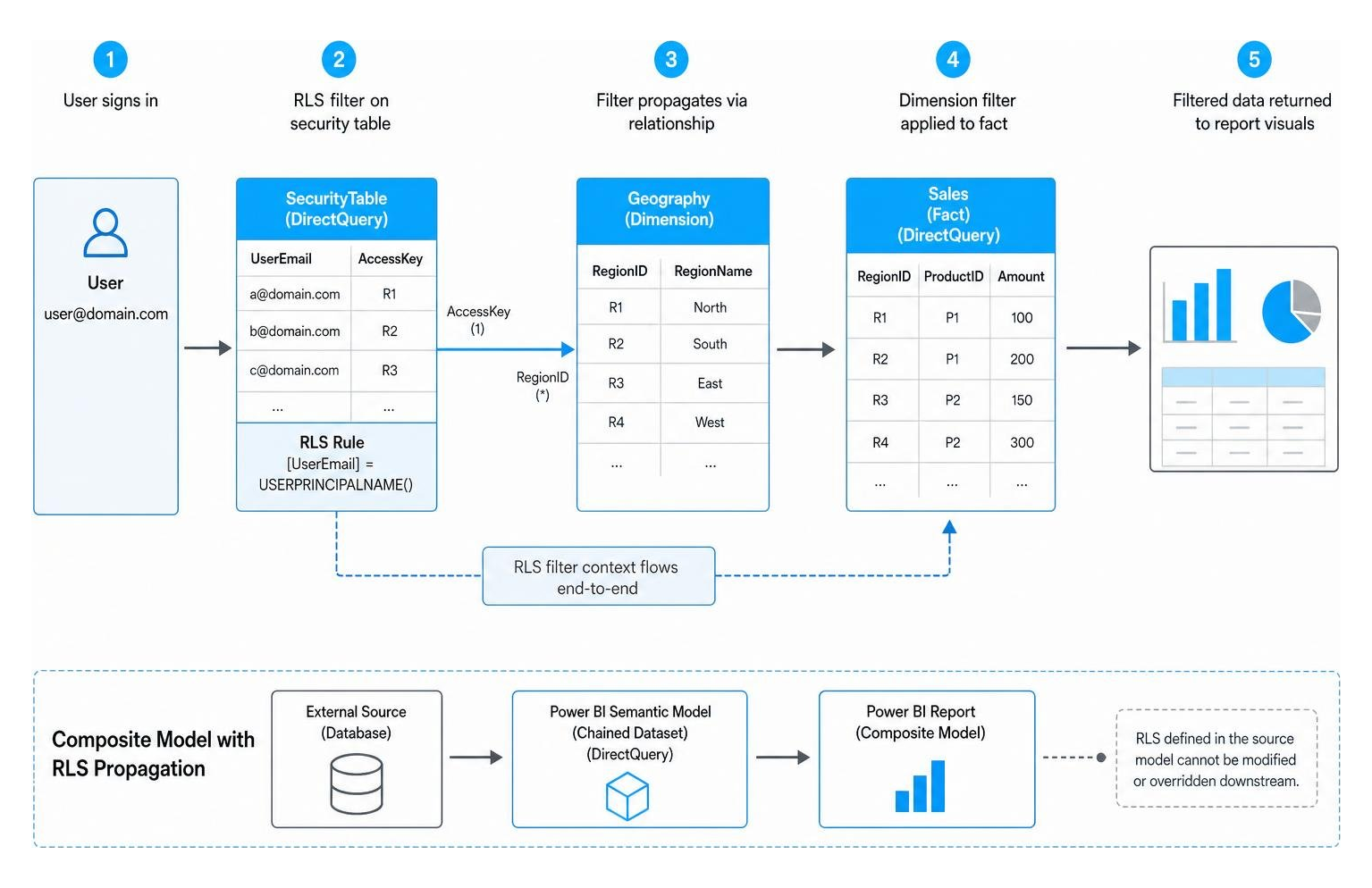
UserEmailandAccessKey(such asRegionID). - Establish a relationship in your Power BI model between the security mapping table and the dimension table you want to filter (e.g., join
SecurityTable[AccessKey]toGeography[RegionID]). - In Power BI Desktop, go to Manage Roles and create a new role.
- Apply a DAX filter on the security mapping table:
[UserEmail] = USERPRINCIPALNAME() - Ensure the relationship filters from the security table to the dimension table.
For on-premises Analysis Services tabular models, Microsoft’s tutorial Dynamic row-level security with Analysis services tabular model – Power BI | Microsoft Learn explains how the EffectiveUserName property passes credentials through the gateway. To ensure your dynamic setup follows industry standards, check out our tutorial on Power BI Row Level Security and the architectural deep dive in Dynamic Row-Level Security (RLS) Implementation in Power BI (Part 2) | by Pradip VS | Microsoft Azure | Medium.
Handling B2B Guest Users and Microsoft Entra Security Groups
When sharing reports with external partners or B2B guest users, dynamic RLS requires special attention.
When a B2B guest user accesses your Power BI tenant, their UPN format is altered by Microsoft Entra ID (formerly Azure Active Directory). For example, if externaluser@partner.com logs into your tenant, USERPRINCIPALNAME() will return a string like externaluser_partner.com#EXT#@yourtenant.onmicrosoft.com.
If your security mapping table only contains their native email address (externaluser@partner.com), the dynamic RLS rule [UserEmail] = USERPRINCIPALNAME() will fail to match, and the user will see no data (failing closed).
To handle B2B guest users successfully:
- Option 1: Store the exact transformed
#EXT#UPN string in your security mapping table. - Option 2: Use DAX to parse the UPN inside your RLS rule to extract the original email address, though be careful as complex parsing functions can break query folding in DirectQuery.
- Option 3: Assign roles directly to Microsoft Entra security groups in the Power BI service. While you can assign Entra groups to roles, the DAX expression itself still executes against the individual user’s UPN.
For a complete breakdown of multi-tenant identity resolution, consult Row-Level Security in Power BI: Multi-Tenant Data Access | ECOSIRE.
Limitations and Workarounds in DirectQuery RLS
While DirectQuery is powerful, it comes with strict limitations when combined with RLS. Understanding these boundaries is critical to avoiding broken reports.
Composite Models, Chained Datasets, and TREATAS Workarounds
A composite model allows you to combine DirectQuery connections to a Power BI semantic model (a chained dataset) with other DirectQuery or imported tables.
As documented by industry experts in Row-Level Security in Analysis Services Tabular Models for Power BI | Team 400 Blog, RLS rules defined on a source dataset cannot be modified or overridden in a downstream chained dataset. This is a security feature designed to prevent report authors from accidentally bypassing source security.
However, a major limitation occurs when you mix connection modes: RLS filters applied to DirectQuery tables do not automatically propagate to imported tables in the same composite model.
To work around this limitation:
- The TREATAS Pattern: You can write a DAX measure that manually passes the filter context from the secured DirectQuery table to the unsecured imported table using
TREATAS. - Hybrid Tables: Use hybrid tables (available in Premium capacities) where historical data is imported for speed, but real-time data is queried via DirectQuery. Power BI handles RLS across both partitions, but you must ensure your RLS rules are simple enough to fold to the real-time partition.
- Direct Lake: In Microsoft Fabric, Direct Lake mode offers the performance of Import mode with the real-time nature of DirectQuery. RLS in Direct Lake falls back to DirectQuery mode if the security rules are too complex, so keeping rules simple remains essential.
For more on managing these complex hybrid environments, see Row-level security (RLS) in Power BI Report Server – Power BI | Microsoft Learn.
DAX Restrictions and Power BI Direct Query Row Level Security Limitations
When defining RLS rules in Power BI Desktop for a DirectQuery table, you must write simple Boolean expressions.
The following DAX functions and patterns are strictly unsupported or highly discouraged inside DirectQuery RLS rules:
- CALCULATE and FILTER: These functions change the filter context. Because DirectQuery must translate the DAX rule into a SQL
WHEREclause, usingCALCULATEinside an RLS rule will cause a query folding error and break the visual. - Measures: You cannot reference a DAX measure inside an RLS rule. All rules must reference physical columns directly.
- Bidirectional Relationships with RLS: Enabling “Apply security filter in both directions” can severely degrade performance. In a DirectQuery model, bidirectional filtering forces Power BI to generate highly complex SQL joins, which often result in slow queries or database timeouts.
The best practice is to always use unidirectional (one-way) relationships, applying the RLS filter on the dimension table (the “one” side) and letting it naturally filter the fact table (the “many” side).
Performance Optimization and Troubleshooting Best Practices
Because DirectQuery executes queries in real time, poor RLS design will immediately result in sluggish reports and frustrated users.
Query Folding, Indexing, and Relationship Design
To ensure your reports load quickly, follow these critical performance rules:
- Confirm Query Folding: Always check that your Power Query steps are folding back to the source database. If query folding is broken, Power BI must pull unfiltered data into memory to apply RLS, which will fail if the intermediate row count exceeds the 1,000,000 row limit for DirectQuery operations.
- Database Indexing: Ensure that any columns used in RLS filters (like
UserEmailorTenantID) and relationship keys are indexed in the source database. - Use Integer Keys: Whenever possible, join your security mapping table to your dimension tables using integer keys instead of text strings. Integer joins are significantly faster in SQL databases.
- Respect the 4-Minute Timeout: The Power BI service enforces a strict 4-minute timeout per query. If your database takes longer than 4 minutes to resolve the RLS-filtered SQL query, the visual will display an error.
For a comprehensive optimization checklist, check out our guides on Power BI Performance Optimization and Row Level Security Best Practices.
Validating and Troubleshooting RLS in the Power BI Service
Testing RLS in DirectQuery requires a systematic approach:
- View as Role (Desktop): Use the “View as” feature in Power BI Desktop to test your roles. You can select “Other user” and type in a test UPN to verify that the filters apply correctly.
- Test as Role (Service): After publishing, go to the semantic model security settings in the Power BI service, click the ellipsis next to your role, and select “Test as role”.
- SSO Limitation: If you have enabled SSO pass-through for your DirectQuery source, the “Test as role” feature in the service may not work as expected because Power BI cannot impersonate another user’s database credentials. In this scenario, you must log in as an actual test user with Viewer permissions to validate the security.
- Gateway Tracing: If you are using an on-premises data gateway, use SQL Server Profiler or gateway logs to trace the queries. Look for the
EffectiveUserNameproperty to confirm that the correct user identity is being passed to the data source.
Conclusion
Implementing power bi direct query row level security requires balancing security requirements with database performance. While Import mode offers maximum DAX flexibility, DirectQuery is essential for real-time reporting, massive datasets, and centralized database security.
When designing your model:
- Keep RLS DAX rules simple to ensure they fold into clean SQL
WHEREclauses. - Use
USERPRINCIPALNAME()for dynamic, scale-ready security mapping. - Leverage database-level RLS and SSO pass-through when you want a single source of truth for security.
- Optimize your database indexes and relationships to stay well within Power BI’s 4-minute query timeout.
For SaaS teams looking to embed these reports into customer-facing portals, managing multiple BI platforms, licensing costs, and complex RLS configurations can quickly become a bottleneck.
At Embedportal, we provide a white-label embedding platform designed to simplify this process. Based in California, USA, we help teams embed multi-vendor analytics — including Power BI, Tableau, QuickSight, and Metabase — with unified branding, robust row-level security, and seamless SSO in under an hour.
If you are navigating the complexities of modern BI architectures, explore our resources on Row Level Security, Power BI Licensing, Power BI Embedded Pricing, and Embedded Analytics in Power BI to see how we can streamline your deployment.