
Organize every dashboard into folders and a searchable home page
Build your portal's menu with folders, dashboards, custom links and uploaded files. Drag to reorder, pick an icon, and choose which groups see each item. Then design a landing page with cards or rows, search and an announcement bar.

How it works
Most teams finish these steps in under an hour.
Add folders
Create top-level folders such as Finance, Sales or Operations.
Add links
Add dashboards from any integration, custom links or uploaded files, and place them in a folder.
Set visibility
Make an item visible to all groups or only to specific ones.
Design the landing page
Choose cards or rows, turn on search, add an announcement and footer, and preview.
What it looks like in EmbedPortal
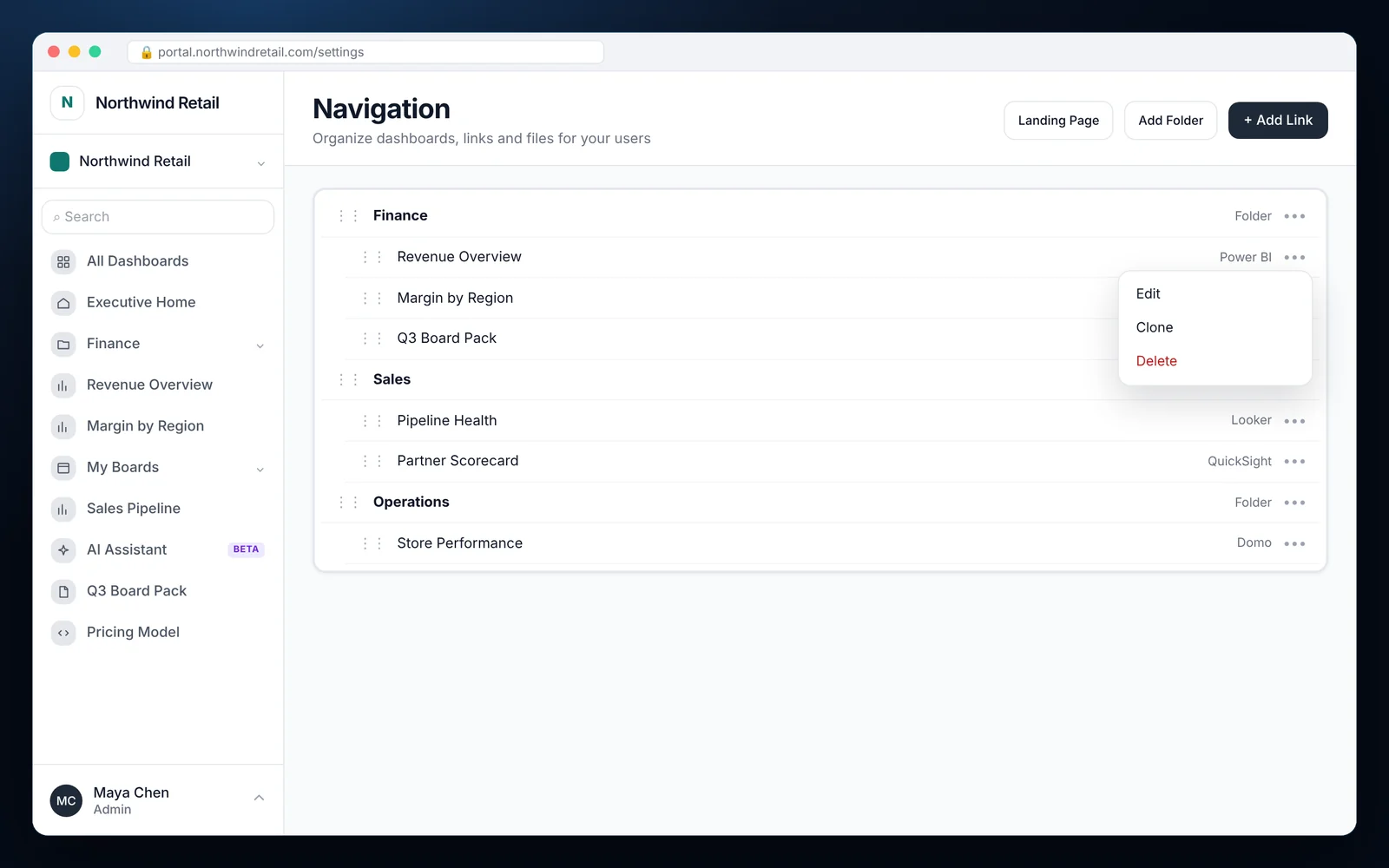
Navigation and landing page features
Folders and nesting
Group dashboards the way your customers think about them.
Edit, clone, delete
Manage links quickly from each item's menu.
Group visibility
Show items to all current and future groups, or only some.
Landing page layouts
Cards or rows, with optional row arrows.
Search
Viewers find dashboards by name in seconds.
Announcements
Post a message at the top of the home page.
Why navigation matters
Once you share more than a handful of dashboards, people stop finding them. A clear menu and a home page fix that.
Because navigation is tool agnostic, a folder can hold a Power BI report, a Tableau view and a PDF side by side.
Common questions
Can I put dashboards from different BI tools in one menu?
Yes. Folders can mix Power BI, Tableau, QuickSight, Looker, Domo, Metabase, links and files.
Can I hide a dashboard from some customers?
Yes. Each link can be visible to all groups or only to the groups you choose.
Can I customize the portal home page?
Yes. Choose cards or rows, enable search, and add an announcement and footer.
Share your first dashboard this week.
Connect your BI tool, set up groups and row-level security, and invite viewers. One flat price with unlimited viewers.