
The Developer’s Guide to Power BI Embedded RLS and Token Identities
Why Power BI Embedded RLS Is Critical for Secure Multi-Tenant Analytics
Power BI embedded RLS (Row-Level Security) is the mechanism that lets you serve one shared report to hundreds — or thousands — of customers, while ensuring each user sees only their own data.
Here’s the quick answer for how it works:
- Define roles in Power BI Desktop using DAX filters (static values or dynamic functions like
username()) - Publish the report to a Power BI workspace with the appropriate capacity
- Generate an embed token that includes an
EffectiveIdentityobject — specifying theusername,roles, anddataset - Embed the report in your app; Power BI enforces the data filter automatically
That’s the core loop. No end-user Power BI license needed. No Azure AD sign-in required for your customers.
For SaaS and ISV teams, this matters a lot. You’ve built a product. You have dozens of customers. You don’t want to maintain a separate report — or a separate database — for each one. A single semantic model with well-configured RLS can handle all of them securely.
But the implementation details trip people up constantly. Which RLS type should you use — static or dynamic? When does token generation fail silently? What’s the difference between a service principal and a master user, and why does it matter for security? How do you scale this to thousands of tenants without it becoming a maintenance nightmare?
This guide walks through every layer of the stack, from role creation in Power BI Desktop to embed token generation via the REST API, with practical patterns for multi-tenant SaaS architectures.
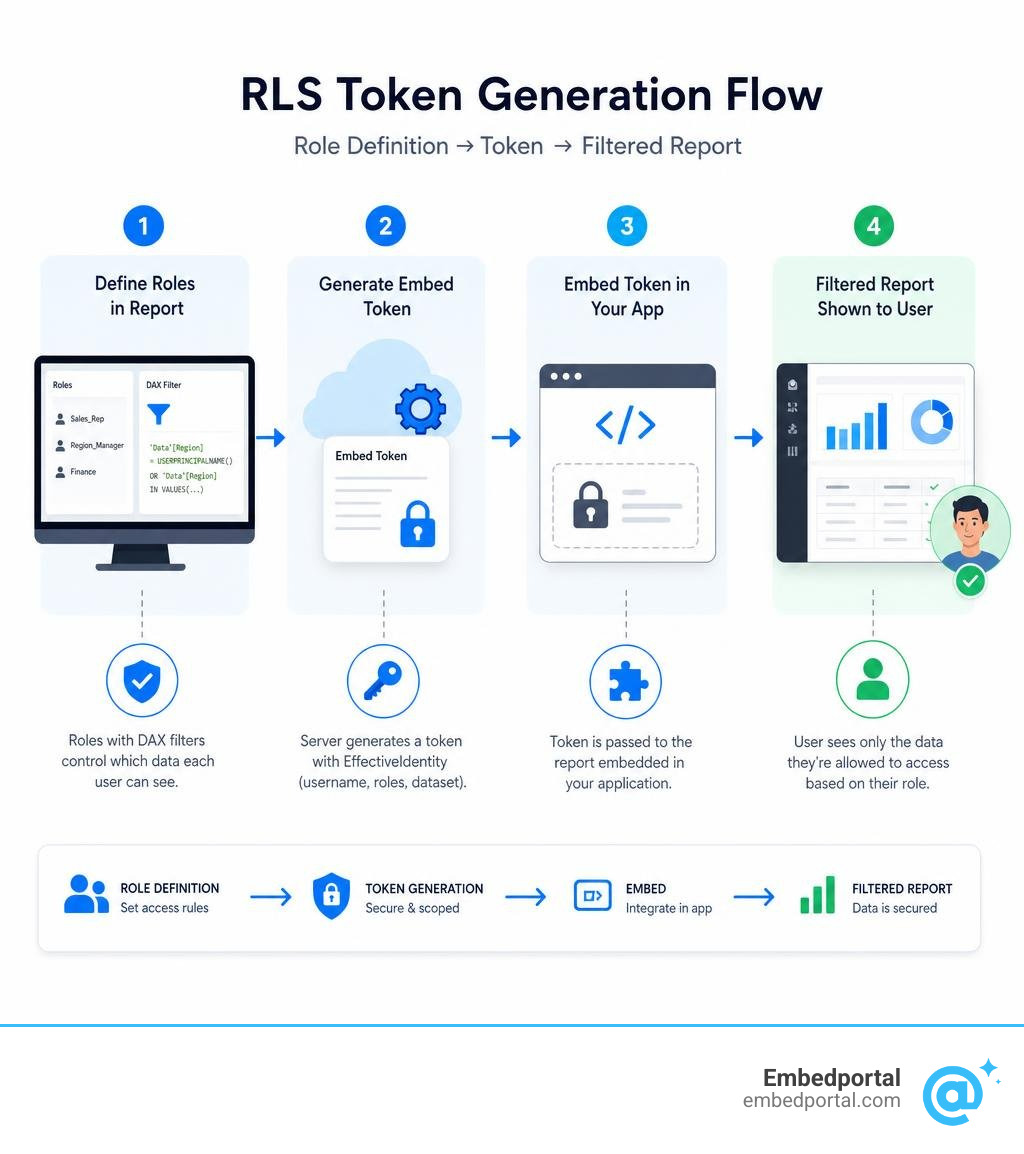
Key terms for power bi embedded rls:
What is Power BI Embedded RLS and Why It Matters
When building multi-tenant SaaS applications, data isolation is the gold standard of security. Independent Software Vendors (ISVs) must guarantee that Tenant A can never catch even a passing glimpse of Tenant B’s data. Traditionally, developers achieved this by duplicating reports or spinning up separate databases for every client. This approach falls apart as soon as you scale past a handful of customers.
By implementing power bi embedded rls, you can serve thousands of customers using a single semantic model and a single report layout. This dramatically reduces your development overhead, simplifies report maintenance, and slashes your hosting costs.
Row-Level Security acts as a programmatic gatekeeper. When a user logs into your web application, your backend authenticates them, determines what data they are allowed to see, and passes those rules directly to Power BI. Power BI then filters the underlying data model on the fly before rendering the visuals. The user only ever receives the specific data slices they are authorized to view, meaning there is zero risk of client-side data leaks.
To read more about how this fits into your broader application security model, check out our guide on Security in Power BI embedded analytics and explore our insights on Embedded Analytics for SaaS.
App-Owns-Data vs. User-Owns-Data Scenarios
When embedding Power BI, you must choose between two fundamentally different architectural patterns: “App owns data” (embed for your customers) or “User owns data” (embed for your organization).
In the “User owns data” scenario, every end-user must have their own Power BI license and authenticate directly with Microsoft Entra ID (formerly Azure Active Directory). RLS in this model is straightforward because Power BI already knows exactly who the user is and applies the roles assigned to their Entra ID account. However, this is rarely viable for commercial SaaS applications because you cannot expect your external clients to purchase Power BI licenses or manage Entra ID credentials.
In the “App owns data” scenario, your application is the sole entity communicating with Power BI. Your app authenticates using a master user account or, more commonly, a Service Principal (an Azure app registration). Because your external users do not have Power BI accounts, Power BI has no native way of knowing who is viewing the report.
This is where the magic of the Effective Identity comes in. When your application requests an embed token, it explicitly tells Power BI which user identity and RLS roles to enforce. This makes the “App owns data” approach the absolute standard for SaaS applications. You can learn more about choosing the right approach in our breakdown of Power BI Embedding.
Static vs. Dynamic Power BI Embedded RLS
Before building your reports, you need to decide whether to implement static or dynamic RLS. The choice depends on the scale of your application and how frequently your user permissions change.
Here is a quick comparison to help you choose the right path:
| Feature | Static RLS | Dynamic RLS |
|---|---|---|
| How it works | Uses fixed DAX filters mapped to specific, predefined roles. | Uses DAX functions to filter data based on the identity passed at runtime. |
| Number of Roles | Requires a distinct role for every distinct data slice (e.g., East, West). | Requires only one or two generic roles for the entire application. |
| Maintenance | High. You must update the report and roles whenever a new region or tenant is added. | Low. Permissions are managed in your application’s database, not in Power BI. |
| Best For | Small ISVs serving a few large customers with static departmental divisions. | Fast-growing SaaS platforms serving hundreds or thousands of tenants. |
Static security is simple to set up for basic use cases. For example, you might create an “Eastern Region” role with a hardcoded DAX filter like [Region] = “East”. But if you expand to fifty regions, you have to manually create and manage fifty roles.
Dynamic security provides the flexibility required for modern applications. Instead of hardcoding values, you write a single DAX rule that dynamically checks the username or custom data passed inside the embed token. This allows you to manage data access using a single role across your entire global user base.
For a deeper dive into standard cloud-based setups, review Using standard cloud based row-level security with embedded content in Power BI embedded analytics – Power BI | Microsoft Learn and our comprehensive guide on Power BI Row Level Security.
Implementing Dynamic Power BI Embedded RLS with DAX
Dynamic RLS relies on specialized DAX functions that evaluate context during the session. The two primary functions are:
- username(): Returns the exact string passed in the username parameter of the embed token’s Effective Identity.
- userprincipalname(): Typically returns the user’s email address in standard Power BI Service environments, but in an embedded “App owns data” context, it behaves exactly like username(), returning whatever string your application passes to it.
For example, if you want to filter a sales table so users only see transactions matching their tenant ID, you would set up a DAX filter on your Tenant table like this:
[TenantID] = username()
When your application generates an embed token, it might pass “tenantabc123″ as the username. Power BI will substitute that value into the DAX expression at runtime, filtering the entire report to only show data for “tenantabc123″.
For scenarios where you need to pass additional metadata beyond a simple username, you can use the customData parameter. This allows you to pass a string of up to 1,024 characters (such as a comma-separated list of IDs or a JSON-like string) and read it within your DAX expressions using the CUSTOMDATA() function. This is incredibly useful for complex permission structures. Learn more about this pattern at Row Level Security Power BI.
Configuring RLS Roles in Power BI Desktop and Service
Setting up power bi embedded rls is a two-part process: you define the security roles and rules within Power BI Desktop, and then you publish the model to the Power BI Service where your application can access it.
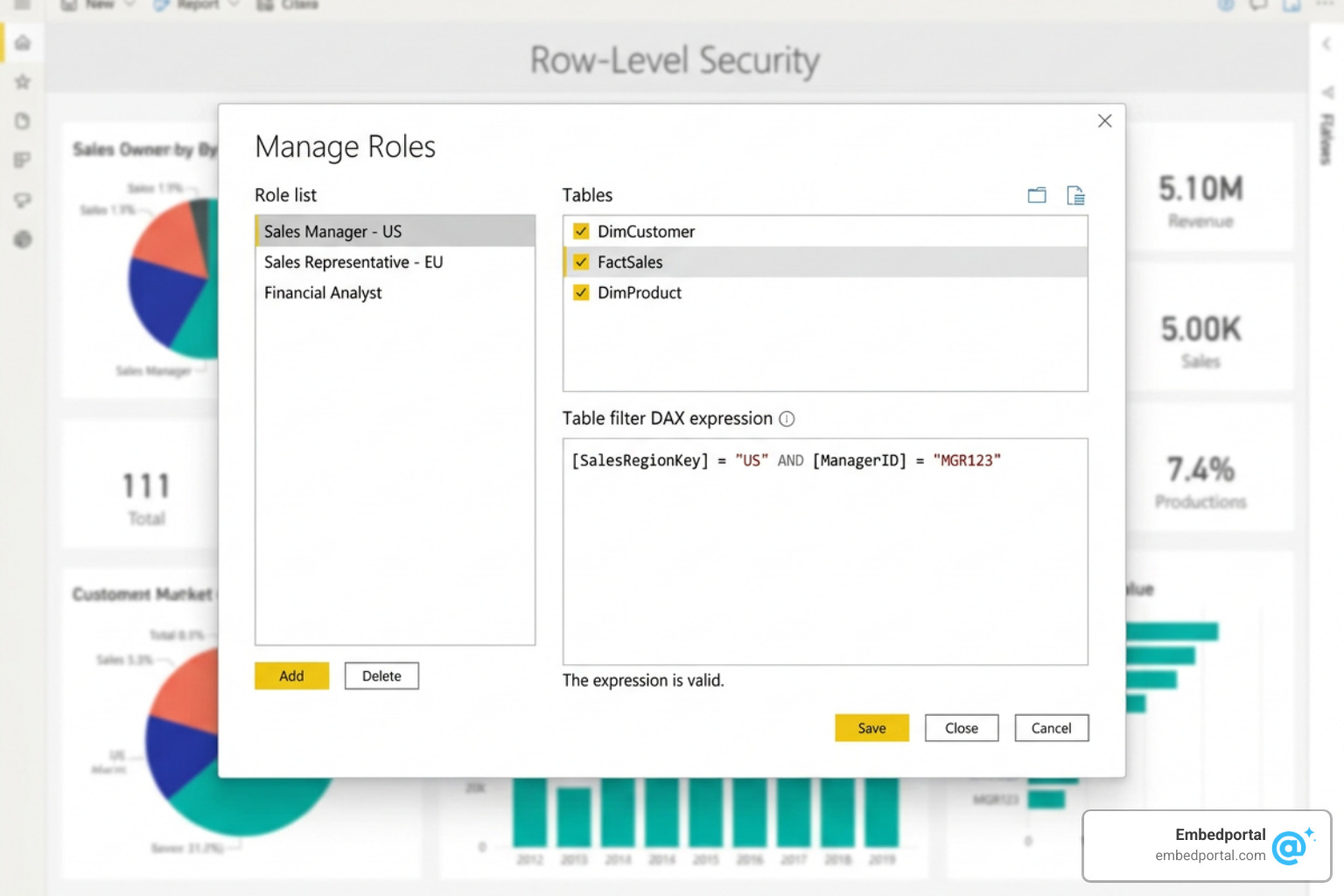
Setting Up Roles and Rules in Desktop
To configure your roles, open your report in Power BI Desktop and follow these steps:
- Navigate to the Modeling tab in the top ribbon and click Manage Roles.
- Click Create to add a new role. Give it a clear, generic name (e.g., “SaaSUser” or “DynamicClient”).
- Select the table in your model that contains your filtering field (such as a Users or Tenants table).
- In the Table filter DAX expression section, enter your dynamic expression, such as:
[TenantEmail] = userprincipalname() - Click Save.
Before publishing, always test your rules. Click View as (next to Manage Roles), check the box for your newly created role, and check Other user. Enter a test value (like an actual tenant email from your database) to verify that the report visuals immediately filter to display only that tenant’s data.
If you are embedding reports into platforms like Power Pages or using complex Dataverse models, make sure you configure bidirectional filtering correctly. In your relationship settings, set the cross-filter direction to “Both” between your contact/user table and your data tables. This ensures that the dynamic user filter propagates correctly across your entire schema. For more details on structuring these relationships, check out our guide on Centralized Row Level Security.
Publishing and Workspace Permissions
Once your roles are tested and working, publish the report to a Power BI workspace. This workspace must be backed by a dedicated capacity (such as an A-SKU, EM-SKU, or P-SKU) to support embedding for external customers.
A common point of confusion is how workspace roles interact with RLS. In Power BI, workspace Admins, Members, and Contributors have edit permissions on the underlying datasets. Because of this, RLS is never applied to Admins, Members, or Contributors when they view reports directly in the Power BI Service. They will always see all the data.
However, when you generate an embed token using a Service Principal or Master User, the RLS rules defined in the token’s Effective Identity will override these workspace permissions. Even if your Service Principal is an Admin of the workspace, the generated embed token will strictly enforce the RLS boundaries you define in the API call. To understand how to manage these permissions securely without over-privileging your credentials, read more about Row Level Security.
Generating Embed Tokens with Effective Identities
To render an RLS-enabled report for an external user, your application backend must call the Power BI REST API to generate an embed token. This token acts as a temporary, highly secure key that grants the user access to a specific, filtered view of your report.
You must use the GenerateTokenRequestV2 API. The request payload must include an identities array containing an EffectiveIdentity object.

When constructing your API request, the EffectiveIdentity object requires the following properties:
- username: The string that will be passed to the
username()oruserprincipalname()DAX functions (e.g., the logged-in user’s email or account ID). - roles: An array containing the names of the RLS roles you defined in Power BI Desktop (e.g., “SaaS_User”).
- datasets: An array of the dataset IDs associated with the report.
If your application authenticates to Power BI using a Service Principal, you must provide an effective identity for every dataset that has RLS configured. If you attempt to generate a token for an RLS-enabled dataset without providing an identity, the API call will fail with a 400 Bad Request error.
For complete API specifications and request parameters, refer to the official documentation on powerbi-docs/developer/embedded/generate-embed-token.md and see our technical implementation steps at Embed Power BI Report.
Multi-Role and Multi-Resource Token Generation
In complex enterprise applications, you may encounter scenarios where a user belongs to multiple roles simultaneously (e.g., a regional manager who is also a compliance officer). Power BI supports this by allowing you to pass multiple roles within the roles array of a single EffectiveIdentity. Power BI will evaluate all specified roles and combine their filters using a logical OR.
If your report relies on DirectQuery connections to databases like Azure SQL, you can also leverage Single Sign-On (SSO). In this pattern, you pass the user’s identity blob inside the datasourceIdentities array of the token request. This allows Power BI to propagate the user’s specific credentials all the way down to the underlying database, enforcing security at the database level rather than inside the Power BI semantic model. For architectural patterns on handling complex, multi-tenant database connections, see our article on Multi Tenant Row Level Security.
RLS for Paginated Reports and Azure Analysis Services
If your SaaS application uses Paginated Reports (RDL files) or connects to an external Azure Analysis Services (AAS) database, the RLS implementation looks slightly different.
Paginated reports do not use the Power BI Analysis Services engine. Instead, they run on the SQL Server Reporting Services engine. To apply RLS to a paginated report, you use the built-in global field UserID. You configure your report parameters in Power BI Report Builder to filter your SQL queries based on this parameter, and then pass the target filter value in the username field of your embed token request. You can find detailed steps in Use row-level security when embedding paginated reports.
When embedding reports connected to Azure Analysis Services, you cannot directly override the effective identity because AAS manages its own security. Instead, you must define your roles on the AAS server, use the CUSTOMDATA() function in your DAX row filters, and pass the required filter values in the customData property of your embed token’s Effective Identity. For a step-by-step walkthrough, refer to Embed a Power BI report with an Azure Analysis Services (AAS) database – Power BI | Microsoft Learn.
Architecture Patterns and Best Practices for Multi-Tenant Security
As your SaaS platform grows, you need an architecture that scales efficiently. While using a single workspace with a single semantic model and dynamic RLS works beautifully for small to medium ISVs, large-scale enterprise environments with thousands of customers require a more robust approach.

For enterprise-scale multi-tenancy, we recommend workspace-based isolation combined with Service Principal Profiles. Instead of putting all client data into one massive database and relying solely on RLS, you create a separate Power BI workspace for each tenant. Within each workspace, you deploy a dedicated copy of the report and semantic model, pointing to that tenant’s isolated database.
By using Service Principal Profiles, your application can spawn up to 100,000 separate profiles under a single Azure app registration. Each profile acts as a virtual administrator for a specific tenant’s workspace. This pattern provides absolute data isolation at the infrastructure level, eliminates the risk of cross-tenant data contamination, and bypasses the performance bottlenecks associated with massive single-model RLS setups.
To plan your long-term scaling strategy, review our curated list of Row Level Security Best Practices.
Troubleshooting Common Power BI Embedded RLS Errors
Even seasoned developers run into roadblocks when configuring RLS for the first time. Here are the most common issues and how to resolve them:
- Token Generation Fails (400 Bad Request): This almost always happens when you are authenticating with a Service Principal and fail to provide an
EffectiveIdentityobject in the API call for a dataset that has RLS enabled. Service principals cannot bypass RLS; you must explicitly provide a username and role. - Data is Not Filtering (Users See Everything): If you generate an embed token using a Master User (a standard Power BI user account) and that master user is an Admin or Member of the workspace, RLS will not be applied, and the user will see all data. To fix this, switch to a Service Principal or ensure your master user only has Viewer permissions on the workspace.
- The “customData” String is Too Long: The customData property has a hard limit of 1,024 characters. If you try to pass too many IDs or complex JSON, the token generation will fail. If you have complex permissions, store the user’s permissions in a database table, pass a simple UserID in the token, and use a DAX relationship to join the User table to your data tables.
Understanding these common failure points can save you hours of debugging. To budget for the correct capacity and avoid unexpected token limits, check out our guide on Power BI Embedded Pricing.
Frequently Asked Questions about Power BI Embedded RLS
Can I use RLS with a Pro license in production embedding?
No. While you can use a Power BI Pro license to build reports in Power BI Desktop and test embedding in a development environment, production embedding for external customers (App-owns-data) requires dedicated capacity. You must purchase a Power BI Embedded capacity (A-SKU) or a Fabric/Premium capacity (P-SKU or F-SKU) to generate embed tokens for your production users.
What happens if I omit the username or role in the EffectiveIdentity?
If your dataset has RLS configured and you are authenticating via a Service Principal, omitting the username or role in your API request will cause the token generation call to fail immediately. If you are using a Master User, the token generation will succeed, but the report will render without any filters applied, meaning the end-user will see all the data in the dataset. Always ensure your backend validates and populates these fields.
How does RLS work with external users who do not have Entra ID accounts?
This is the primary benefit of the “App-owns-data” model. Your external users do not need Entra ID accounts, Microsoft licenses, or any association with your Azure tenant. They authenticate against your application’s custom login screen. Once authenticated, your backend generates the embed token with the appropriate EffectiveIdentity and passes it to the frontend. The user sees a fully secured, personalized report seamlessly embedded within your portal.
Conclusion
Implementing power bi embedded rls is a highly effective way to deliver secure, personalized interactive reports to your customers at scale. By mastering the differences between static and dynamic RLS, configuring your roles correctly in Power BI Desktop, and programmatically generating embed tokens with precise Effective Identities, you can build a secure, multi-tenant analytics experience.
However, building and maintaining custom embedding infrastructure — writing token generation services, managing capacity, and handling complex multi-vendor security — can take weeks of engineering time away from your core product.
This is why we built Embedportal.
Embedportal is a white-label embedding platform that allows SaaS teams to embed multi-vendor analytics (including Power BI, Tableau, QuickSight, and Metabase) with unified branding, robust row-level security, and seamless Single Sign-On (SSO) in under an hour. Whether you are scaling to your first ten clients or serving thousands of global users, Embedportal simplifies the complexity of analytics delivery.
Ready to see how easy secure embedding can be? Explore our solutions for Row Level Security and let us help you deliver world-class analytics to your customers today.