Embed QuickSight with RLS for Anonymous Users Without Breaking a Sweat
Why Embedding QuickSight with RLS Is the Hardest Part of SaaS Analytics
If you need to embed QuickSight with RLS in your SaaS platform, here is the short answer:
- Anonymous users (not provisioned in QuickSight): Use tag-based RLS with the
GenerateEmbedUrlForAnonymousUserAPI. Pass session tags at runtime to filter data per user. - Registered users (provisioned in QuickSight): Use user-based RLS with the
GenerateEmbedUrlForRegisteredUserAPI. Match the QuickSightUserNameto the RLS dataset. - Both methods require Enterprise edition and server-side URL generation — never expose credentials to the browser.
Your customers expect to see their data — not someone else’s. That’s the core promise of multi-tenant analytics. But delivering it through QuickSight means wiring together row-level security (RLS), IAM roles, embedding APIs, and your own user identity system. None of these were designed to snap together easily.
The problem gets sharper when your SaaS platform doesn’t manage users through IAM. Most don’t. Your users log in via your own auth system — Cognito, Auth0, a custom JWT flow — and QuickSight has no idea who they are. Bridging that gap without exposing data across tenants is where most teams get stuck.
This guide walks through both main paths: tag-based RLS for anonymous embedding and user-based RLS for registered users. You’ll learn how to configure the rules, generate embed URLs securely, and avoid the most common pitfalls.
Explore more about embed quicksight with rls:
User-Based vs. Tag-Based: Choosing the Right Way to Embed QuickSight with RLS
When we build multi-tenant SaaS applications, we must decide how to handle user identities inside our BI system. Amazon QuickSight Enterprise edition gives us two distinct ways to enforce Row Level Security (RLS).
The first path is User-Based RLS. In this model, every external customer who views a dashboard is provisioned as an actual user inside QuickSight. We map these users to specific row-level permissions using a separate rules dataset that defines which UserName or GroupName has access to which data values.
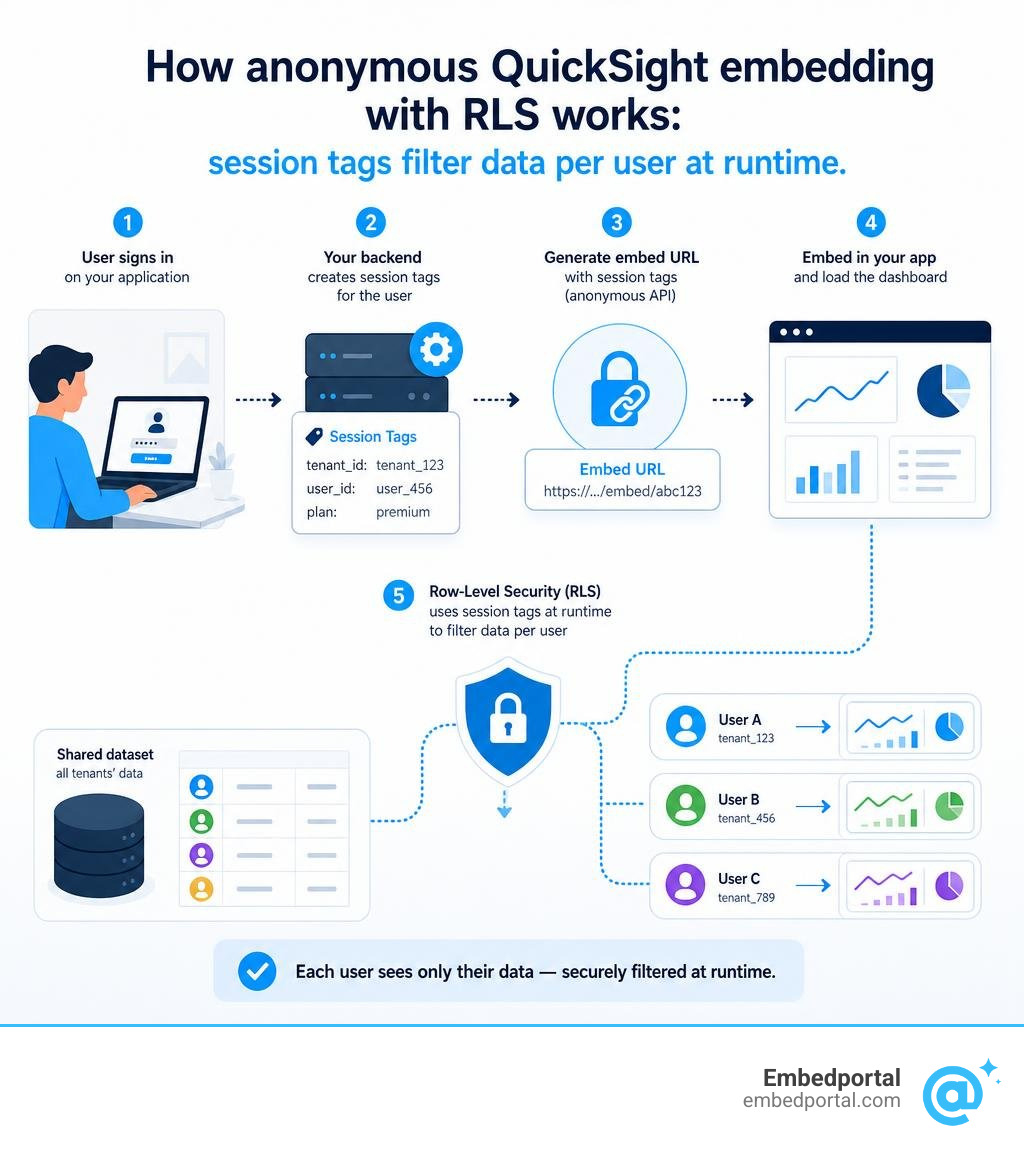
The second path is Tag-Based RLS, which is tailored specifically for anonymous embedding. In this scenario, we do not provision users in QuickSight. Instead, we define rules on our dataset using custom tags. When our backend requests an embed URL, it passes the user’s specific attributes as runtime “session tags” (like a tenant ID or region). QuickSight intercepts these tags and filters the dataset on the fly. This is the ultimate tool for Multi Tenant Row Level Security when you have thousands of rapidly changing end-users.
Here is a quick comparison to help you choose the right path for your architecture:
| Feature | User-Based RLS | Tag-Based RLS |
|---|---|---|
| User Provisioning | Required (via API or Console) | None (Anonymous) |
| Primary API | GenerateEmbedUrlForRegisteredUser |
GenerateEmbedUrlForAnonymousUser |
| Filtering Mechanism | Rules dataset mapped to UserName |
Runtime SessionTags mapped to columns |
| Best For | Internal teams, power users, or dedicated tenants | High-scale SaaS, external customers, portal embedding |
| Max Rules/Tags | Up to 999 rules per user | Up to 50 tags per dataset |
| Complexity | Higher (must manage user lifecycle) | Lower (stateless runtime tags) |
Step-by-Step: How to Configure Tag-Based RLS Rules on a Dataset
If you are embedding dashboards for unregistered users, tag-based RLS is the most scalable choice. It allows you to keep user management entirely inside your own application database. However, configuring it requires setting up specific metadata rules on your QuickSight datasets.
To get started, we need to map our dataset columns to tag keys. This can be done via the AWS Command Line Interface (CLI), the QuickSight API, or directly within the QuickSight Console.
For a complete breakdown of modern RLS strategies, check out the Enable complex row-level security in embedded dashboards for non-provisioned users in Amazon QuickSight with OR-based tags | AWS Business Intelligence Blog and our guide on Row Level Security Best Practices.
Setting Up TagRules and TagRuleConfigurations to Embed QuickSight with RLS
To apply tag rules, you must define a RowLevelPermissionTagConfiguration on your dataset. This configuration consists of TagRules that tell QuickSight how to map incoming session tags to your physical data columns.
Each tag rule requires a few key parameters:
- TagKey: The name of the session tag you will pass at runtime (e.g.,
tenant_id). - ColumnName: The physical column in your dataset that contains the values you want to filter (e.g.,
TenantID). - TagMultiValueDelimiter: (Optional) A character used to split multiple values passed in a single tag. It can be up to 10 characters long. For example, if you pass
value1,value2and set the delimiter to a comma, QuickSight filters for rows matching either value. - MatchAllValue: (Optional) A wildcard character (like
*) that, when passed, tells QuickSight to ignore the filter and show all data in that column for the session.

To configure this via the AWS API, you would call UpdateDataSet and include the RowLevelPermissionTagConfiguration object in your request. Ensure the status of the tag rule configuration is set to ENABLED.
Combining AND and OR Conditions for Complex Multi-Tenant Access
Historically, tag-based RLS only supported logical AND operators. If you passed a tenant_id tag and a region tag, the user could only see rows where both columns matched.
As of our current year, 2026, QuickSight Enterprise edition supports nested conditions within RLS tags, enabling us to combine both AND and OR conditions. This is a game-changer for complex Multi Tenant Analytics access patterns.
Imagine a healthcare SaaS platform where:
- A regional billing manager needs to see claims for “Hospital A” in the “North Region” OR any claim associated with “Medicaid” in the state of “New York”.
- An administrator needs access to all hospitals in their specific region.
By structuring your TagRuleConfigurations with multiple nested arrays, you can define these complex logical blocks. Items configured within a single rule array are evaluated with an AND operator, while multiple separate rule arrays in your dataset configuration are evaluated with an OR operator. This allows you to support multi-role users with overlapping permissions without creating duplicate datasets.
Implementing RLS Embedding: Anonymous and Registered Workflows
Once your datasets are configured to enforce RLS, you must implement the backend workflow to generate the secure embed URLs.
Depending on your architecture, you will use either the registered user workflow or the anonymous user workflow. For official documentation, refer to the Embedding Amazon Quick Sight visuals for anonymous (unregistered) users – Amazon Quick and Embedding Amazon Quick Sight dashboards for registered users – Amazon Quick guides.
We also recommend reviewing our architecture patterns for Embedded Analytics for SaaS.
Generating the Anonymous Embed URL and Passing Session Tags
The anonymous workflow relies on the GenerateEmbedUrlForAnonymousUser API. When a user requests a dashboard on your frontend, your backend intercepts the request, verifies the user’s session, and makes an authorized API call to AWS.
Within the API request payload, you must include the SessionTags array. Each item in this array must contain:
Key: The exactTagKeydefined in your dataset’s RLS configuration.Value: The specific value (or delimited list of values) to restrict the data for this session.
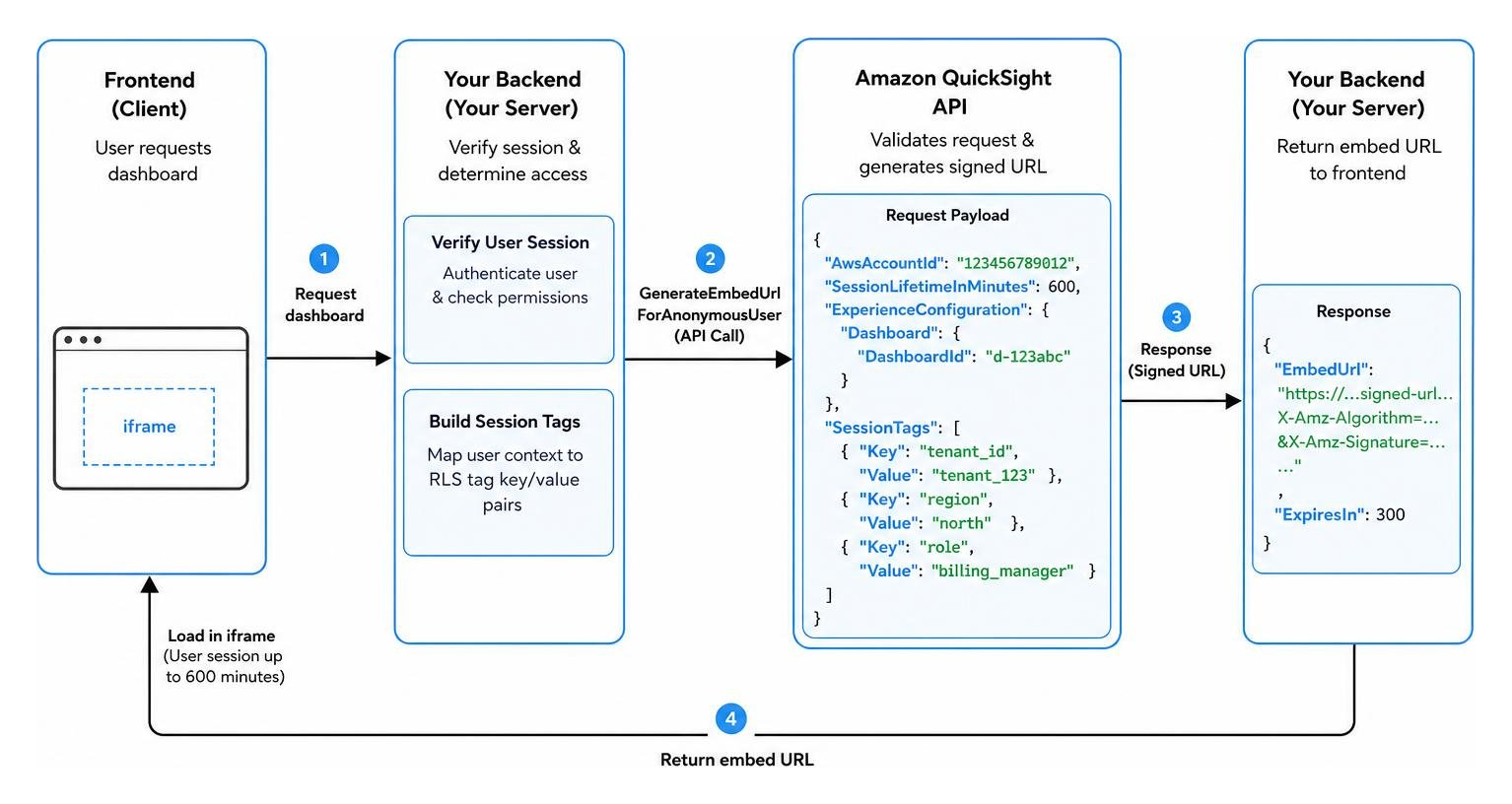
This signed URL is valid for 5 minutes, but once loaded in the iframe, the viewer’s session can last up to 10 hours (600 minutes).
Provisioning Users and Setting Up IAM Roles to Embed QuickSight with RLS
For registered user embedding, we use the GenerateEmbedUrlForRegisteredUser API. Before we can generate this URL, the user must exist in QuickSight.
To set up this workflow:
- Create an IAM Role: Set up an execution role with permissions to call
quicksight:GenerateEmbedUrlForRegisteredUserandquicksight:RegisterUser. - STS Assume-Role: When a user logs into your SaaS, your backend assumes this IAM role using AWS Security Token Service (STS).
- Register the User: If it is the user’s first login, call the
RegisterUserAPI to provision them as aREADERin your QuickSight account. Map their identity to a unique role session ID. - Generate the URL: Call
GenerateEmbedUrlForRegisteredUser, passing the user’s QuickSight ARN.
Because the user is registered, QuickSight automatically applies any user-based RLS rules you have linked to their username. To dive deeper into managing external identities, explore our guides on External User Access and User Management for BI.
Security Best Practices for Session Tags and RLS Rules
Security is paramount when dealing with multi-tenant data. If an attacker can manipulate session tags, they can access other tenants’ data.
- Always Generate URLs Server-Side: Never call AWS APIs directly from the browser or client-side code. Your AWS credentials and the logic that assigns session tags must remain securely on your backend.
- Implement Strict Server-Side Validation: Before calling the QuickSight API, verify the logged-in user’s token (JWT, cookie, etc.) and lookup their authorized tenant IDs in your primary database.
- Prevent Tag Enumeration: Use non-sequential, globally unique identifiers (UUIDs) for tenant IDs and user IDs instead of simple auto-incrementing integers.
- Restrict IAM Permissions: Limit your backend’s IAM role to only the specific dashboards, visuals, and namespaces required.
For a deeper look at securing your data pipeline, visit our resource on Centralized Row Level Security.
Troubleshooting and Limitations of QuickSight RLS
Even the most carefully planned RLS implementations can run into technical limits or configuration errors. Let’s look at what you need to keep in mind.
Understanding QuickSight RLS Limitations
QuickSight has strict guardrails to ensure high performance, especially when using SPICE (QuickSight’s in-memory engine).
- Character Limits: When using SPICE datasets with row-level security, each field in the dataset can contain a maximum of 2,047 Unicode characters. If your RLS rules contain extremely long comma-separated strings, they may be truncated.
- Rule Limits: The full set of rule records that you can apply for each user cannot exceed 999 when using user-based RLS. If you have more than 999 rules, you should group your users into QuickSight Groups and apply rules at the group level instead.
- Data Type Restrictions: RLS rules only support textual data types (String, Char, Varchar). If you need to filter by dates or numeric IDs, you must convert those fields to Strings in your dataset before applying RLS.
- Tag Limits: You can add up to 50 tags to a dataset when configuring tag-based RLS rules.
Resolving Common RLS Errors and Empty Dashboards
If your embedded dashboard is showing no data or throwing errors, it is usually due to one of these common issues:
- DatasetRulesInvalidColType: This error occurs when you try to apply RLS rules to non-text fields. Convert your RLS columns to String format to resolve this.
- DatasetRulesUserDenied: This indicates that the current user viewing the dashboard is not explicitly listed in your user-based RLS rules dataset. Ensure your user provisioning matches your rules dataset exactly.
- The “No Data” Screen: If anonymous users see an empty dashboard, check if you have accidentally applied user-based RLS rules to the dataset as well. For anonymous dashboards, only use tag-based rules. If you need both, ensure they are configured correctly without conflicting.
For official troubleshooting steps, consult the AWS guide How do I troubleshoot row-level security issues in Quick Sight? and our guide on managing Dashboard Data Access.
Frequently Asked Questions about QuickSight RLS Embedding
Can I use tag-based RLS for registered users?
No. Tag-based RLS is currently only supported for anonymous embedding, specifically for embedded dashboards that use the GenerateEmbedUrlForAnonymousUser API operation. If you are using GenerateEmbedUrlForRegisteredUser, you must use user-based RLS.
What is the maximum number of tags I can add to a dataset?
You can add up to 50 tags to a dataset when configuring tag-based RLS rules. Each tag must map to a single column, though you can use logical OR arrays to create complex rules.
How do I handle null values in RLS rules?
QuickSight treats null values as empty fields, which cannot be matched directly in RLS rules. If you need to match rows that contain empty values, replace the nulls with a specific string placeholder (like “N/A” or a literal space) in your ETL pipeline, and write your RLS rules to match that placeholder.
Conclusion
Setting up row-level security in QuickSight doesn’t have to be a headache. By choosing the right strategy—tag-based RLS for high-scale anonymous portals or user-based RLS for provisioned readers—you can deliver secure, isolated, and lightning-fast analytics to every single one of your customers.
If you want to bypass the complexity of AWS IAM configurations, token handshakes, and multi-vendor security entirely, we can help. At Embedportal, we provide a white-label embedding platform designed to let you embed secure dashboards from QuickSight, Tableau, Power BI, and Metabase with unified branding, SSO, and advanced Row Level Security in under an hour. Let us handle the infrastructure so you can focus on building a great product.