
How to Avoid Errors with Power BI RLS Direct Query Setup
Why Power BI RLS Direct Query Setup Breaks — and How to Fix It Fast
Power BI RLS Direct Query is a security configuration that restricts which rows of data each user can see, while keeping data live in the source database rather than importing it into Power BI.
Here is a quick answer to the most common questions:
| Question | Quick Answer |
|---|---|
| What is RLS in Power BI? | Row-level security filters data so each user only sees rows they’re allowed to see |
| How does DirectQuery affect RLS? | Power BI sends a separate query per user to the source database, with RLS filters applied at query time |
| Why does my RLS expression fail in DirectQuery? | Functions like CALCULATE and cross-table measures are not supported in DirectQuery RLS rules |
| Can I use dynamic RLS with DirectQuery? | Yes, using USERPRINCIPALNAME() or USERNAME() in your role filter expression |
| What is the biggest performance risk? | The 1,000,000-row intermediate result limit, which RLS filters can trigger on large datasets |
If you’re building a SaaS product that embeds Power BI dashboards for multiple customers, getting RLS right in DirectQuery mode is critical. A misconfigured rule doesn’t just show the wrong data — it can expose one customer’s data to another, or silently break an entire report.
The challenge is that RLS behaves differently depending on your connection mode. Rules that work perfectly in Import mode often fail in DirectQuery, and the error messages rarely tell you why. There are also real constraints around DAX functions, model relationships, query performance, and how external guest users are handled — all of which compound quickly in a production embedding environment.
This guide walks through every layer of the setup: defining roles, writing rules that actually work in DirectQuery, handling performance limits, validating security, and knowing when to use alternatives.
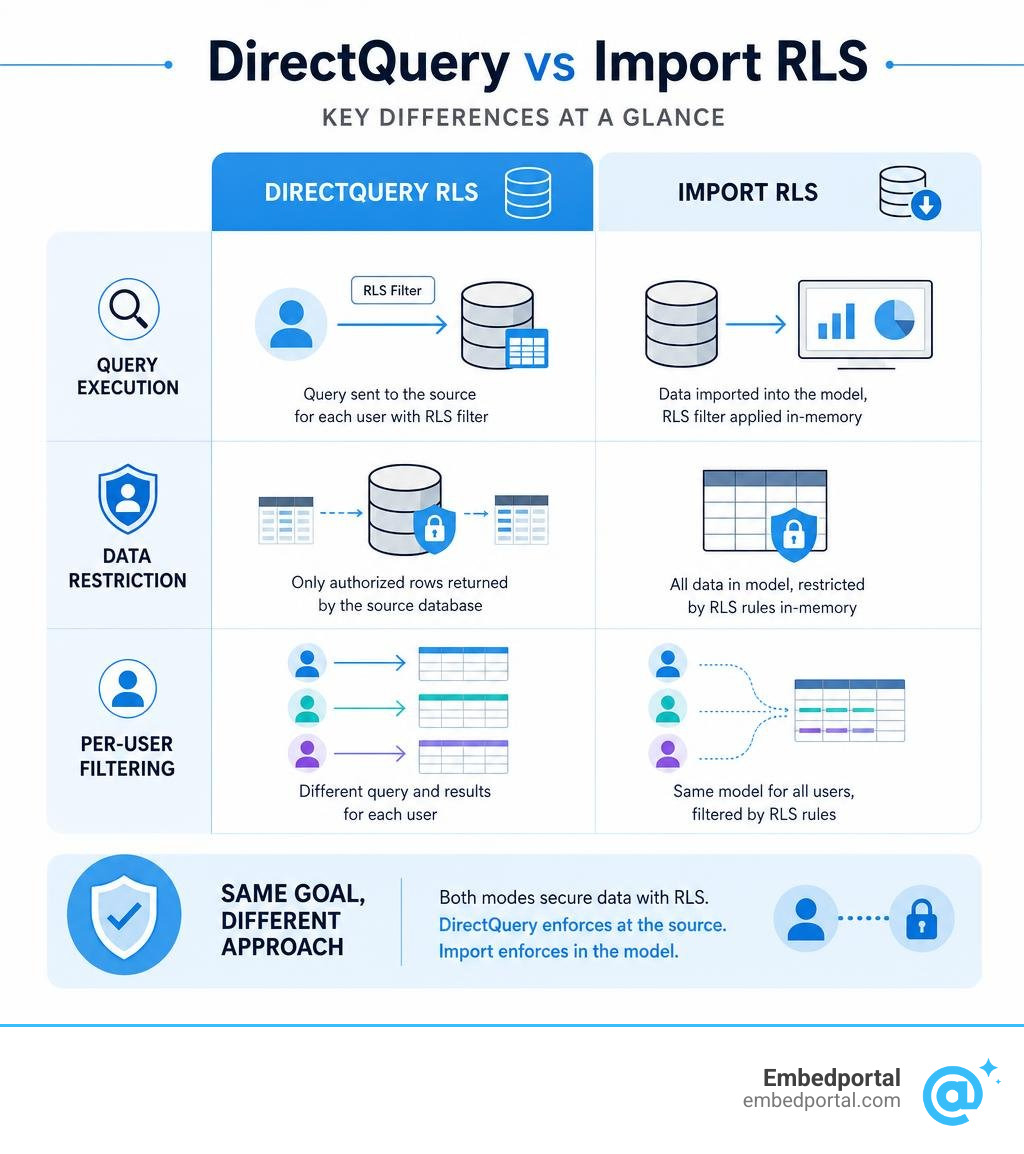
Quick look at power bi rls direct query:
Understanding Row-Level Security (RLS) in Import vs. DirectQuery Mode
To understand why power bi rls direct query setups fail, we first have to look at how Power BI processes data under the hood.
In Import mode, all your data is compressed and loaded into the local VertiPaq in-memory engine. When a user opens a report, Power BI applies your RLS DAX filters directly to this in-memory cache. It’s fast, highly flexible, and supports almost any complex DAX calculation you can throw at it.
DirectQuery mode is a completely different beast. No data is stored inside the Power BI semantic model. Instead, Power BI acts as a translator. Every time a user interacts with a visual, Power BI translates the visual’s DAX query into a native SQL query (or the source’s native query language) and sends it directly to your database.
When you apply RLS in DirectQuery, Power BI appends your RLS rules as a WHERE clause to every outgoing native SQL query.
| Feature | Import Mode RLS | DirectQuery Mode RLS |
|---|---|---|
| Data Storage | In-memory (VertiPaq engine) | Kept in the source database |
| Filter Evaluation | Evaluated locally in Power BI memory | Translated into SQL WHERE clauses and executed by the database |
| Performance Impact | Minimal; fast local memory lookups | High; depends on database indexing and query complexity |
| DAX Support | Fully supports complex functions (e.g., CALCULATE) |
Highly restricted; must support query folding |
| Query Behavior | One shared cache (filters applied post-load) | One unique database query per user, per visual |
Because of these differences, you must carefully plan how you Restrict access to Power BI model data before deciding on a storage mode.
How DirectQuery Handles Row-Level Security
When a user accesses a DirectQuery report with RLS enabled, Power BI cannot share or cache queries between users. If User A and User B look at the exact same bar chart, Power BI must generate two separate SQL queries because User A’s query contains WHERE tenant_id = 1 and User B’s query contains WHERE tenant_id = 2.
This behavior has massive implications for your database load. If a report page contains 10 visuals, and 100 users log in simultaneously, your database will suddenly be hit with 1,000 live, uncacheable SQL queries. If those queries contain complex joins or unindexed RLS filtering columns, your database CPU will spike to 100% in seconds.
Understanding this dynamic query execution is the first step to successful Row Level Security Power BI implementations.
Defining Roles and Rules in Power BI Desktop
Setting up RLS starts in Power BI Desktop. You define roles (which represent security buckets) and rules (the DAX expressions that filter the data for those roles).
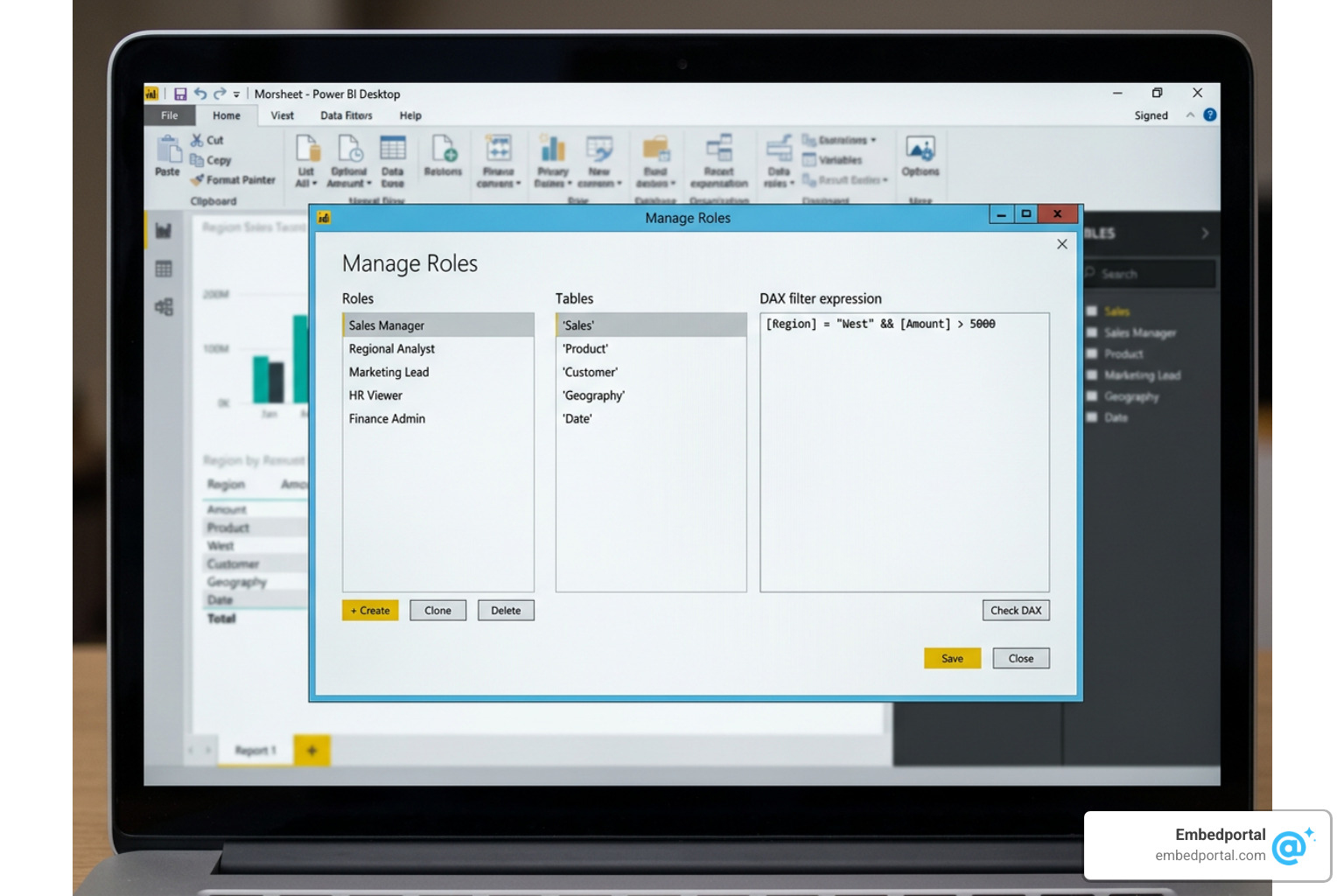
To get started, follow these steps:
- Open your model in Power BI Desktop.
- Navigate to the Modeling tab and click Manage roles.
- Click Create to add a new role (e.g., “Sales_West”).
- Select the table you want to filter (always target your dimension tables first!).
- In the Table filter DAX expression box, enter your rule. For example:
[Region] = "West". - Click Save.
To ensure your filters propagate efficiently, you should always design your model around a clean star schema. When you apply an RLS filter to a dimension table (like DimGeography), the filter naturally flows down through the 1-to-many relationship to secure your fact tables (like FactSales).
For more detailed design patterns, consult the official Row-level security (RLS) guidance in Power BI Desktop.
Static vs. Dynamic Power BI RLS Direct Query Rules
There are two primary ways to set up your RLS rules: static and dynamic.
- Static Rules: These use hardcoded values. For example, you create a “US_East” role with the rule
[Region] = "East". While simple to set up, static rules do not scale. If you have 500 different regions or clients, you would have to manually create 500 roles in Power BI Desktop and manage 500 separate role assignments in the Power BI Service. - Dynamic Rules: These use DAX security functions to automatically filter data based on the logged-in user. By using dynamic rules, you only need to build one single role in Power BI Desktop.
The core functions used for dynamic Row Level Security are:
USERPRINCIPALNAME(): Returns the User Principal Name (UPN) of the current user (usually their email address, likejohn.doe@yourcompany.com). This is the gold standard for cloud-based Power BI Service environments.USERNAME(): In Power BI Desktop, this returns the local domain and username (e.g.,DOMAIN\johndoe). However, once published to the Power BI Service, it behaves identically toUSERPRINCIPALNAME()and returns the email address.CUSTOMDATA(): This is used primarily in embedded application scenarios. It allows your custom application to pass any custom string (like a tenant ID or a comma-separated list of allowed IDs) directly into the Power BI session.
A standard dynamic RLS pattern involves creating a SecurityMapping table that maps user emails to their allowed regions, and then writing a rule on that table like:
[UserEmail] = USERPRINCIPALNAME()
Because of DirectQuery’s dynamic nature, you should keep these mapping tables as small and simple as possible to avoid slow database joins.
Model Relationships and Bidirectional Cross-Filtering
In a standard star schema, filters flow in a single direction: from the 1-side (dimension) to the Many-side (fact table). However, dynamic RLS mapping tables often require filters to flow in both directions to secure multiple dimensions.
While Power BI allows you to check the box to “Apply security filter in both directions” on a relationship, you must exercise extreme caution when doing so in DirectQuery mode.
Enabling bidirectional security filtering forces Power BI to generate highly complex SQL queries involving nested subqueries and EXISTS clauses. In many cases, this completely breaks query folding, resulting in slow reports or database timeouts.
To keep your model performant, follow these RLS Best Practices:
- Avoid many-to-many relationships in your security paths.
- If you must use bidirectional security filters, ensure the tables on both sides of the relationship are highly indexed on the join keys.
- Keep the security path as short as possible (ideally a single hop from your user mapping table to your primary dimension).
Optimizing Performance for Power BI RLS Direct Query Models
Performance is the single biggest hurdle when implementing power bi rls direct query configurations. Because every visual generates live database queries, any inefficiency in your security rules will be multiplied across your entire report page.

To optimize your model:
- Use Performance Analyzer: Run your report with Performance Analyzer active in Power BI Desktop. Compare the query execution times of your visuals with and without RLS roles applied to isolate the exact DAX rules causing bottlenecks.
- Enforce Query Folding: Ensure that your RLS DAX expressions can be fully translated into native SQL. If Power BI cannot fold the query, it will attempt to pull unfiltered rows into memory to apply the security filter locally—which will instantly fail in DirectQuery mode.
- Optimize the Source Database: Ensure that any columns used in your RLS filter rules (such as
UserEmail,TenantID, orRegionCode) are indexed in your source database. If you are querying a relational database like SQL Server or PostgreSQL, clustered or non-clustered indexes on these security keys are mandatory.
For more connectivity optimization tips, refer to the Microsoft guide on how to Use DirectQuery in Power BI Desktop.
Managing the 1,000,000-Row Intermediate Result Limit
Power BI enforces a strict limit of 1,000,000 rows for intermediate query results returned by any DirectQuery source.
If a user interacts with a visual that requires joining a massive fact table with an unoptimized RLS dimension, the database might attempt to return an intermediate dataset larger than 1 million rows to Power BI for final rendering. When this happens, the visual will crash with an error.
To avoid hitting this limit:
- Apply key filters as early as possible.
- Use the Query Reduction options in Power BI Desktop to disable cross-highlighting by default and add “Apply” buttons to slicers. This prevents Power BI from firing off dozens of intermediate queries while a user is still selecting their filter criteria.
- Be aware of the 4-minute query timeout enforced by the Power BI Service. If your database takes longer than 4 minutes to resolve an RLS-filtered query, the request will be terminated.
Managing and Validating RLS in the Power BI Service
Once you have configured your roles and rules in Power BI Desktop, you must publish the model to the Power BI Service to assign users and validate your security.
After publishing, follow these steps to manage membership:
- In the Power BI Service, locate your semantic model, click the three dots (…), and select Security.
- Select the role you created.
- Add members to the role. We highly recommend mapping roles to Microsoft Entra security groups (formerly Azure Active Directory groups) rather than individual user accounts. This keeps your security administration centralized.
- Click Save.
To validate that your security works:
- In the Security settings page, hover over your role and click Test as role (or Test as).
- This will open the report in a validation view, showing you exactly what a user assigned to that role sees.
- If you are testing dynamic RLS, you can click Viewing as: [Role Name] at the top of the screen, select Other user, and enter a specific user’s email address to test their exact view.
For a deeper dive into service-side security workflows, check out our comprehensive guide on Power BI Row Level Security.
Single Sign-On (SSO) and Service Principal Considerations
When using DirectQuery, you have two primary options for database authentication:
- Stored Credentials: Power BI uses a single master credential to connect to the database. In this scenario, Power BI handles all RLS logic locally using your DAX rules before querying the database.
- Single Sign-On (SSO): Power BI passes the actual identity of the report viewer directly to the database via Kerberos or Microsoft Entra ID. In this scenario, the database itself is responsible for enforcing row-level security.
If you are embedding reports for a multi-tenant SaaS application using a Service Principal (app-owns-data scenario), note that Service Principals bypass standard RLS role memberships. Instead, you must generate an embed token and pass the security context dynamically inside the EffectiveIdentity object of your token request.
To learn how to securely configure these tokens, see our technical guide on Power BI Embedding.
Workarounds and Alternatives for DirectQuery RLS Limitations
As of July 2026, pure DirectQuery with RLS still has notable limitations, particularly around complex calculations and query performance. Fortunately, there are several modern architectural workarounds:
- DirectQuery on Dataflows: You can store your fact data in an efficient Import-mode dataset, but keep your dynamic RLS user mapping table in a Power BI Dataflow configured with DirectQuery (using the Enhanced Compute Engine). This allows you to update user access rights instantly without needing to run a full refresh on your massive fact dataset.
- Hybrid Tables: Available in Premium capacities, hybrid tables allow you to partition a single table into an Import partition (for historical, high-performance data) and a DirectQuery partition (for real-time data). RLS is seamlessly applied across both partitions.
- Direct Lake Mode: If you are using Microsoft Fabric, Direct Lake mode bypasses both Import and DirectQuery. It loads Delta Parquet files directly from OneLake into memory on-demand, giving you the performance of Import mode with the real-time nature of DirectQuery, while fully supporting RLS.
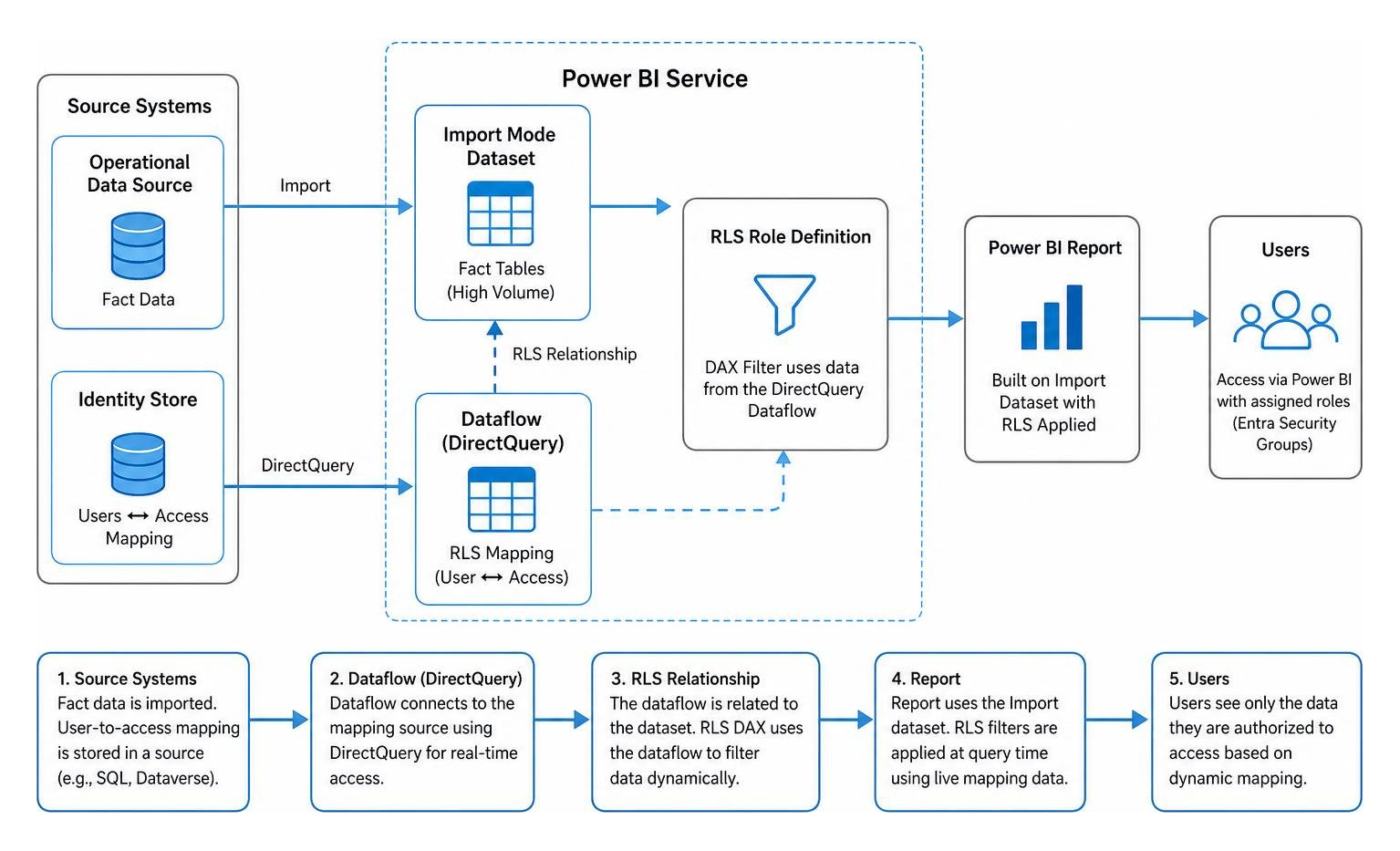
For a step-by-step walkthrough of the dataflow workaround, read this excellent guide on Using DirectQuery with Dataflow to apply Row-level Security in an Import mode Dataset.
Frequently Asked Questions about Power BI RLS Direct Query
Why does my Power BI RLS Direct Query expression fail?
The most common reason an RLS expression fails in DirectQuery is the use of unsupported DAX functions.
In Import mode, you can write complex filters using CALCULATE, FILTER, or LOOKUPVALUE. However, DirectQuery cannot translate these functions into simple, efficient SQL WHERE clauses. If you attempt to use CALCULATE inside an RLS rule, Power BI will throw an error because it cannot guarantee query folding.
To fix this, keep your RLS expressions extremely simple. Instead of writing complex lookups, restructure your data model so that your user-mapping table has a direct, active relationship to your dimensions.
For more troubleshooting tips, refer to Row Level Security Power BI 2.
How do I troubleshoot UPN format mismatches for B2B guest users?
When sharing reports with external business-to-business (B2B) guest users, you will often find that they see absolutely no data. This is almost always caused by a UPN format mismatch.
In your native tenant, a user’s UPN is usually their email (e.g., guest@externalcompany.com). However, when that user is invited to your tenant as a guest, Microsoft Entra ID creates a unique guest UPN format, which often looks like:
guest_externalcompany.com#EXT#@yourtenant.onmicrosoft.com
If your security mapping table contains guest@externalcompany.com, but USERPRINCIPALNAME() returns the #EXT# string, the RLS filter will find no matches and return blank visuals.
To solve this, ensure your security mapping table is populated with the actual external UPN values, or construct a DAX rule that extracts the clean email address from the UPN before filtering.
You can find more details on handling external identities in the official documentation on Row-level security (RLS) with Power BI.
Can I use database-level RLS instead of Power BI RLS with DirectQuery?
Yes! If your underlying data source (such as SQL Server, Snowflake, or Azure Synapse) already has robust row-level security configured, you do not need to recreate those rules in Power BI.
Instead, you can enable Single Sign-On (SSO) on your DirectQuery data source. When a user views the report, Power BI passes their credentials directly to the database. The database then evaluates the security rules natively and only returns the authorized rows to Power BI.
While this approach centralizes your security, it does require that all report viewers have database accounts or are mapped correctly via directory integration.
To learn more about this pattern, read about Centralized Row Level Security.
Conclusion
Setting up power bi rls direct query configurations can be highly rewarding, but the performance and modeling constraints require careful planning. By keeping your models built around clean star schemas, avoiding complex DAX functions like CALCULATE in your rules, and leveraging Microsoft Entra groups for membership, you can build secure, real-time reporting pipelines that scale.
If you are looking to embed these secure dashboards into your own SaaS applications without dealing with the headaches of token generation, complex gateway setups, and multi-tenant security mapping, Embedportal is here to help.
Embedportal is a white-label embedding platform that allows your team to embed multi-vendor analytics (including Power BI, Tableau, QuickSight, and Metabase) with unified branding, robust row-level security, and seamless SSO in under an hour.
Ready to simplify your analytics embedding? Explore our platform and learn more about managing Row Level Security with ease.