Tableau Server Connected Apps Made Easy
Why Tableau Server Connected Apps Are the Key to Seamless Embedded Analytics
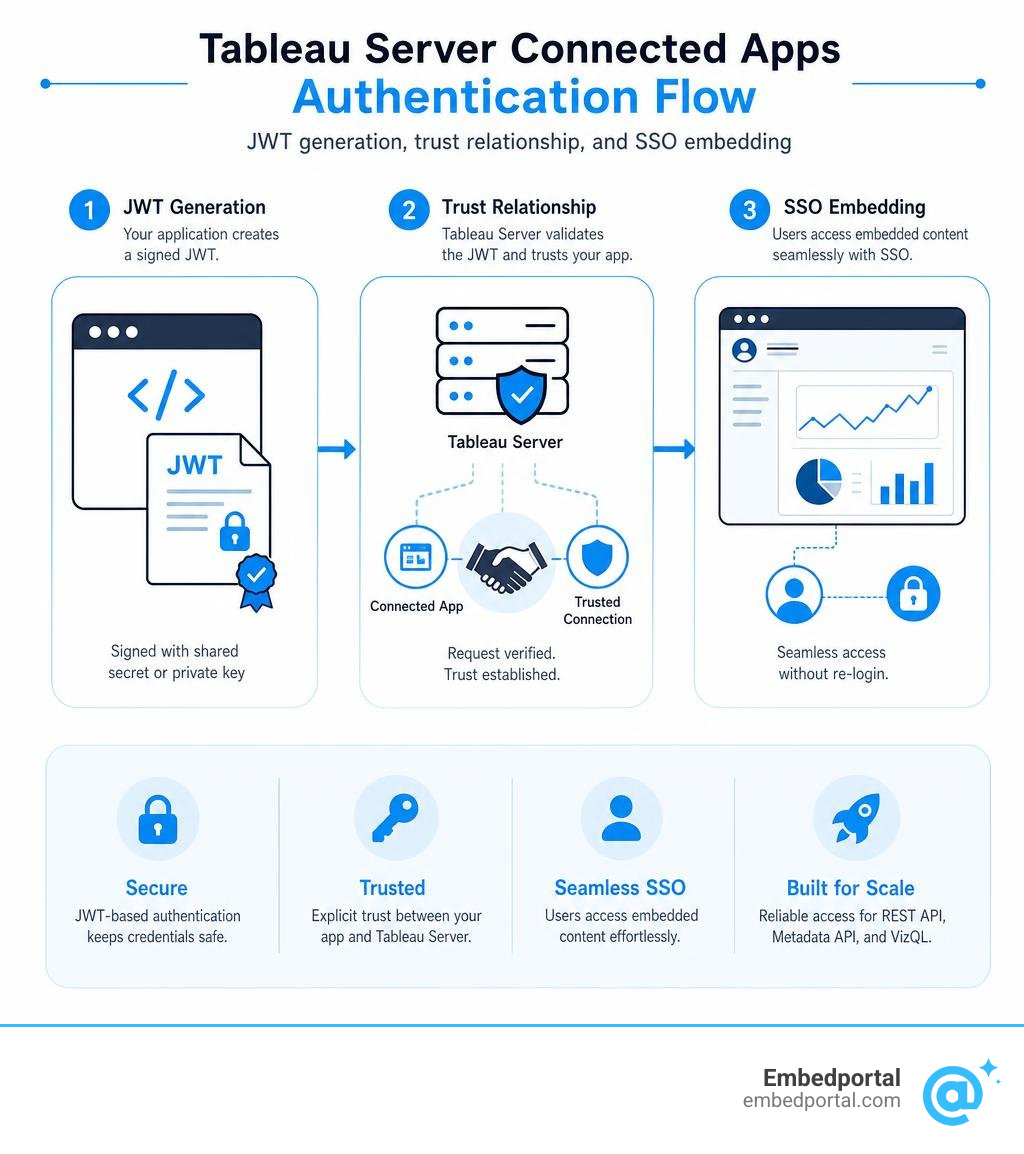
Tableau Server Connected Apps give you a direct, secure way to embed Tableau dashboards into your own application — without forcing users to log in twice or wrestling with complex identity provider setups.
Here’s what they do in plain terms:
- Embed Tableau content inside your product with single sign-on (SSO) built in
- Authorize REST API calls programmatically using JSON Web Tokens (JWTs) instead of passwords
- Control access at the domain, project, or user level — all from one configuration
- Skip the IdP requirement entirely if you use Direct Trust mode
Starting with Tableau Server 2022.1, Connected Apps create an explicit trust relationship between your Tableau Server site and any external application where Tableau content lives.
If you’re an analytics or product lead trying to embed dashboards into a branded customer portal, you already know the pain: slow auth integrations, fragmented row-level security, and inconsistent user experiences across tools. Connected Apps are Tableau’s answer to all three.
There are two trust models to choose from:
- Direct Trust — uses a shared secret and JWT; no IdP needed
- OAuth 2.0 Trust — connects to your existing identity provider via an External Authorization Server (EAS)
Both models support embedding, REST API authorization, and access to the Metadata API and VizQL Data Service. The right choice depends on whether you already have an IdP in your stack.
This guide walks you through exactly how to set them up, secure them, and troubleshoot the issues that trip most teams up.
What are Connected Apps and How Do They Differ from Salesforce?
To understand how tableau server connected apps work, we first need to clear up some common naming confusion. Many teams we work with assume that Tableau Connected Apps are identical to Salesforce Connected Apps. While they share a similar name and security philosophy, they are fundamentally different tools designed for different ecosystems.
Salesforce Connected Apps are primarily designed to integrate external applications with the Salesforce platform using standard OAuth 2.0 flows. They manage access to Salesforce APIs and data.
On the other hand, Tableau Connected Apps are built specifically to establish an explicit trust relationship between your Tableau Server (or Tableau Cloud) site and your external applications. They allow you to bypass traditional, clunky authentication mechanisms (like the older Trusted Tickets system) and use modern JSON Web Tokens (JWTs) to authenticate users on the fly.
When you use a Tableau Connected App, you are telling your Tableau Server: “I trust this specific external application. When it sends me a signed token claiming a user is ‘John Doe’, I will believe it and immediately provision a secure session for John Doe without asking him to log in again.”
This explicit trust makes application integration incredibly smooth. Instead of maintaining complex user directories or forcing your customer portal users to have active active-directory sessions that sync perfectly with Tableau, your custom application handles the user authentication. Your app then tells Tableau who the user is, and Tableau serves the visualization securely.
If you want to read more about how this fits into a broader dashboard integration strategy, check out our guide on Tableau Embed. For official developer integration documentation, you can refer to Use Tableau Connected Apps for Application Integration – Tableau.
Direct Trust vs. OAuth 2.0 Trust Models
When configuring your connected app, you must choose between two distinct trust models. Each model serves a different architectural need.
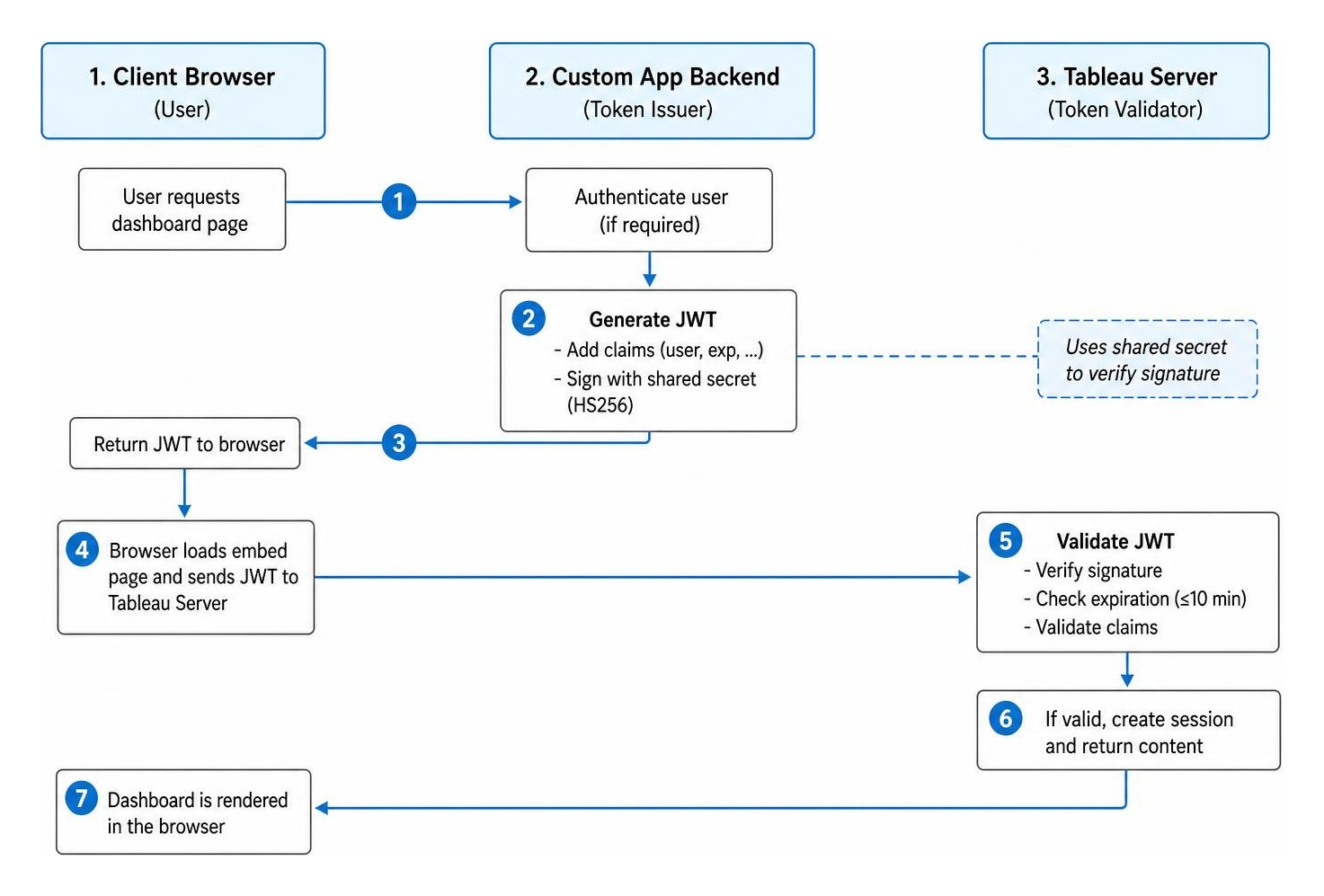
- Direct Trust: In this model, the trust is established directly between your custom web application and Tableau Server. You generate a shared secret inside the Tableau Server admin UI. Your backend application uses this secret to sign a JWT. When the user loads your portal, your backend signs the token and passes it to the frontend embed code. Tableau Server validates the token using the shared secret and renders the dashboard. This is perfect if you do not want to integrate Tableau with an external Identity Provider (IdP).
- OAuth 2.0 Trust: In this model, the trust is established through an External Authorization Server (EAS). Instead of using a shared secret generated by Tableau, your application obtains tokens from your existing IdP (such as Okta, Ping Federation, or Azure AD). Tableau Server is configured to trust your IdP’s public keys. When a user accesses the embedded content, your application passes the token issued by your IdP, and Tableau verifies it.
Below is a comparison table to help you decide which model fits your architecture:
| Feature | Direct Trust | OAuth 2.0 Trust (EAS) |
|---|---|---|
| Authentication Source | Custom Application Backend | External Identity Provider (IdP) |
| Key Component | Shared Secret (generated in Tableau) | Public Keys / JWKS URL from IdP |
| IdP Required? | No | Yes |
| Setup Complexity | Low (ideal for quick custom portal dev) | Medium to High (requires IdP admin access) |
| Token Management | Handled by your own backend code | Handled by your enterprise IdP |
| Multiple EAS Support | N/A | Yes (Multiple EAS per site supported) |
How JWTs Establish Secure Trust
The magic behind tableau server connected apps lies in the JSON Web Token (JWT). JWT is an open, industry-standard format (RFC 7519) for securely transmitting information between parties as a JSON object.
Because this information is digitally signed, it can be verified and trusted. In a Direct Trust configuration, the token is signed using the HMAC SHA-256 (HS256) algorithm, utilizing the shared secret generated inside your Tableau Server console.
Think of it like a secure VIP pass to a club. Your backend application is the authorized ticket issuer. It writes down the guest’s name (the username or email), stamps it with an expiration timestamp (which must be under 10 minutes), and signs it with a secret signature that only your app and Tableau Server know. When the user presents this ticket to Tableau Server, the server checks the signature. If the signature matches and the ticket hasn’t expired, the user is let in instantly.
This process eliminates the need for your application to communicate directly with Tableau Server over the back channel just to create a session. The session is created client-side when the browser presents the JWT within the embed code.
To get a deeper understanding of the code required to generate these tokens, take a look at the Connected Apps Tutorial.
Core Capabilities of Tableau Server Connected Apps
While embedding dashboards is the most common use case for Connected Apps, their capabilities extend far beyond simple frontend visualization. They serve as a unified security framework for programmatically interacting with Tableau Server.
As of recent updates, including major enhancements leading up to 2026, Connected Apps authorize access across three primary interfaces:
- The REST API: Historically, programmatically interacting with the Tableau REST API required storing administrator credentials or managing personal access tokens (PATs) in your application configuration. With Connected Apps, you can generate a JWT on behalf of any user, sign in programmatically, and obtain a standard Tableau auth token. This allows you to perform admin tasks, publish workbooks, or query site configurations securely.
- The Metadata API: If you need to query lineage, analyze impact, or discover data assets programmatically, the Metadata API respects JWTs generated by your Connected Apps. This is highly beneficial for building custom data catalogs or compliance portals.
- The VizQL Data Service: Added in early 2025, the VizQL Data Service allows developers to query the underlying data of a visualization directly via APIs. Connected Apps support authorization for this service, meaning your custom application can fetch raw, aggregated data securely from Tableau data sources without even rendering a visual dashboard.
By leveraging these APIs with Connected Apps, you can build highly customized, deeply integrated software-as-a-service (SaaS) applications. To learn how to restrict these API capabilities so that your application only has the permissions it absolutely needs, read the Access Scopes for Connected Apps – Tableau documentation.
If you are designing multi-tenant systems where different customers should only see their own data, combining Connected Apps with robust row-level security is essential. You can read more about how we implement this in our guide on Row Level Security Tableau.
Advanced Features: Dynamic Groups and User Attributes
In modern enterprise architectures, static user permissions are a maintenance nightmare. Fortunately, Tableau Connected Apps support advanced features that make user management dynamic and automated:
- Dynamic Group Membership: Instead of manually adding users to groups inside Tableau Server, you can pass group assertions directly inside the JWT payload. When the user accesses the embedded dashboard, Tableau dynamically adds them to the specified groups for that session. This ensures that their access permissions are always up to date with your primary database.
- User Attribute Functions: You can pass custom user attributes (such as department, region, or tenant ID) inside the JWT claims. These attributes can then be referenced inside Tableau workbooks using built-in user attribute functions. This makes setting up row-level security incredibly simple, as the workbook can dynamically filter data based on the attributes passed in the token.
- External Tokens for SCIM: For organizations utilizing System for Cross-domain Identity Management (SCIM) to provision users, Connected Apps can facilitate secure trust verification for SCIM synchronization workflows, ensuring seamless user lifecycle management.
How to Configure Direct Trust on Tableau Server
Setting up a Connected App using Direct Trust on Tableau Server is a straightforward process, but it requires administrator privileges. Once configured, you will receive a Client ID and a Secret Value, which your developers will use to sign the JWTs.
By configuring these settings correctly, you can achieve a completely seamless, white-labeled dashboard experience. To learn more about how to style and integrate these dashboards to match your product’s UI, see our resource on White Label Tableau.
Step-by-Step Guide to Creating Tableau Server Connected Apps
Follow these steps to create and enable your first Connected App:
- Sign in to Tableau Server: Log in as a Server Administrator or Site Administrator.
- Navigate to Settings: In the left-hand navigation pane, select Settings, and then click on the Connected Apps tab.
- Create the App: Click the New Connected App button (or use the REST API
POSTmethod if you are automating your deployment). - Configure App Details:
- Enter a meaningful Name for your app (e.g., “Customer Portal Integration”).
- Select the Access Level. You can choose to apply the app to all projects on the site or scope it to specific projects to limit access.
- Configure the Domain Allowlist. To prevent other websites from embedding your dashboards, specify the exact domains where your application runs (e.g.,
https://*.yourcompany.com).
- Generate a Secret: Under the newly created app, click Generate New Secret. Tableau will display a Secret ID and a Secret Value.
- Important: Copy the Secret Value immediately and store it securely in your application’s environment variables. You will not be able to view this value again after closing the window.
- Enable the Connected App: By default, newly created Connected Apps are set to Disabled. Click the actions menu (three dots) next to your app and select Enable.
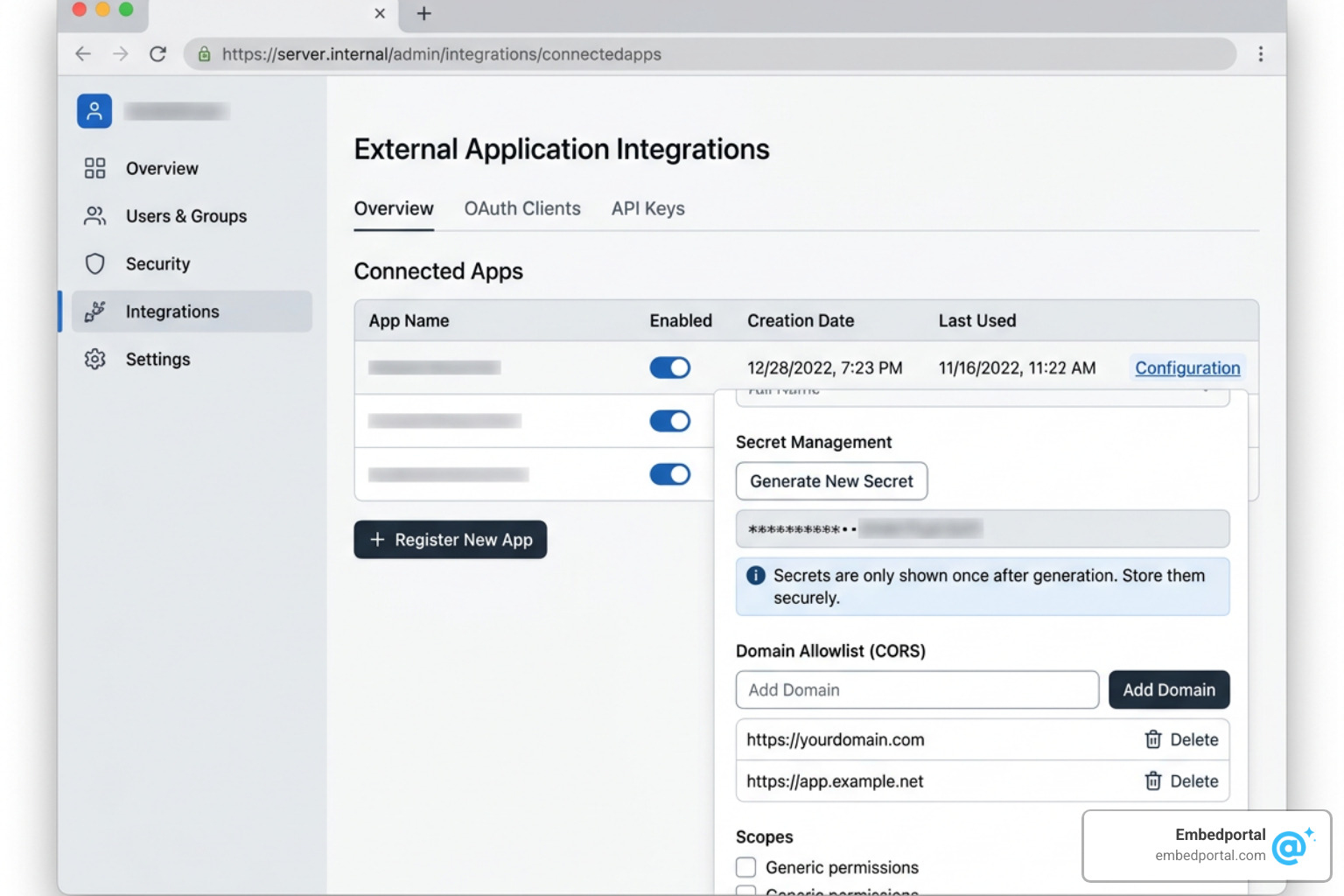
For a more detailed technical deep dive into this setup process, check out the official guide on Configure Connected Apps with Direct Trust – Tableau.
Structuring the JWT Payload and Claims
Once you have your Client ID, Secret ID, and Secret Value, your backend application must construct and sign the JWT. The JWT consists of three parts: a header, a payload, and a signature.
The Header must contain:
alg: The algorithm used, which must beHS256.kid: The Secret ID generated in Tableau Server.iss: The Client ID of the Connected App.
The Payload must contain the following claims:
iss: The Client ID of the Connected App.sub: The username or email of the Tableau Server user you are authenticating.aud: This must be set exactly to the stringtableau.exp: The expiration time of the token, expressed in UTC seconds. This must not exceed 10 minutes from the generation time.jti: A unique identifier string for the token (usually a UUID) to prevent replay attacks.scp: An array of scopes defining what the token is authorized to do.
Common scopes (scp) include:
tableau:views:embed: Allows embedding views and dashboards.tableau:views:embed_authoring: Allows users to perform web authoring inside the embed container.tableau:content:read: Allows reading content via the REST API.
Because you are constructing this JWT on your secure backend server, your Secret Value is never exposed to the client’s browser. The browser only ever sees the temporary, signed token.
Security Best Practices for Connected Apps
While tableau server connected apps provide a highly secure authentication framework, poor implementation can introduce vulnerabilities. Adhering to enterprise security standards is essential when deploying embedded analytics.
First, never generate JWTs on the client-side. If you write JavaScript code that signs the JWT in the user’s browser, you must expose your Secret Value in the source code. Anyone inspecting the page can steal your secret and generate tokens to impersonate any user on your Tableau Server. Always generate and sign the JWT on your secure backend server, and pass the completed token to your frontend.
Second, implement Secret Rotation. Tableau allows a maximum of two secrets to be active for a single Connected App at any time. This is designed specifically to allow zero-downtime secret rotation. You can generate a second secret, update your backend configuration to use the new secret, verify that it works, and then safely delete the old secret.
If you are looking for a platform that handles all of these security complexities, token generation, and multi-tenant isolation out of the box, you should explore our Embedded Analytics platform.
Domain Allowlists and Project-Level Access
To prevent unauthorized websites from framing your Tableau dashboards, always configure the Domain Allowlist (sometimes referred to as the safelist).
- Avoid leaving the setting as “All domains” in production.
- Use wildcard formatting to support subdomains safely (e.g.,
https://*.yourproduct.com). - If your application runs on non-standard ports, ensure you specify the port in the allowlist (e.g.,
https://localhost:8080). - Restrict traffic to secure connections (
https://) only.
Additionally, use project-level scoping (projectIds). If your Connected App is only meant to display dashboards located in a “Client Dashboards” project, restrict the app’s access to that project ID only. This ensures that even if a token is somehow compromised, the scope of accessible data is strictly limited.
Troubleshooting Common Issues with Tableau Server Connected Apps
Even with careful configuration, you may encounter errors during implementation. Here are the most common issues and how to fix them:
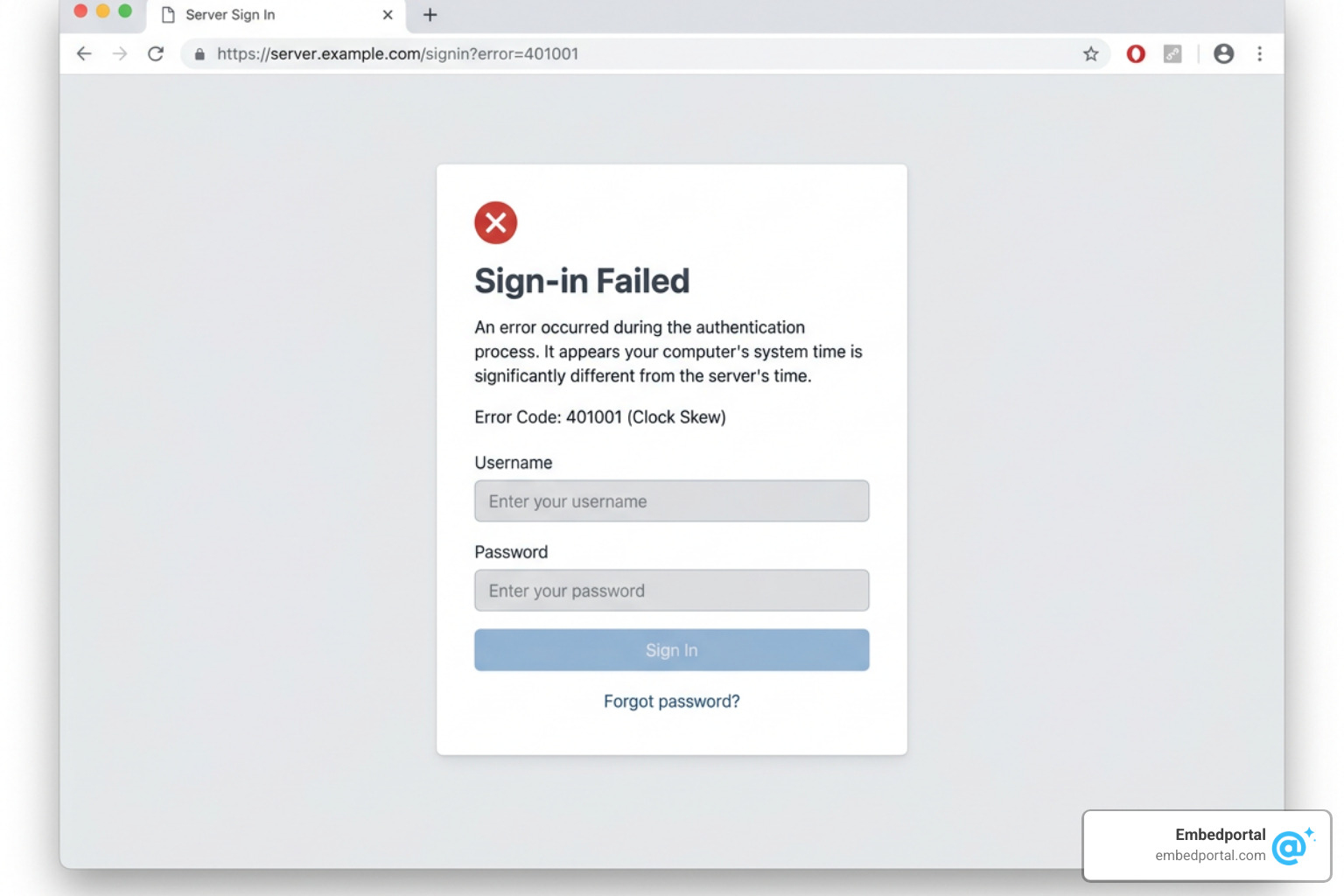
- Error 401001 (Sign-In Error): This is the most common error and usually indicates an issue with the JWT structure or signature.
- Check your clock synchronization: Tableau Server is extremely strict about timestamps. If your backend server’s clock is even a few seconds ahead of UTC time, Tableau will reject the token as “not yet valid” or “expired”. Ensure your servers use Network Time Protocol (NTP) to stay perfectly synced with UTC.
- Verify the claims: Double-check that your
audclaim is exactlytableau(all lowercase) and that yourissmatches the Client ID, not the Secret ID.
- Credential Prompts inside the Embed: If users are prompted to log in to their database when the dashboard loads, it means the workbook is configured to prompt the user for database credentials. You must edit the data source connection in Tableau and embed the password or use an OAuth keychain so that the dashboard can render headless.
- Toolbar and Layout Issues: Sometimes, custom CSS in your portal can conflict with the embedded Tableau iframe. We recommend hiding the default Tableau toolbar by setting the toolbar parameter to
hidein your embed configuration, and building custom navigation controls in your portal instead.
Frequently Asked Questions about Tableau Connected Apps
What is the maximum validity period for a Connected App JWT?
The maximum validity period for a Connected App JWT is 10 minutes from the time it is generated. This is a hardcoded security limit in Tableau Server to minimize the window of opportunity if a token is intercepted. We recommend setting your token expiration (exp claim) to 1 to 5 minutes in your backend code to ensure maximum security while accounting for minor network latency.
How many secrets can be associated with a single Connected App?
You can associate a maximum of two secrets with a single Connected App. These secrets do not expire automatically and remain valid until they are explicitly deleted by an administrator. Having two slots allows you to perform seamless secret rotation without interrupting active user sessions.
Can I use Connected Apps to bypass an Identity Provider (IdP)?
Yes. One of the greatest benefits of the Direct Trust model is that it allows you to bypass the need to integrate Tableau Server with an external Identity Provider. As long as your custom application can identify the user, your backend can generate a JWT on their behalf. Tableau Server will trust your application’s assertion and log the user in, making it an ideal solution for customer portals where setting up SAML or OpenID Connect for thousands of external users is impractical.
Conclusion
Implementing tableau server connected apps is a powerful way to deliver secure, seamless, and deeply integrated analytics to your users. By moving away from legacy authentication methods and adopting JWT-based Direct Trust, you ensure your application remains modern, secure, and highly scalable.
However, building and maintaining custom JWT generation, managing secret rotation, handling multi-tenant row-level security, and designing a beautiful, responsive frontend wrapper takes significant development time and ongoing maintenance.
That is where we can help. At Embedportal, we provide a fully white-labeled embedding platform that allows your team to embed multi-vendor analytics — including Tableau, Power BI, QuickSight, and Metabase — with unified branding, robust row-level security, and single sign-on in under an hour.
If you want to skip the headache of manual JWT configuration and deliver a world-class analytics experience to your customers today, explore our Tableau Embed solutions or get in touch with our team in California. Let us handle the complexity so you can focus on building your core product.