Power BI guest access lets you give someone outside your Microsoft environment access to Power BI content through a controlled guest identity, not just a shareable URL. That matters the moment you try to send a client a dashboard at 4:55 PM and realize the hard part is not the link, it is everything behind the link. If you need outside users to see reports without turning your setup into a mess, this is the part to understand.
What Power BI Guest Access Actually Means
Power BI guest access is the setup that lets an external person sign in and view Power BI content using a managed guest identity inside your organization. In plain English, you are not creating a full internal employee account, but you are giving that person a recognized place in your access system.
Here’s the thing: this is not the same as emailing a report link and hoping it opens. Guest access sits on three layers at once, identity, permissions, and security. The external person has to exist as a guest in your environment, the right Power BI item has to be shared, and the surrounding rules have to allow access.
That structure is exactly why guest access exists. You get a way to share analytics outside your company without giving up control over who signs in, what gets opened, and what slice of data is visible.
Why this matters if you share reports outside your company
If you build dashboards for clients, partners, vendors, or customer-facing portals, external access stops being a side issue pretty quickly. A nice report means nothing if the person on the other end gets a permissions error, a licensing surprise, or a blank page.
This matters for developers embedding analytics on a website, teams sharing performance dashboards with customers, and businesses that need outside people to see live data without downloading spreadsheets back and forth. If your use case involves known external users and secure sign-in, guest access is often the most direct path.
How Guest Access Works Behind the Scenes
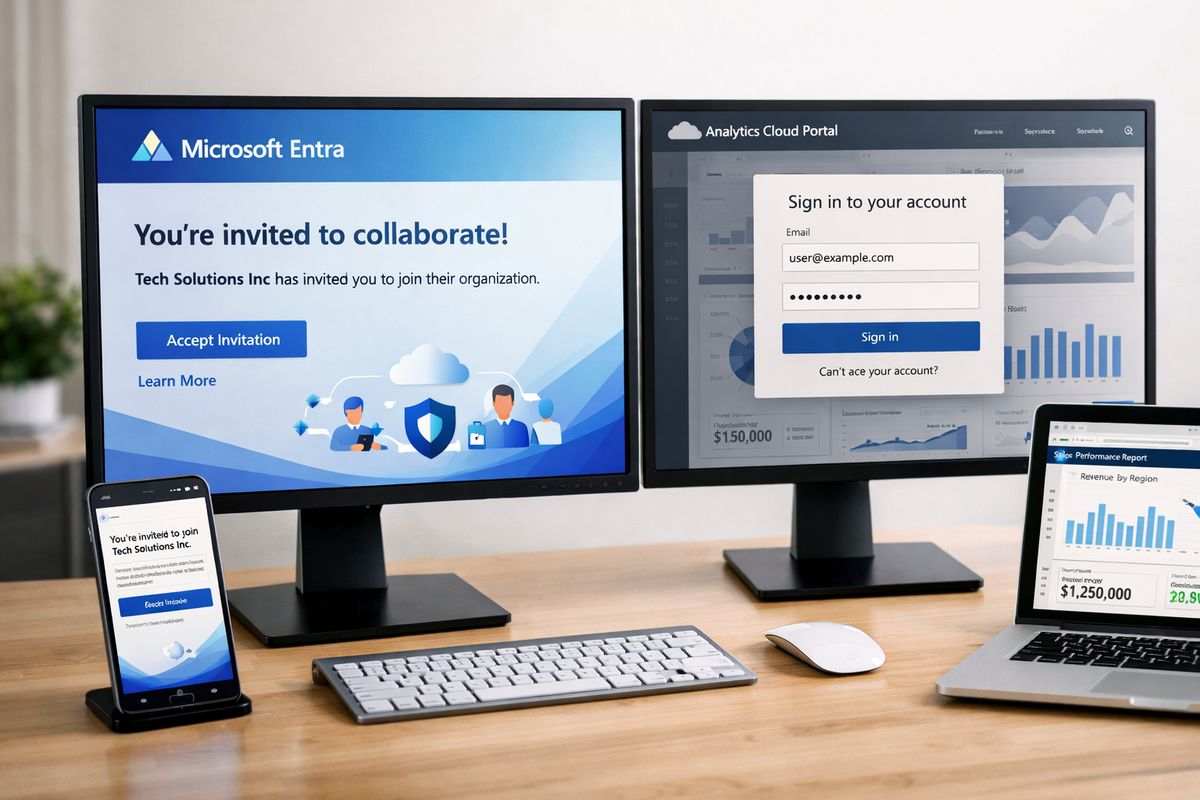
Under the hood, Power BI external sharing usually runs through Microsoft Entra B2B, which is Microsoft’s system for inviting outside people into your organization as guests. “B2B” sounds technical, but the idea is simple: you keep your environment, the external person keeps an existing identity, and access is brokered between the two.
Once the invite is accepted, a guest user object is created in your organization. After that, access can be granted to reports, dashboards, apps, subscriptions, or workspaces, depending on what you need.
The basic access flow from invite to report view
The basic flow is pretty straightforward. An invite gets sent. The external person accepts it once. A guest identity is created in your organization. Permissions get assigned to a specific Power BI item. Then the content opens when the guest signs in.
Most common email addresses work for this, including personal ones such as gmail.com and outlook.com. That part surprises a lot of people, because external access is not limited to corporate Microsoft accounts.
The one-time acceptance matters. Guests do not usually need to re-accept an invitation every time a report is shared. After the first setup, ongoing access mostly comes down to sign-in, permissions, and licensing.
Guest access vs just sharing a report link
A report link is more like a front door address than a key. It tells someone where to go, but it does not prove who that person is or what should be visible after arrival.
That is the common misconception. If identity is missing, tenant settings block external invites, or report permissions were never assigned, the link does nothing useful. You can send the cleanest URL in the world and still end up with an access request screen.
What External Users Can Access in Power BI
External users can access several kinds of Power BI content, but the experience changes based on what exactly you share and how you share it. Some options are great for quick viewing. Others are better for organized distribution or actual collaboration.
Reports, dashboards, and subscriptions
For one-off external viewing, sharing reports and dashboards is often the fastest route. Ad hoc invites are supported here, which means you can share a specific item without building a whole collaboration structure first. Subscriptions can also work for external users in supported setups.
This is usually the easiest way to get a client into one report quickly. If the goal is, “See this dashboard and nothing else,” direct sharing can be enough.
Power BI apps for cleaner external distribution
Apps are usually the cleaner option when you want to package multiple reports and dashboards for customers or partners. Instead of handing out a pile of separate links, you publish a curated set of content in one place.
That makes apps easier to manage over time. Permissions are cleaner, the experience feels more intentional, and updates are less chaotic. The catch is practical: each workspace supports only one app, so your workspace structure needs some thought before you start handing access out everywhere.
Workspace access for collaboration
Workspace access makes sense when the external person is doing more than viewing. Maybe that person needs to collaborate regularly, review content in progress, or work closely with your team over time.
But workspace access has a wrinkle that catches people. Workspace access lists do not support ad hoc invites, so the guest usually needs to be invited into your organization first through a planned process, then added to the workspace.
Semantic model sharing and other advanced paths
There is also a more advanced route called in-place semantic model sharing. That allows shared data models to be accessed from the guest’s own tenant, rather than only inside yours.
For most first-time setups, this is not where you start. But it is useful to know it exists, especially if external partners need to build their own reports on top of your shared data model without copying the data into a separate environment.
The Settings, Roles, and Permissions That Control Access
https://www.youtube.com/watch?v=GfeepQp3Xuc
Guest access depends on more than one switch. If setup fails, the problem is often not the report itself. It is one of the surrounding controls.
The tenant setting that allows external invites
Before you can invite outside users, the Power BI admin setting for external invitations has to be on. Microsoft calls it “Invite external users to your organization,” and if that setting is off, guest invites stop before they start.
This is one of the first places to check when external sharing looks broken for no obvious reason.
Who can invite guest users
Not everyone can invite guests automatically. The person sending the invite needs the right role, typically Guest Inviter in Microsoft Entra ID. For planned invites, User Admin may also be required.
So if invites keep failing, do not just stare at the report. Check the admin roles. That is often the real blocker.
Permissions still decide what a guest can actually see
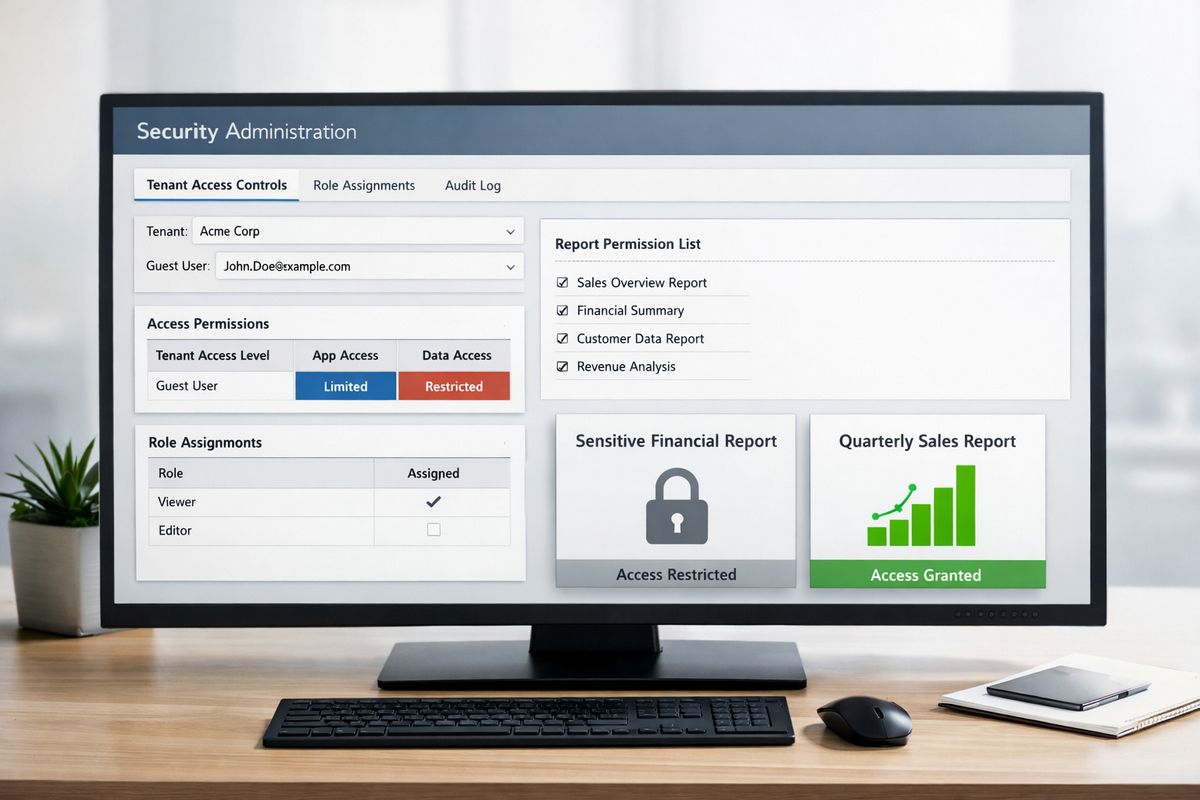
Being invited does not mean being authorized. A guest can exist in your organization and still see absolutely nothing in Power BI.
Actual visibility still comes from assigned permissions on an app, report, dashboard, workspace, or semantic model. Think of the guest invite as getting someone into the building. Permissions decide which rooms open.
Licensing: The Part That Trips People Up
Licensing is where simple sharing plans suddenly get annoying. You think access is configured, then someone signs in and gets blocked because the content is hosted in a way that requires a license your setup does not provide.
When a Pro license or Premium capacity is needed
A good rule of thumb is this: external users often need access through Premium capacity, or a Pro license in the guest’s own tenant, or a Pro license assigned by the host organization. Power BI Pro is commonly listed at $14 per user per month on annual commitment, which is manageable for a few outside users and annoying for hundreds.
This is why small external groups are usually fine with guest access, but large customer populations start pushing you toward capacity-based or embedding-focused models instead.
Why licensing changes based on how content is deployed
Licensing changes because Power BI cares about how the content is hosted and shared, not just who clicks the link. A workspace on one type of capacity can have very different viewing rules from a Pro-only setup.
So there is no single universal answer to “Does the guest need Pro?” Sometimes yes. Sometimes no. The real answer depends on the deployment model behind the content.
Security and Governance: How You Keep External Access Under Control
Guest access works because it gives you control points. Without those, external sharing turns into a junk drawer full of exceptions, mystery links, and accidental overexposure.
Row-level security and object-level security
Row-level security, or RLS, limits which rows of data a person can see. If two clients open the same report, RLS can make sure each client only sees that client’s own accounts, sales, or usage data.
Object-level security, or OLS, goes a step further by hiding certain tables or fields entirely. That is useful when some columns, like internal costs or private identifiers, should stay invisible no matter who signs in.
Conditional Access and stronger sign-in rules
If you want tighter control, Conditional Access adds sign-in rules based on things like device, location, or risk conditions. It is the security guard at the door, not just the guest list.
That matters for one specific reason: turning off external invites later does not automatically remove access already granted. Microsoft specifically notes that existing guest access can remain, which is why Conditional Access is the stronger tool when you need to actually block guest entry.
Apps, roles, and naming rules for cleaner governance
Clean governance is not glamorous, but it saves you later. Use role-based access instead of one-off exceptions. Assign clear ownership for workspaces, reports, and datasets. Keep naming and version rules consistent so external content is easy to trace.
Otherwise, six months later, you end up staring at three similarly named workspaces and wondering which “Client Sales Final v2” report is the one customers still use.
When Guest Access Works Well, and When It’s the Wrong Fit
https://www.youtube.com/watch?v=wljbHQeIpzM
Guest access is a strong option in the right situation. It is also absolutely the wrong tool in others.
Good fit: clients, partners, vendors, and small external groups
Guest access works well when you know exactly who needs access, the group is relatively small, and secure sign-in matters. That includes clients who need monthly dashboards, vendors checking operational metrics, or partners reviewing shared performance data over time.
In those cases, the extra identity setup is worth it because you get control, auditability, and cleaner permissions.
Not a great fit: large-scale customer embedding or frictionless public access
If your goal is a polished analytics experience inside your own product for lots of end customers, guest access can feel clunky fast. Invitations, tenant switching, and licensing overhead are not what you want for a broad customer base.
That is where embedded analytics models usually make more sense, especially when you want users inside your app without separate Power BI invitation steps.
A simple rule of thumb for choosing your sharing model
Here is the shortcut: if you know the outside people by name and want Microsoft identity controls, guest access is usually the right tool. If you want broad, seamless analytics for many end customers, look at embedding-focused options instead.
Common Limitations and Misunderstandings
A few questions come up almost every time external sharing starts. The answers are usually simpler than the setup screens make them look.
“If I disable guest invites, does access go away?”
No. Not automatically.
Disabling invites stops new invitations, but existing guests can still keep access to content already shared unless you remove permissions or apply broader blocking controls.
“Can I just add anyone straight to a workspace?”
Not usually. The guest has to exist in your organization first. That is why planned invites often come before workspace access.
If you skip that step, workspace sharing tends to hit a wall.
“Do guests need to accept an invite every time?”
Usually no. The invite acceptance is generally a one-time setup. After that, access depends on sign-in and whatever permissions are currently assigned.
“Why can’t an external user see the report even after getting the link?”
The usual suspects are missing permission, missing license, blocked tenant settings, Conditional Access rules, or RLS filtering the data more tightly than expected.
There are also occasional feature-specific gotchas. For example, some map-based reports can fail for external users if Azure Maps visuals are not enabled or properly authorized in the tenant.
The Practical Setup Path to Try First
The easiest way to learn this without causing a mess is to test one real external user from start to finish. Not ten users. One.
A low-risk starting point for your first external user
Pick one client or partner. Confirm the licensing path before you send anything. Invite that person as a guest, grant access through a Power BI app, and test the full sign-in flow on an actual afternoon when someone can reply if something breaks.
Then test row-level security with real data, even if the dataset is small. If that one user gets in smoothly, sees only the right data, and can reopen the app later without confusion, you have a setup worth expanding. That is the one thing to try first.