Power BI row-level security is the feature that decides which rows of data each signed-in person can see inside the same report. If you embed a dashboard in your app and one customer logs in Monday at 8:03 a.m., that customer should see only that customer’s numbers, not a neighboring account’s sales, inventory, or payroll by accident. That is exactly where RLS stops being a nice feature and starts being the line between a clean customer experience and a very bad support ticket.
What Power BI Row-Level Security Means in an Embedded App
In plain English, row-level security filters data inside the model before it reaches the report visuals. You keep one semantic model, one report, and one set of visuals, but each person gets a different slice of the data based on rules you define.
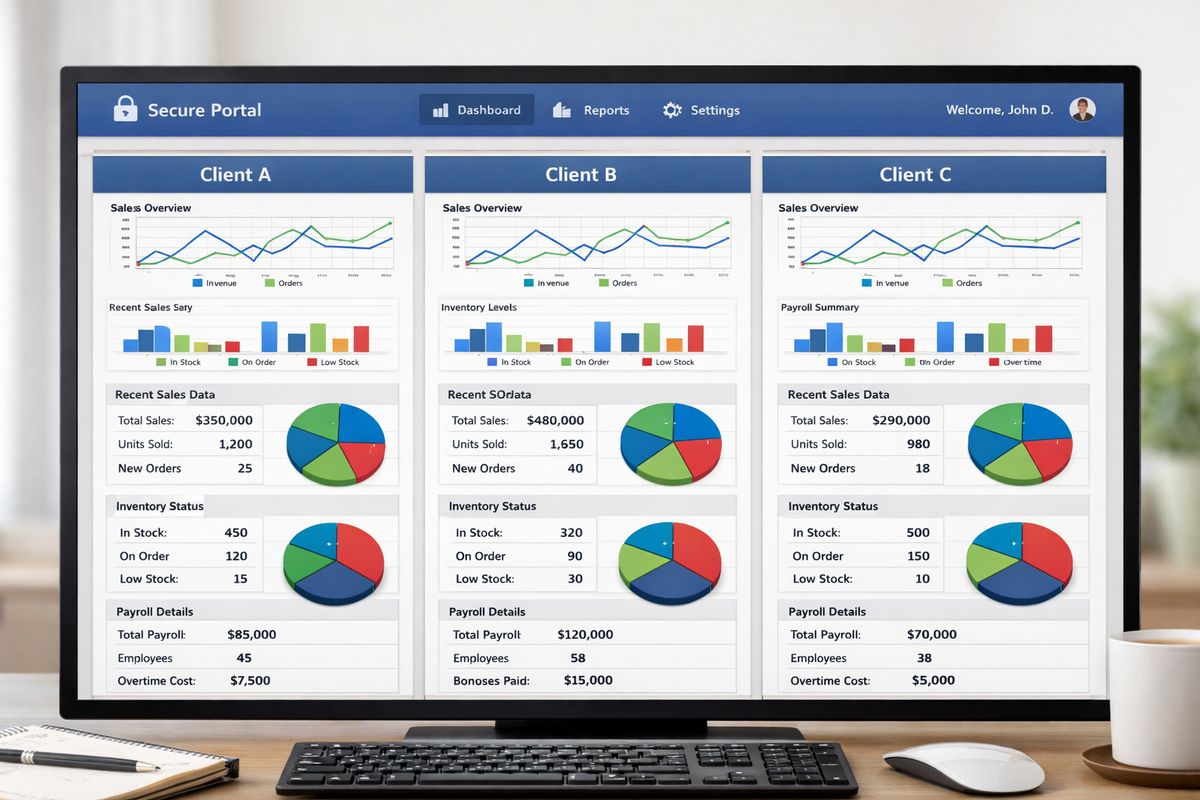
Picture a customer portal with one embedded sales dashboard. Ten customers use the same page layout, the same charts, and the same dataset. Customer A should only see Customer A rows. Customer B should only see Customer B rows. Power BI row-level security is the mechanism that makes that happen without forcing you to clone ten versions of the same report.
Here’s the part that trips people up: hiding a page is not security. Hiding a visual is not security. Filtering a chart in the report editor is not security either. Those are presentation choices. Real security happens when the model itself refuses to return rows that the current user should not see.
That distinction matters more than most people expect. If your embedded app depends on UI tricks to separate users, you do not have secure tenant isolation. You have a polite illusion.
Why RLS Matters More When You Embed Power BI for Customers
Embedding raises the stakes because your reports stop living in a mostly internal analyst environment and start appearing in customer-facing workflows. Once dashboards show up inside a portal, partner app, franchise platform, or account-specific website, a bad identity match can expose the wrong data fast.
A typical internal report mistake might confuse one team. A customer-facing embedded mistake can expose revenue, usage, or operational details to someone outside your company. Different category of problem.
Customer-by-customer portals are the obvious example, but not the only one. Franchise owners may need store-level visibility. Regional managers may need only their territory. Employees may need only their own records or their team’s metrics. In each case, the report can stay the same while the allowed rows change per person.
The problem RLS actually solves
RLS solves the scaling problem of personalized reporting. Without it, your choices get ugly fast. You either duplicate reports for every customer, region, or business unit, or you try to build fragile logic into the app layer and hope the report never leaks more than intended.
One report per customer sounds manageable at first. Then customer 17 needs a new KPI, customer 42 changes branding, and customer 88 gets merged into a parent account with shared access. Suddenly every simple update turns into a maintenance tax.
RLS gives you a better pattern: one model, one report, many secure views. The filtering happens at the model level, so the same visuals can serve a lot of audiences safely.
What RLS does not protect
RLS is powerful, but it does not do everything. It does not secure your entire workspace. It does not replace app authentication. It does not hide columns, measures, or tables by itself. And it definitely does not make bookmarks, hidden pages, or navigation menus secure.
Power BI has other controls for other jobs. Workspace permissions control who can access content. Object-level security can hide tables or columns. Your app controls who can log in and what embed experience gets loaded. RLS sits inside that bigger setup and handles one specific job: row filtering.
That makes it narrower than some people expect, but also more reliable. A hidden page can be discovered. A filtered visual can be changed. A model-level row filter is enforced.
How Power BI Row-Level Security Works Behind the Scenes
Under the hood, RLS is a combination of roles, DAX rules, model relationships, and user identity. DAX is Power BI’s formula language. The rule itself is usually a DAX expression that says, in effect, “show this row only if this condition is true.”
That true-or-false detail matters. A row appears only when the security rule evaluates to TRUE. If it does not, the row is out. No chart, matrix, or card gets to bypass that.
Roles and rules
A role is just a named bucket of access rules. You might create a role called WestRegion, another called FranchiseOwner, and another called CustomerAccess. Inside each role, you attach filter expressions to one or more tables.
A simple static example looks like this: Region = “West”. That rule means only rows where Region is West are visible through that role. A dynamic example might compare a user identity value to a column in a mapping table, which is where embedded scenarios usually get interesting.
Power BI supports both simple fixed rules and identity-based rules. Microsoft’s own examples include static filters like [Region] = "West" and dynamic filters like [UserEmail] = USERPRINCIPALNAME() in common DAX patterns.
How filters travel through relationships
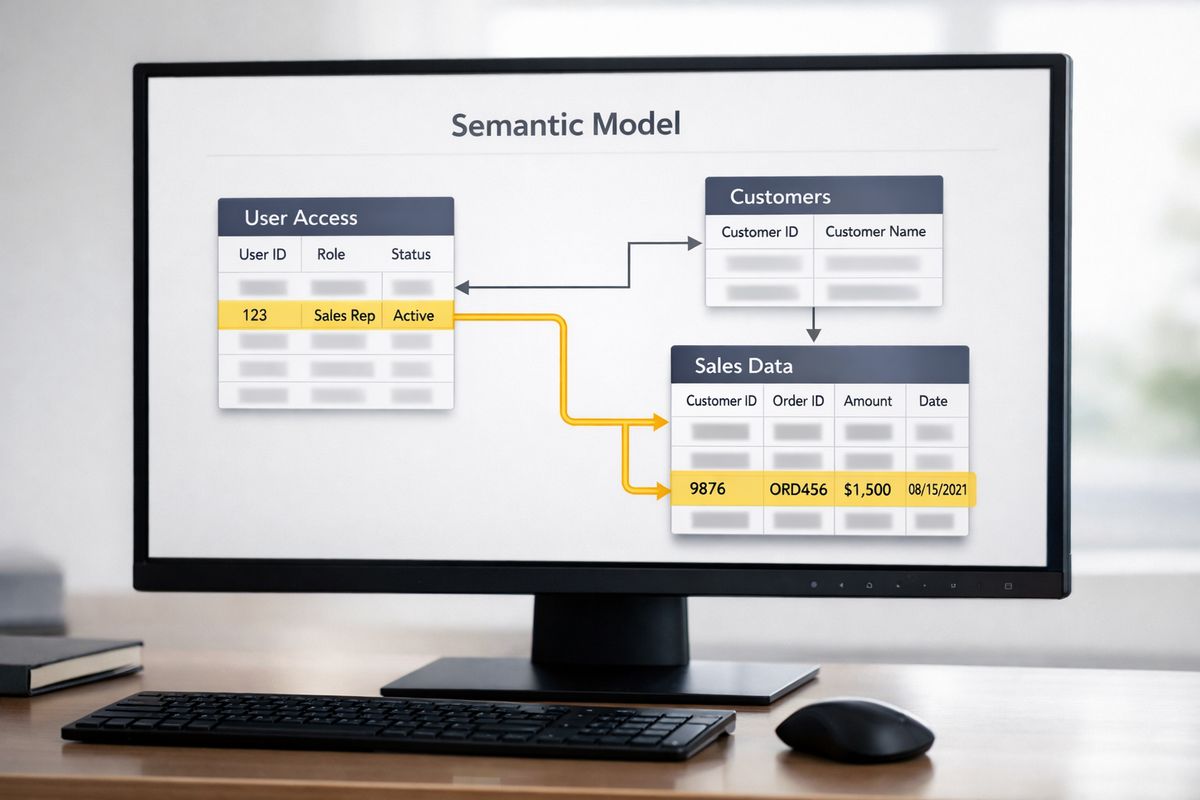
RLS rarely stops at one table. Usually, you filter a dimension or access table, and that filter flows through relationships to the fact data behind your visuals. If your access table links a signed-in user to CustomerID, and CustomerID links to sales facts, the allowed sales rows flow from that relationship chain.
That is why model design matters so much. Clean star-schema relationships make security easier to reason about. Messy many-to-many paths, duplicate keys, or ambiguous relationship chains make it harder to predict what will actually be visible.
If your security logic feels hard to explain on a whiteboard, it will be hard to debug in production too.
When “Apply security filter in both directions” comes into play
By default, RLS uses single-direction filtering even if your model has bidirectional relationships. In certain models, especially where security needs to travel across a relationship path that would otherwise not filter back, you may need the “Apply security filter in both directions” option.
This is the kind of setting that solves real problems and creates new ones if used casually. Microsoft notes that bi-directional security filtering can affect performance and should be tested carefully. In other words, treat it like a precision tool, not a default checkbox.
Static vs Dynamic RLS: Which One Fits Your Embedded Setup
There are two broad patterns for RLS: static and dynamic. Static RLS assigns fixed filters to roles. Dynamic RLS changes the filter based on who just signed in.
For most embedded apps, dynamic RLS is the better fit. Access usually follows the user, not a small fixed list of hand-maintained role buckets.
Static RLS
Static RLS is the simple version. You create a role with a rule like Region = “West” or StoreID = 12, then assign users to that role in the service. It is straightforward, easy to test, and good for stable access groups that rarely change.
The catch is scale. If you have a few regions and a few internal viewers, static roles are fine. If you have 300 customers and each customer should see only its own data, static roles get tedious fast. Every new customer means another role or another manual assignment path.
Dynamic RLS
Dynamic RLS filters data at runtime based on identity. Usually that means a function such as USERNAME() or USERPRINCIPALNAME() gets matched against a user access table that says which customer, region, store, or team belongs to that person.
This scales much better because your rule stays mostly the same while the access table carries the changing details. That is why dynamic RLS fits customer portals, partner dashboards, and multi-tenant apps so well. Access changes are handled through identity mapping, not report cloning.
There is more setup involved, honestly, but it is the kind of setup that saves you from long-term chaos.
A quick rule of thumb
Use static RLS when you have a small number of stable access groups and low change. Use dynamic RLS when access depends on who just logged in, which is the case for most embedded customer apps.
If your app is customer-facing, assume dynamic until proven otherwise.
The Core Pieces You Need for Dynamic RLS
Dynamic RLS sounds abstract until you break it into a few parts. Then it becomes pretty buildable.
A user access table
The access table is the bridge between identity and business data. It maps a user value, often email or UPN, to a business key like CustomerID, RegionID, StoreID, or EmployeeID.
Think of it like a guest list at a venue. The report is the room, the business key is the section, and the access table is the list that says who gets through which door.
If the signed-in identity matches a row in that table, the related business data becomes visible. If no match exists, the result is usually no data, which is often exactly what you want when something is misconfigured.
Identity functions like USERNAME() and USERPRINCIPALNAME()
These functions return identity values that your DAX rule can compare to the access table. USERPRINCIPALNAME() usually returns an email-style identity in the service. USERNAME() is trickier.
In Power BI Desktop, USERNAME() commonly returns DOMAIN\username. In the Power BI service, it returns a UPN instead. That difference causes a classic “worked on my machine” problem. You test locally against one format, publish, and suddenly the comparison fails because the service sends a different string.
If your dynamic RLS depends on exact string matching, identity format is not a side detail. It is the thing.
Relationship design that supports security
Your access table needs a clean relationship path to the tables the report uses. If the access table maps users to CustomerID, that CustomerID should connect clearly to the customer dimension or fact tables behind the report.
This is where bad modeling creates security confusion. If multiple paths exist from access to facts, or if key values are inconsistent, the rule may technically work but filter data in surprising ways. Simple, traceable relationships are easier to trust and easier to audit later.
How RLS Works in Power BI Embedded
https://www.youtube.com/watch?v=61fUUciDnks
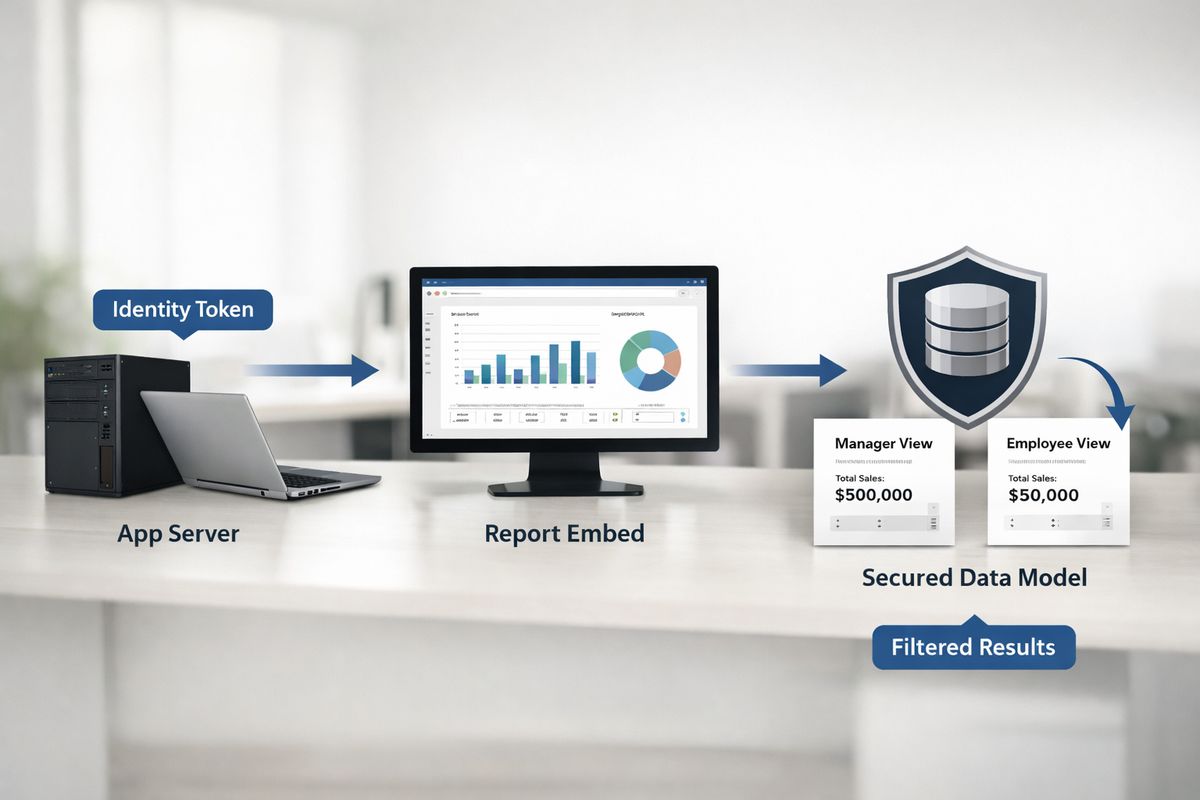
Now for the embedded-specific part. The semantic model can enforce RLS, but only if your embed flow sends the right user context. If identity never reaches the model correctly, the model cannot apply the right filter.
That means embedded security is not just a Power BI model problem. It is also an app architecture problem.
App owns data vs user owns data
Power BI Embedded usually follows one of two patterns: app owns data or user owns data. In user-owns-data setups, the signed-in user’s Power BI identity naturally plays a more direct role in access. In app-owns-data setups, your app often embeds content using a service principal or another non-user identity.
That architectural choice changes how user context reaches the model. Same report, different identity path.
Passing effective identity in embedded scenarios
In embedded terms, effective identity means your app tells Power BI which user context should be applied when the report runs. That identity is what triggers the right RLS role or dynamic filter.
Conceptually, it is simple: your app says, “Render this report as this specific user context.” If that context matches your access table or role design, the right rows show up. If it does not, security breaks or the user sees nothing.
This is why embedded RLS issues often live outside the report itself. The report may be perfectly configured while the token generation flow passes the wrong identity.
Why service principals need special attention
A service principal does not magically create per-user filtering. In app-owned-data scenarios, this is a common misunderstanding. If you rely on the service principal identity alone, Power BI sees the app, not the end user.
Microsoft documents that in embedded scenarios using a service principal, USERNAME() and USERPRINCIPALNAME() can return the app ID or nothing useful for end-user filtering, which is why EffectiveIdentity matters so much. In plain English: if you want customer-by-customer security, your app has to pass customer-by-customer identity context.
Step-by-Step: Setting Up Power BI Row-Level Security
The recommended flow is nicely boring, which is good. You build the rules in Desktop, publish, assign members in the service, then test.
Define roles in Power BI Desktop
Roles are created in Power BI Desktop, usually from the Modeling area. You pick the table to secure, define the DAX rule, and save the role. For many cases, the built-in role editor is enough.
Some dynamic expressions are easier to manage in a proper DAX editor, especially when the rule involves lookup logic or multiple conditions. Still, the main job is simple: define the role and the filter where the model lives.
Publish the model and report
After the roles exist, publish the semantic model and report to the Power BI service. Desktop is the design environment. The service is where operational role membership and embedded usage come together.
This step matters because you cannot finish the whole RLS workflow in Desktop alone. Desktop defines roles. The service applies them in a deployed environment.
Assign users or groups in Power BI Service
Once published, role membership is managed in the service. Microsoft’s recommended RLS workflow is exactly that sequence: define roles in Desktop, publish, add members in the service, then validate.
One easy-to-miss detail matters a lot here: RLS in the service applies to users with Viewer permissions. It does not restrict Admins, Members, or Contributors in a workspace. If you test with an elevated workspace account, you can think RLS failed when really your permissions bypassed the experience.
Validate with View as and Test as role
In Desktop, use View as Roles to test the logic before publishing. In the service, use Test as role to validate published behavior. Both steps help, and neither replaces the other.
Desktop testing checks your DAX logic. Service testing checks published role behavior. Embedded app testing checks the actual runtime identity flow. You need all three.
Testing RLS Before an Embedded Launch
Testing is not optional when customers are on the other side of the login page. RLS bugs are often invisible until the wrong person opens the report.
Test in Desktop for logic
Start in Desktop and confirm the role filters the expected rows. Do not stop at “the chart looks right.” Check table views. Inspect the actual keys and dimensions being filtered.
That extra five minutes catches a lot. A bar chart can still look plausible while the underlying rows are wrong.
Test in the service for real membership behavior
After publishing, test in the service because role membership, user identity resolution, and workspace permissions all behave there, not in your local file. This is where the Viewer-only rule shows up, and where identity strings can differ from what you saw in Desktop.
If something fails only after publish, suspect environment differences before rewriting your whole model.
Test in the embedded app itself
The final test has to happen in the actual app flow. This is where sign-in, token generation, effective identity, role mapping, and the report all meet. Many guides stop one step too early here.
A report that passes in Desktop and the service can still fail in the embedded app if your token code passes the wrong identity, forgets a role, or uses a service principal without per-user context. Real leaks happen at this boundary.
Common Embedded RLS Pitfalls and How to Fix Them
Most RLS problems fall into a few familiar buckets. The good news is that they are usually diagnosable.
“The user sees all data”
When a user sees everything, the most likely causes are missing role assignment, incorrect effective identity in the embed flow, or testing with a workspace account that has elevated permissions. Another common issue is using a service principal and assuming the model somehow knows the end user automatically.
Start by confirming the role exists, the deployed model has it, the user context reaching the model is correct, and your test account is not an Admin, Member, or Contributor.
“The user sees no data”
No data usually means the filter worked, but nothing matched. Check for identity mismatches first. Email casing, guest user naming, domain differences, and formatting mismatches are classic culprits.
Then check the access table. If the user has no matching row, no related key, or a broken relationship path, the model will happily return a blank report.
“It works in Desktop but not after publish”
This one is almost a rite of passage. The most common cause is different identity values between Desktop and the service, especially with USERNAME(). A local test may compare against DOMAIN\username, while the service sends a UPN-style value.
Role assignment differences after deployment are another common cause. Desktop can simulate a role, but the service still needs the right users or groups attached to it.
“Performance got worse after adding RLS”
RLS adds filtering work, so some performance hit is normal. The size of the hit depends on model design, relationship complexity, and storage mode. Imported models often handle this more predictably. DirectQuery and Direct Lake can get more sensitive.
For Fabric-era models, watch Direct Lake behavior closely. If queries fall back to DirectQuery, security still applies, but performance can change in ways that feel sudden. That is especially relevant in embedded apps where users notice every extra second.
Special Cases: External Users, B2B Access, and Multi-Tenant Apps
Customer-facing embedded setups often run into identity shapes that internal-only articles barely mention.
External customers and guest identities
External and B2B guest identities may not look the way you expect inside Power BI. The value your app stores for a customer might not match the value Power BI resolves at runtime. That mismatch breaks dynamic RLS quietly.
Microsoft specifically recommends caution with external guest scenarios and notes that B2B guest users often work better with direct role assignment by email or dynamic matching through USERPRINCIPALNAME() than with assumptions about group evaluation. The practical takeaway is simple: match your access table to the actual identity string Power BI sees.
Multi-tenant customer portals
A multi-tenant portal is the classic embedded RLS use case. One model serves many customers. RLS isolates each tenant’s data based on identity mapping. It is cleaner than maintaining one report per tenant and usually far easier to scale.
The tradeoff is operational discipline. Multi-tenant simplicity at the report layer depends on airtight identity mapping underneath. If the mapping is sloppy, the whole design gets shaky.
Security groups and operational maintenance
As access grows, assigning groups to roles can reduce manual upkeep. That helps especially for internal and partner scenarios where group management is already part of your identity process.
Still, group assignment is a maintenance tool, not proof that security works. A neatly organized role can still map the wrong users if the underlying identity assumptions are wrong.
Performance and Modeling Considerations You Should Plan For
https://www.youtube.com/watch?v=Z0eeTTL7EhQ
Security is not a toggle you sprinkle on at the end. It is part of model architecture.
Imported, DirectQuery, and Direct Lake models
RLS works across imported, DirectQuery, and Direct Lake semantic models. The behavior is conceptually the same, but the performance profile is not. Imported models usually feel more predictable. DirectQuery depends heavily on source performance. Direct Lake can be fast, but fallback behavior changes the experience.
That last point catches teams by surprise. In Fabric, Direct Lake can fall back to DirectQuery for some queries, and RLS still works, but the speed can shift enough for users to notice.
Keep security logic simple and traceable
Simple security rules are easier to trust. A clear access table, clean dimensions, and straightforward DAX filters are much easier to debug than a maze of nested conditions spread across half the model.
If you need fifteen minutes to explain who can see what, your future self is going to hate maintenance day.
RLS vs object-level security
RLS filters rows. Object-level security hides objects like tables or columns. Those are different jobs. If you expect RLS to hide a sensitive salary column while still showing the rest of the row, you are using the wrong tool.
This distinction matters in embedded apps because customers often need both kinds of control: row isolation for tenant separation, plus object hiding for fields nobody outside your team should touch.
Best Practices for Secure, Maintainable Embedded RLS
The best embedded RLS setups are boring in the best possible way. Predictable, explainable, and easy to test.
Start with the access model, not the report
Before you polish visuals, decide who should see what. Security belongs in the semantic model, not as a last-minute report tweak. Once the access model is clear, report design gets easier because you know what data shape each user is allowed to see.
Use dynamic RLS for scale
For most customer-facing embedded apps, dynamic RLS is the right choice. Static role sprawl becomes unmanageable faster than expected. A clean identity-to-access mapping table ages much better than dozens or hundreds of manually maintained roles.
Test with least-privileged accounts
Test with Viewer-level users and realistic identity values, not admin accounts that bypass normal enforcement. If your production users are customers signing in through your app, that is the experience worth validating.
Document identity formats and role rules
Keep a simple record of expected identity formats, role names, and access-table logic. It sounds boring because it is boring. It also saves hours when somebody says, “Why did this guest user suddenly lose access after the domain change?”
What to understand before you rely on it
Power BI row-level security is not hard once the shape clicks: the model enforces row filters, identity triggers the right filter, and your embedded app has to pass that identity correctly. Everything else is implementation detail.
The mistake to avoid is treating RLS like a report setting. It is really a contract between your model, your identity flow, and your embedding architecture. Get that contract right, and one embedded report can safely serve thousands of users. Get it wrong, and even a beautiful dashboard becomes a liability.
Try one thing before moving deeper: log the exact identity value reaching your embedded model and compare it to your access table character for character. That small check catches an absurd number of RLS problems before your customers ever see them.